
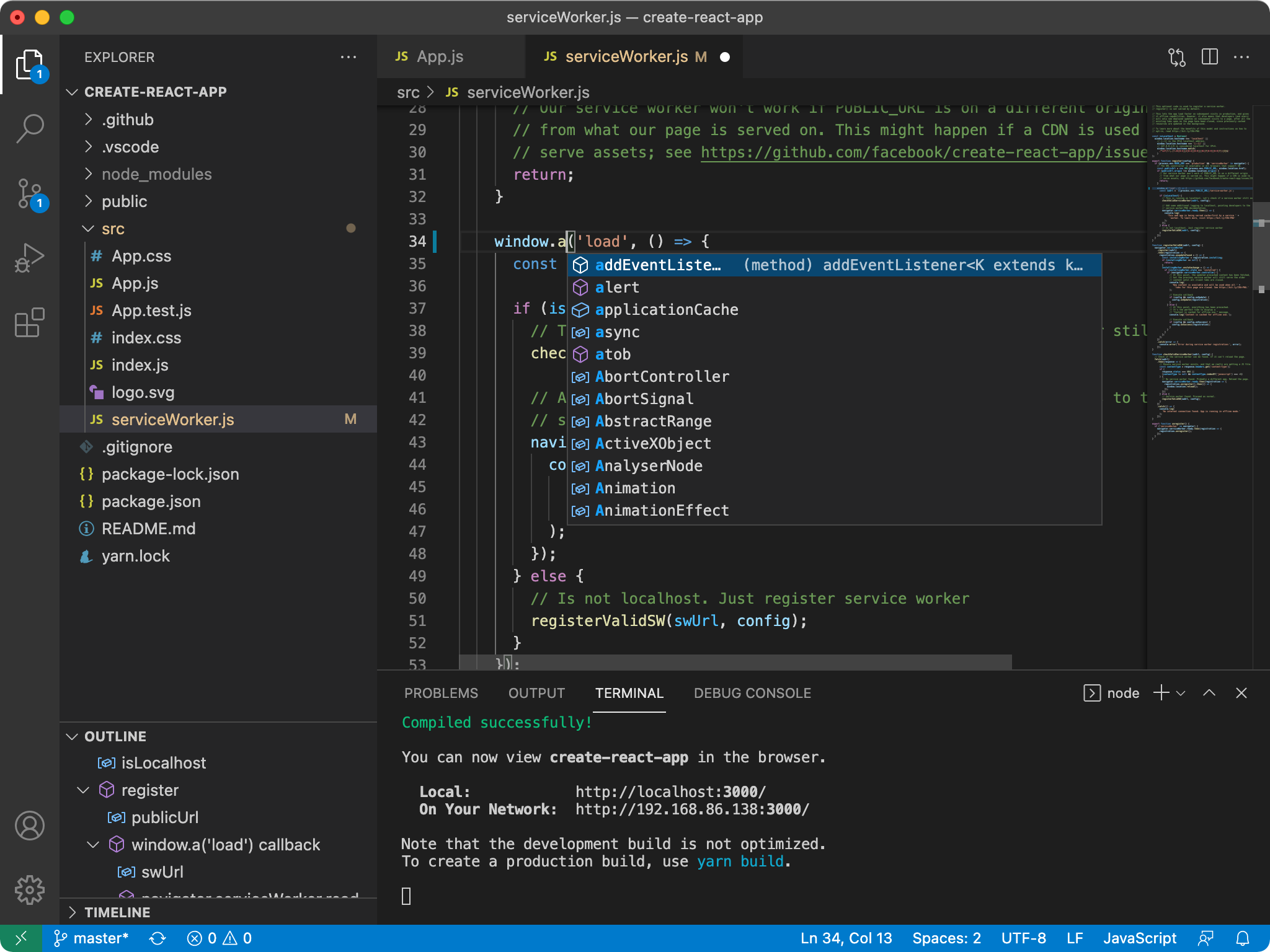
VS Code keyboard shortcuts improve coding efficiency by reducing reliance on manual mouse movements. This reference page covers 64 verified shortcuts for Windows 10, Windows 11, and macOS Sonoma, including terminal commands and multi-cursor editing. Use these Visual Studio Code hotkeys to streamline your development workflow across various programming languages and environments.
Basic VS Code Keyboard Shortcuts for Editing
General editing commands form the foundation of any coding project. These VS Code hotkeys handle file operations, line manipulations, and basic text editing. Use the tables below to identify the correct VS Code shortcut keys list for your specific operating system.
Windows and Linux Basic Shortcuts
| Shortcut / Key Combination | Action / Function | Notes |
| Ctrl+Shift+P | Open Command Palette | Access all available commands |
| Ctrl+P | Quick Open | Search and open files by name |
| Ctrl+Shift+N | New Window | Open a new VS Code instance |
| Ctrl+Shift+W | Close Window | Exit the current VS Code instance |
| Ctrl+, | User Settings | Open the settings editor |
| Ctrl+K Ctrl+S | Keyboard Shortcuts | Open the keyboard shortcut editor |
| Ctrl+X | Cut line | Cuts the entire line if no text is selected |
| Ctrl+C | Copy line | Copies the entire line if no text is selected |
| Alt+Arrow Up | Move line up | Shifts the current line upward |
| Alt+Arrow Down | Move line down | Shifts the current line downward |
| Shift+Alt+Arrow Up | Copy line up | Duplicates the current line above |
| Shift+Alt+Arrow Down | Copy line down | Duplicates the current line below |
| Ctrl+Shift+K | Delete line | Removes the current line entirely |
| Ctrl+Enter | Insert line below | Creates a new line without breaking the current line |
| Ctrl+Shift+Enter | Insert line above | Creates a new line before the current line |
macOS Basic Shortcuts
| Shortcut / Key Combination | Action / Function | Notes |
| Command+Shift+P | Open Command Palette | Access all available commands |
| Command+P | Quick Open | Search and open files by name |
| Command+, | User Settings | Open the settings editor |
| Command+Shift+N | New Window | Open a new VS Code instance |
| Command+Shift+W | Close Window | Exit the current VS Code instance |
| Command+X | Cut line | Cuts the line if selection is empty |
| Command+C | Copy line | Copies the line if selection is empty |
| Option+Arrow Up | Move line up | Shifts the current line upward |
| Option+Arrow Down | Move line down | Shifts the current line downward |
| Shift+Option+Arrow Up | Copy line up | Duplicates the current line above |
| Shift+Option+Arrow Down | Copy line down | Duplicates the current line below |
| Command+Shift+K | Delete line | Removes the current line entirely |
| Command+Enter | Insert line below | Creates a new line below current cursor |
How to Navigate Code in VS Code
Efficient navigation allows developers to jump between files and symbols without scrolling. Use these VS Code keyboard commands to manage your workspace and find specific blocks of code. Mastering these best VS Code shortcuts for beginners prevents time loss during large project reviews.
Navigation Shortcuts for Windows and Linux
| Shortcut / Key Combination | Action / Function | Notes |
| Ctrl+T | Show all Symbols | Search for symbols across the project |
| Ctrl+G | Go to Line | Jump to a specific line number |
| Ctrl+Shift+O | Go to Symbol | Search for symbols within the current file |
| Ctrl+Shift+M | Show Problems panel | Open the errors and warnings list |
| F8 | Go to next error | Cycle through code errors |
| Shift+F8 | Go to previous error | Cycle backward through code errors |
| Ctrl+Shift+Tab | Navigate editor history | Switch between recently opened files |
| Alt+Arrow Left | Go back | Return to the previous cursor position |
| Alt+Arrow Right | Go forward | Move to the next cursor position |
Navigation Shortcuts for macOS
| Shortcut / Key Combination | Action / Function | Notes |
| Command+T | Show all Symbols | Search symbols in the workspace |
| Control+G | Go to Line | Jump to a specific line number |
| Command+Shift+O | Go to Symbol | Search symbols in the active file |
| Command+Shift+M | Show Problems panel | View the error and warning list |
| F8 | Go to next error | Jump to the next code warning |
| Shift+F8 | Go to previous error | Jump to the previous code warning |
| Control+Shift+Tab | Navigate editor history | Cycle through recently used files |
| Control+Hyphen | Go back | Return to the last cursor location |
| Control+Shift+Hyphen | Go forward | Move forward in cursor history |
Advanced Multi-Cursor and Selection Shortcuts
Multi-cursor editing enables the simultaneous modification of multiple lines. This feature is a significant VS Code keybinds advantage for refactoring code or editing repetitive data structures. If you are working on Python development in VS Code, these commands help manage list items or dictionary keys quickly.
| Shortcut / Key Combination | Action / Function | Platform |
| Alt+Click | Insert cursor | Windows / Linux |
| Command+Click | Insert cursor | macOS |
| Ctrl+Alt+Arrow Up | Insert cursor above | Windows / Linux |
| Command+Option+Arrow Up | Insert cursor above | macOS |
| Ctrl+Alt+Arrow Down | Insert cursor down | Windows / Linux |
| Command+Option+Arrow Down | Insert cursor down | macOS |
| Ctrl+U | Undo last cursor operation | Windows / Linux |
| Command+U | Undo last cursor operation | macOS |
| Shift+Alt+I | Insert cursor at end of lines | Windows / Linux |
| Shift+Option+I | Insert cursor at end of lines | macOS |
| Ctrl+D | Add selection to next find match | Windows / Linux |
| Command+D | Add selection to next find match | macOS |
| Ctrl+Shift+L | Select all occurrences of match | Windows / Linux |
| Command+Shift+L | Select all occurrences of match | macOS |
VS Code Terminal and UI Management
Managing the integrated terminal and sidebar panels is 14 shortcuts. These VS Code hotkeys allow you to toggle UI elements to maximize screen space for code. For developers using Git commands for developers, the terminal shortcuts are vital for executing version control tasks without switching windows.
| Shortcut / Key Combination | Action / Function | Windows/Linux | macOS |
| Ctrl+` | Toggle Terminal | Ctrl+` | Control+` |
| Ctrl+Shift+` | Create new terminal | Ctrl+Shift+` | Control+Shift+` |
| Ctrl+B | Toggle Sidebar visibility | Ctrl+B | Command+B |
| Ctrl+Shift+E | Show Explorer | Ctrl+Shift+E | Command+Shift+E |
| Ctrl+Shift+F | Show Search | Ctrl+Shift+F | Command+Shift+F |
| Ctrl+Shift+G | Show Source Control | Ctrl+Shift+G | Control+Shift+G |
| Ctrl+Shift+D | Show Debug | Ctrl+Shift+D | Command+Shift+D |
| Ctrl+Shift+X | Show Extensions | Ctrl+Shift+X | Command+Shift+X |
| Ctrl+Shift+U | Show Output panel | Ctrl+Shift+U | Command+Shift+U |
| Ctrl+Shift+V | Open Markdown preview | Ctrl+Shift+V | Command+Shift+V |
| Ctrl+K Z | Zen Mode | Ctrl+K Z | Command+K Z |
Frequently Asked Questions
What is the shortcut to format code in VS Code?
Press Shift+Alt+F on Windows or Linux to format the active document. On macOS, press Shift+Option+F to trigger the code formatter for your specific programming language.
How do I open the terminal in VS Code using the keyboard?
Toggle the integrated terminal by pressing Ctrl+ on Windows or Control+ on macOS. Create an additional terminal instance by pressing Ctrl+Shift+ or Control+Shift+.
What is the VS Code shortcut for commenting out code?
Press Ctrl+/ on Windows or Linux to toggle a line comment for the selected text. On macOS, press Command+/ to comment or uncomment the active lines of code.
How do I search for a file in VS Code?
Open the Quick Open search bar by pressing Ctrl+P on Windows or Command+P on macOS. Type the name of the file to see a list of matches and press Enter to open the selection.
How do I change keyboard shortcuts in VS Code?
Access the Keyboard Shortcuts editor by pressing Ctrl+K Ctrl+S on Windows or Command+K Command+S on macOS. This interface allows you to search for commands and assign custom key combinations to any action.
To further improve your speed, check our Windows terminal shortcuts guide to master command line navigation.