
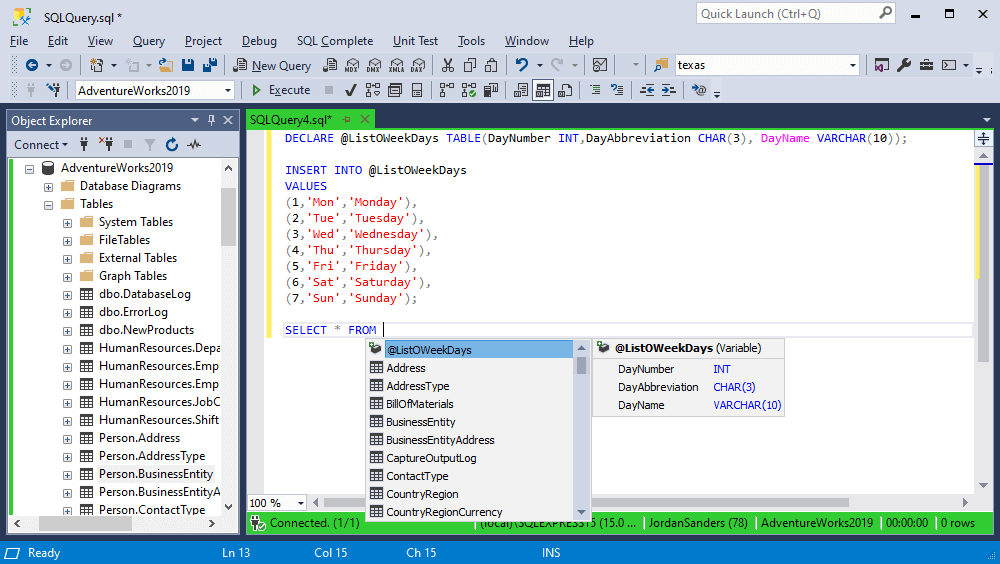
SQL (Structured Query Language) efficiency depends on the rapid execution and manipulation of queries within Integrated Development Environments (IDEs). Utilizing SQL keyboard shortcuts minimizes reliance on graphical user interface (GUI) menus and accelerates database management tasks. Whether working in SQL Server Management Studio (SSMS), PostgreSQL (pgAdmin), or MySQL Workbench, these default keybindings streamline the development workflow and improve technical productivity.
This reference details essential SQL shortcuts for 2026, categorized by functional domain. The data focuses on universal commands and platform-specific triggers for the most widely used database management systems.
Query Execution and Management
Execution shortcuts are the primary tools for running scripts and managing active query windows.
| Action | SSMS (SQL Server) | pgAdmin (Postgres) | MySQL Workbench |
| Execute Current Query | F5 / Ctrl + E | F5 / Alt + Shift + E | Ctrl + Shift + Enter |
| Execute Selection | F5 / Ctrl + E | F5 | Ctrl + Enter |
| Cancel Executing Query | Alt + Break | Q | (Via Toolbar) |
| New Query Tab | Ctrl + N | Alt + Shift + Q | Ctrl + T |
| Close Current Tab | Ctrl + F4 / Ctrl + W | Ctrl + W | Ctrl + W |
| Save Script | Ctrl + S | Ctrl + S | Ctrl + S |
Code Editing and Formatting
Technical editing shortcuts allow for rapid modification of SQL statements and ensure code readability.
| Action | Shortcut Key (Universal/SSMS) |
| Comment Selection | Ctrl + K, Ctrl + C |
| Uncomment Selection | Ctrl + K, Ctrl + U |
| Convert to Uppercase | Ctrl + Shift + U |
| Convert to Lowercase | Ctrl + Shift + L |
| Display IntelliSense / Autocomplete | Ctrl + Space |
| Indent / Outdent Block | Tab / Shift + Tab |
| Toggle Bookmarks | Ctrl + K, Ctrl + K |
| Go to Matching Brace | Ctrl + ] |
Navigation and View Controls
Navigating large schemas and managing result sets requires specific navigation shortcuts to maintain focus on the dataset.
| Action | Keyboard Shortcut |
| Show/Hide Results Pane | Ctrl + R |
| Toggle Full Screen | Shift + Alt + Enter |
| Focus Object Explorer | F8 |
| Search (Find) | Ctrl + F |
| Find and Replace | Ctrl + H |
| Go to Line Number | Ctrl + G |
| Clear Query Window | Ctrl + Shift + Del |
Result Set and Data Grid Shortcuts
Manipulating the data returned from a SELECT statement is essential for data analysis and export tasks.
| Action | Shortcut Key |
| Select All Results | Ctrl + A |
| Copy with Headers | Ctrl + Shift + C |
| Save Results As (CSV/Text) | Ctrl + Shift + S (In some IDEs) |
| Switch to Grid View | Ctrl + D |
| Switch to Text View | Ctrl + T |
Technical Tip: The “Execute Selection” Workflow
Database administrators frequently use the F5 or Ctrl + E shortcut to run only a specific portion of a large script. Highlighting a block of code and pressing the execution key limits the query engine’s scope to the selection, preventing the accidental execution of destructive commands (like DROP or DELETE) elsewhere in the file.
Customizing SQL Hotkeys
Most professional SQL environments allow for the remapping of these default controls. In SSMS, navigate to Tools > Options > Environment > Keyboard. In pgAdmin, use File > Runtime > Preferences > Keyboard Shortcuts. Customizing these bindings ensures that the development environment aligns with specific project requirements and personal speed-coding habits.