
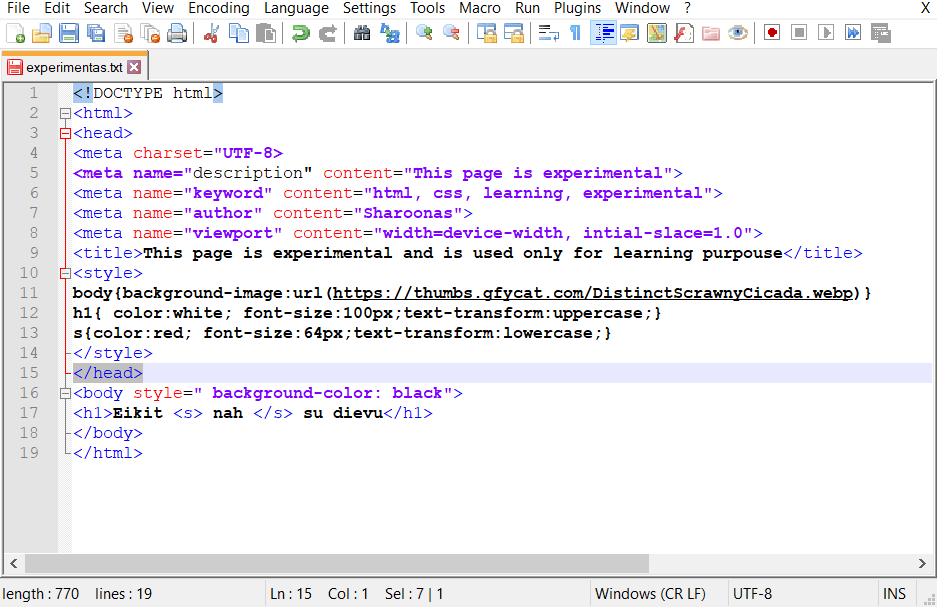
Notepad++ is the preferred text editor for developers and data analysts due to its speed and extensive feature set. Mastering Notepad++ keyboard shortcuts is the most effective way to handle large-scale text manipulation, code editing, and multi-file management. Whether you are refactoring code or cleaning up raw data, utilizing these default keybindings allows you to navigate the interface without ever taking your hands off the keyboard.
This guide provides a comprehensive list of Notepad++ shortcuts for the 2026 version. From basic file operations to advanced “Column Mode” editing and macro recording, these hotkeys are essential for anyone looking to maximize their efficiency in this versatile editor.
File and Document Management
Quickly navigate between open files and manage your current session with these core shortcuts.
| Action | Keyboard Key |
| New File | Ctrl + N |
| Open File | Ctrl + O |
| Save Current File | Ctrl + S |
| Save All Open Files | Ctrl + Shift + S |
| Close Current Document | Ctrl + W |
| Close All Documents | Ctrl + Shift + W |
| Next / Previous Tab | Ctrl + PageDown / PageUp |
| Switch to N-th Document | Ctrl + [Numpad 1-9] |
| Restore Recently Closed File | Ctrl + Shift + T |
Advanced Text Editing and Manipulation
Notepad++ offers unique shortcuts for line-based editing that are significantly faster than manual typing.
| Action | Keyboard Key |
| Duplicate Current Line | Ctrl + D |
| Move Line Up / Down | Ctrl + Shift + Up / Down |
| Delete Current Line | Ctrl + Shift + L (or Ctrl + L) |
| Split Lines | Ctrl + I |
| Join Lines | Ctrl + J |
| Convert to UPPERCASE | Ctrl + Shift + U |
| Convert to lowercase | Ctrl + U |
| Toggle Single Line Comment | Ctrl + Q |
| Block Comment Selection | Ctrl + Shift + Q |
Search, Replace, and Navigation
The search engine in Notepad++ is robust; using these shortcuts allows for rapid navigation through thousands of lines of code.
| Action | Keyboard Key |
| Find Dialog | Ctrl + F |
| Find and Replace Dialog | Ctrl + H |
| Find in Files (Global Search) | Ctrl + Shift + F |
| Find Next / Previous | F3 / Shift + F3 |
| Incremental Search | Ctrl + Alt + I |
| Go to Line Number | Ctrl + G |
| Go to Matching Brace | Ctrl + B |
| Toggle Bookmark | Ctrl + F2 |
| Next / Previous Bookmark | F2 / Shift + F2 |
Multi-Editing and Column Mode
One of the most powerful features of Notepad++ is the ability to edit multiple lines at once.
- Column Mode Select: Hold Alt + Shift and use the Arrow Keys, or hold Alt and drag your mouse. This allows you to type across multiple lines simultaneously.
- Column Editor: Press Alt + C while in Column Mode to insert sequential numbers or text into a specific column.
- Multi-Editing Toggle: Enable this in Settings > Preferences > Editing to hold Ctrl and click multiple locations to type in several places at once.
Macros and System Controls
Automate repetitive tasks by recording your keystrokes.
| Action | Keyboard Key |
| Start / Stop Macro Recording | Ctrl + Shift + R |
| Playback Macro | Ctrl + Shift + P |
| Run Dialog (for CMD/Browsers) | F5 |
| Toggle Full Screen | F11 |
| Post-It Mode (Distraction Free) | F12 |
Professional Tip: The “Find Volatile” Shortcut
If you want to find the next instance of a word without opening the Find dialog box, simply place your cursor on the word and press Ctrl + Alt + F3. This is known as the “Volatile Next” search and is perfect for quick navigation during a code review.
All of these Notepad++ default controls can be customized by navigating to Settings > Shortcut Mapper. This allows you to resolve any conflicts with system-level hotkeys or to map your most frequent plugin actions to specific keys.