
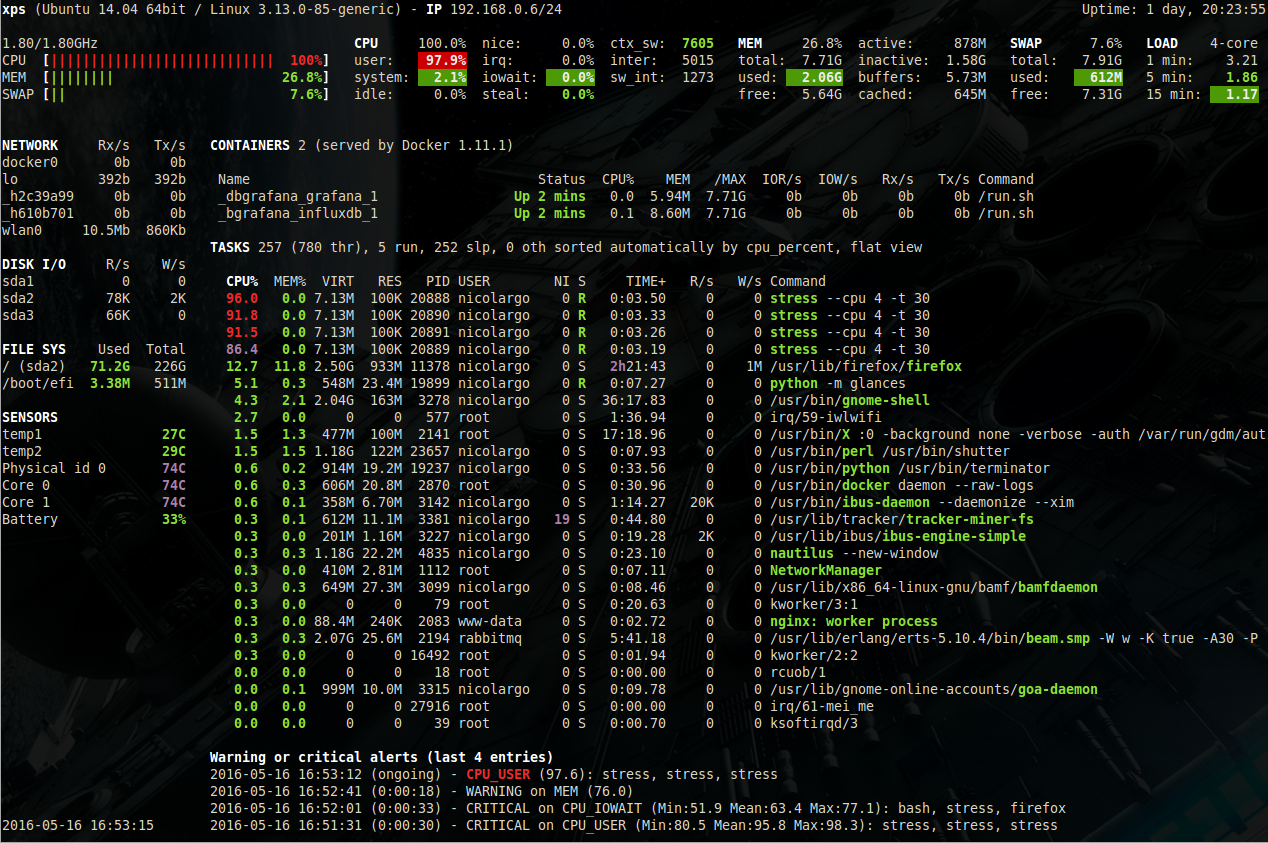
Glances is a powerful, cross-platform system monitoring tool that provides a wealth of information in a single terminal window or web interface. To effectively manage the high density of data Glances provides, mastering the Glances keyboard shortcuts is essential. These hotkeys allow you to toggle specific modules, sort process lists, and navigate system logs without ever leaving your terminal environment.
Whether you are a system administrator or a power user, knowing the Glances keybindings helps you identify bottlenecks—such as CPU spikes or memory leaks—instantly. This guide provides a detailed list of the most important Glances shortcuts for the 2026 version, ensuring you can customize your monitoring view in real-time for maximum efficiency.
Core Interface and Toggle Shortcuts
These keys allow you to show or hide specific monitoring modules to focus on the data that matters most.
| Action | Keyboard Key |
| Show/Hide Help Screen | h |
| Show/Hide Network Stats | n |
| Show/Hide Disk I/O Stats | d |
| Show/Hide File System Stats | f |
| Show/Hide Sensors (Temp/Fan) | s |
| Show/Hide Log Messages | l |
| Show/Hide IP Module | I |
| Show/Hide Docker/Podman Stats | D |
| Toggle Left Sidebar | 2 |
| Quit Glances | q (or Esc / Ctrl+C) |
Process List Sorting Shortcuts
Glances offers several ways to organize the process list, making it easier to find resource-heavy applications.
| Action | Keyboard Key |
| Sort Automatically | a |
| Sort by CPU % | c |
| Sort by Memory % | m |
| Sort by Process Name | p |
| Sort by I/O Rate | i |
| Sort by CPU Times (TIME+) | t |
| Sort by User | u |
Navigation and View Customization
Use these shortcuts to change how data is displayed or to navigate through the interface.
| Action | Keyboard Key |
| Refresh Interface | F5 (or Ctrl+R) |
| Navigate Process List | Up / Down Arrows |
| Switch Bit/s or Byte/s (Network) | b |
| Toggle UI Theme (Black/White) | 9 |
| Show/Hide Current Time | N |
| Reset Min/Max History | r |
| Cumulative Network I/O View | u |
Advanced Interactive Commands
For users running Glances in standalone mode with the appropriate permissions, these shortcuts allow for direct system interaction.
| Action | Keyboard Key |
| Kill Selected Process | k |
| Increase Process Nice Level | + |
| Decrease Process Nice Level | – |
| Delete Finished Warning Logs | w |
| Delete All Warning/Critical Logs | x |
Professional Tip: Using the “Auto” Mode
One of the most useful Glances shortcuts is the ‘a’ key. When enabled, Glances will automatically sort the process list based on current system stress. If CPU usage is high, it sorts by CPU; if memory is low, it switches to memory sorting. This allows you to keep an eye on the most critical resource without manual intervention.
For those running Glances on remote servers, remember that these keyboard shortcuts work exactly the same way over an SSH connection or within the Glances Web UI, provided you have the browser window in focus.