
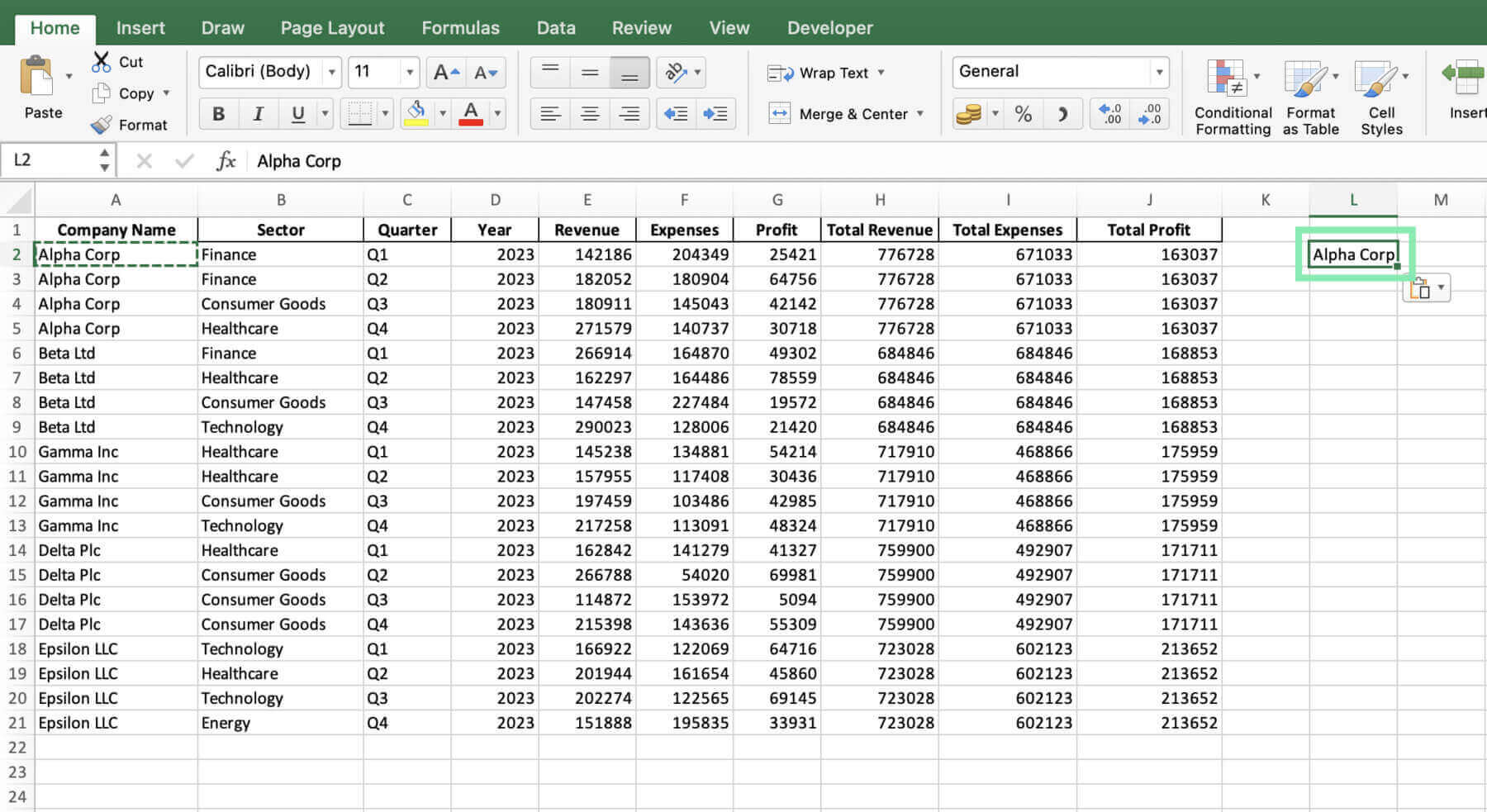
Microsoft Excel users frequently require efficient methods to manage large datasets. Removing unnecessary data quickly optimizes spreadsheet performance and workflow. The Excel keyboard shortcut to delete a row provides a direct solution to eliminate entire rows without relying on the mouse or right-click menus. Executing this specific shortcut accelerates data entry and spreadsheet formatting.
Understanding the exact keystrokes to delete a row in Excel prevents manual errors and reduces repetitive strain. Data analysts and financial modelers utilize these precise keyboard combinations to edit spreadsheets rapidly. This guide details the primary shortcuts for both Windows and Mac operating systems, including methods for single and multiple row deletions.
Method 1: The Direct Selection Shortcut (Windows & Mac)
The fastest approach involves a two-step keyboard sequence. You select the entire row first, then execute the deletion command. You can apply this to multiple rows by selecting multiple cells vertically before executing the first step.
Windows
- Select the entire row: Press Shift + Spacebar
- Delete the selected row: Press Ctrl + – (Minus Key)
Mac
- Select the entire row: Press Shift + Spacebar
- Delete the selected row: Press Cmd + – (Minus Key)
Method 2: The Dialog Box Sequence (Windows)
When a single cell is active and you prefer not to select the entire row first, invoke the Delete dialog box to target the row directly.
- Open the Delete menu: Press Ctrl + – (Minus Key)
- Select “Entire Row”: Press R
- Execute the deletion: Press Enter
Method 3: The Ribbon Navigation (Windows)
Sequential keystrokes activate the ribbon commands directly. Press these keys in order. Do not hold them simultaneously.
- Activate Ribbon: Press Alt
- Access Home Tab: Press H
- Access Delete Menu: Press D
- Delete Sheet Rows: Press R
Deleting Multiple Non-Adjacent Rows
To delete multiple rows that are not next to each other, you combine the mouse with the keyboard shortcut.
- Hold the Ctrl key (Windows) or Cmd key (Mac).
- Click the row numbers on the left-hand side of the spreadsheet to highlight the specific rows.
- Release the Ctrl/Cmd key.
- Press Ctrl + – (Windows) or Cmd + – (Mac) to delete all highlighted rows simultaneously.