
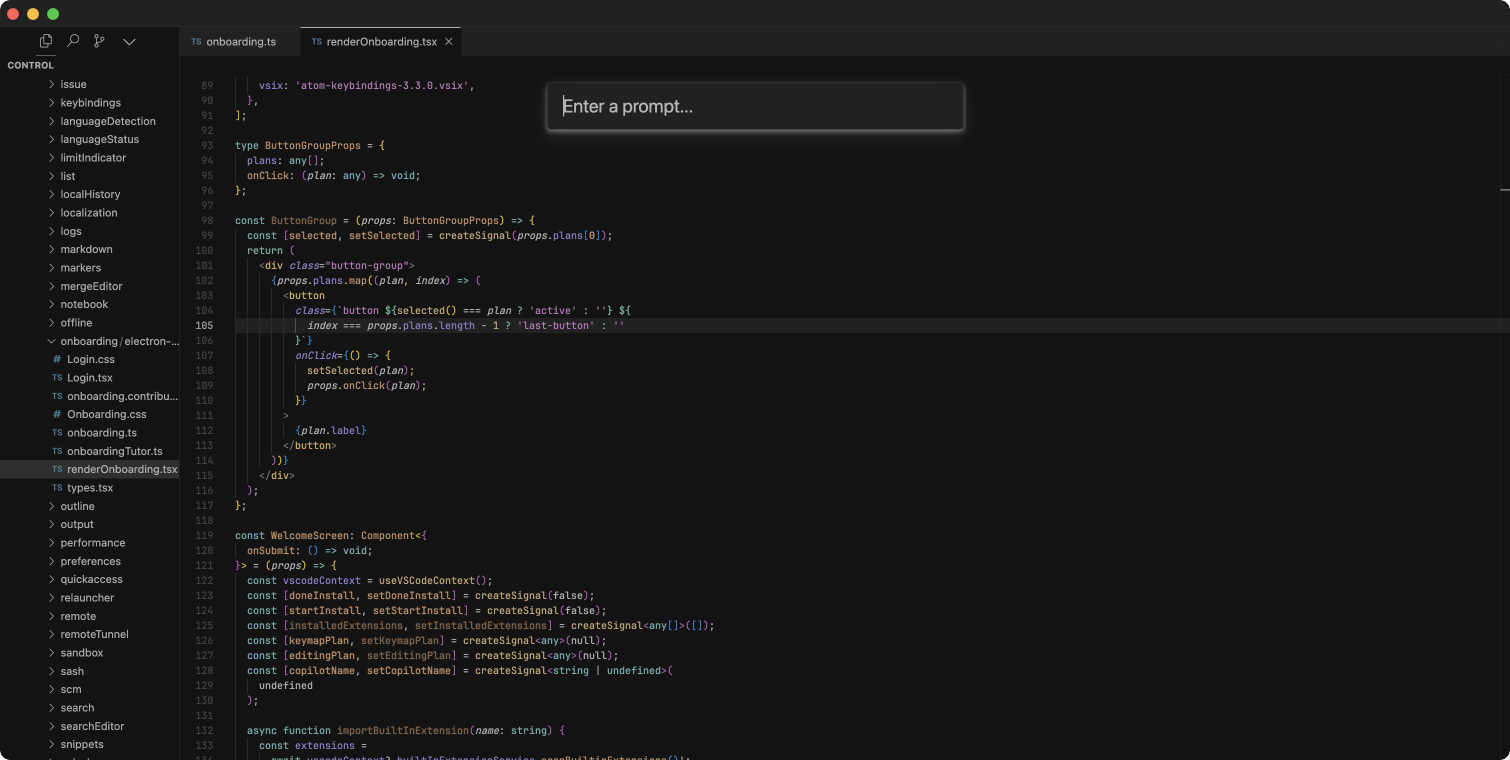
Cursor is built on top of Visual Studio Code, which means it retains all your familiar keybindings while introducing powerful, integrated AI features. Mastering the Cursor-specific shortcuts is the key to navigating the AI chat, generating boilerplate code, and refactoring entire codebases without reaching for your mouse.
This cheat sheet provides the most critical shortcuts for Cursor’s AI capabilities and foundational navigation for both Windows/Linux and macOS.
1. Essential AI Commands (Cursor Exclusives)
These are the core shortcuts that define the Cursor experience. They allow you to trigger AI generation, chat with your codebase, and open the multi-file Composer.
| Action | Windows / Linux | macOS |
| Inline Generation / Edit Code | Ctrl + K | Cmd + K |
| Open Cursor Chat (Sidebar) | Ctrl + L | Cmd + L |
| Open Composer (Multi-file AI) | Ctrl + I | Cmd + I |
| Toggle AI Terminal Command | Ctrl + K (in Terminal) | Cmd + K (in Terminal) |
| Quick Question (Inline Chat) | Ctrl + Shift + L | Cmd + Shift + L |
2. Context and Referencing
When interacting with Cursor Chat or Composer, providing the right context is crucial for accurate LLM outputs. Use the “@” symbol system to inject specific context directly into your prompt.
| Action | Shortcut / Trigger | Description |
| Mention Context | @ (Type in Chat/K bar) | Opens the context dropdown menu. |
| Reference Specific File | @Files (or type filename) | Forces the AI to read a specific file. |
| Reference Codebase | @Codebase | Scans the entire project for relevant context. |
| Reference Web / Docs | @Web / @Docs | Searches the internet or specific documentation. |
| Reference Git Changes | @Git | Injects uncommitted changes as context. |
3. Code Acceptance and Diff Review
After the AI generates code, Cursor presents a “Diff” view. Use these shortcuts to quickly review, accept, or reject the suggested changes.
| Action | Windows / Linux | macOS |
| Accept Inline Autocomplete | Tab | Tab |
| Accept Partial Word/Line | Ctrl + Right Arrow | Cmd + Right Arrow |
| Accept AI Diff (Save Changes) | Ctrl + Enter | Cmd + Enter |
| Reject AI Diff | Ctrl + Backspace | Cmd + Backspace |
| Navigate to Next Diff | Alt + Down Arrow | Option + Down Arrow |
| Navigate to Previous Diff | Alt + Up Arrow | Option + Up Arrow |
4. Core Editor and Navigation (VS Code Foundations)
Because Cursor is a VS Code fork, these high-frequency navigation shortcuts remain your best tools for moving through large projects.
| Action | Windows / Linux | macOS |
| Command Palette | Ctrl + Shift + P | Cmd + Shift + P |
| Quick Open (Search Files) | Ctrl + P | Cmd + P |
| Global Text Search | Ctrl + Shift + F | Cmd + Shift + F |
| Toggle Terminal | Ctrl + ` (Backtick) | Ctrl + ` (Backtick) |
| Toggle Sidebar | Ctrl + B | Cmd + B |
| Go to Definition | F12 | F12 |
| Rename Symbol | F2 | F2 |
Professional Tip: The “Ctrl + K” Highlight Workflow
The most efficient way to refactor existing code in Cursor is to highlight the specific block of code you want to change, and then press Cmd + K (Mac) or Ctrl + K (Windows). This locks the AI’s focus strictly to your highlighted selection, preventing it from hallucinating changes elsewhere in your file. Combine this with the @ symbol in the prompt bar to say something like “Refactor this highlighted function to match the style in @utils.js”.