
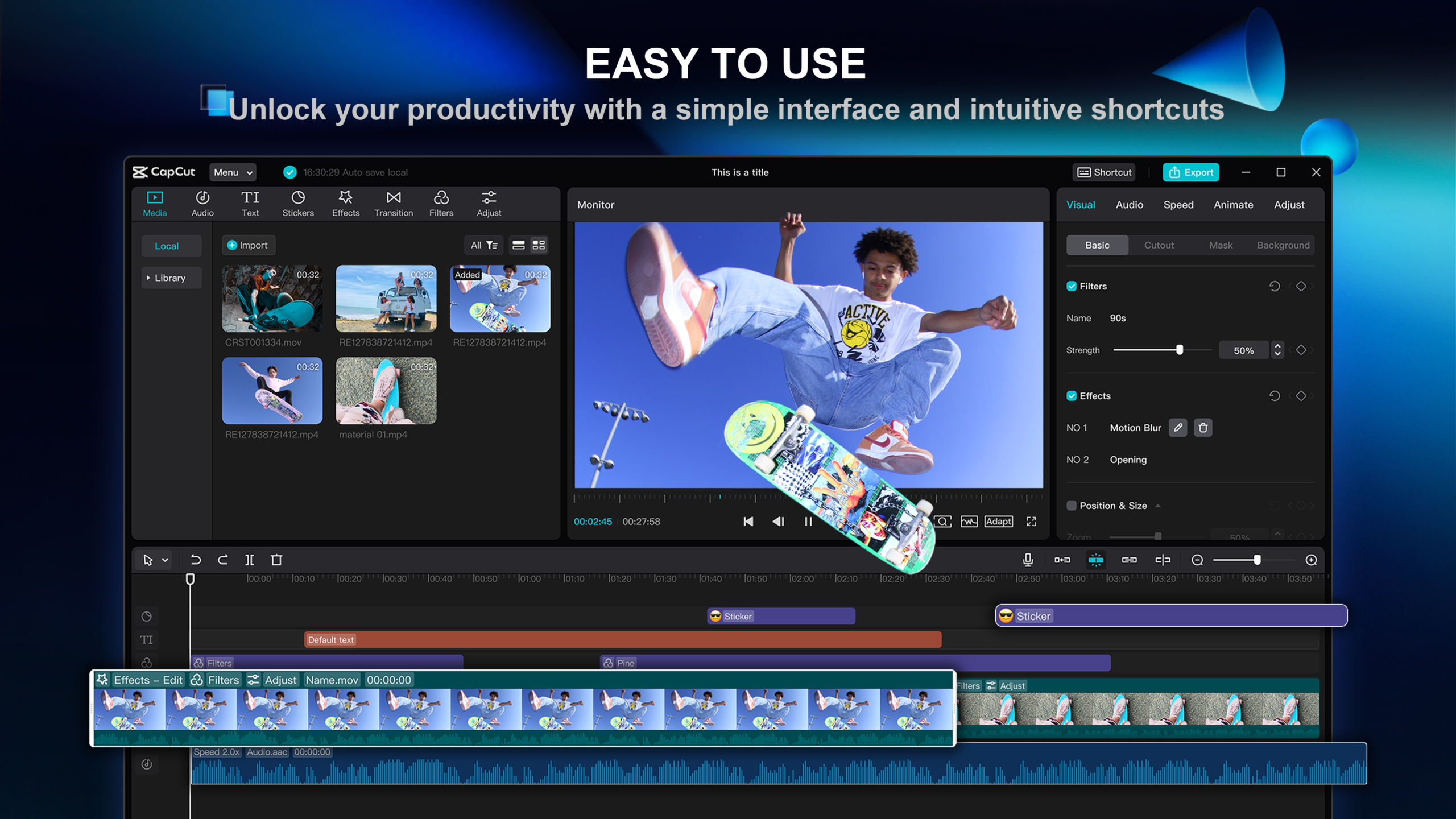
CapCut has rapidly evolved from a mobile app into a powerhouse for desktop video editing, especially for high-speed content creation like Reels, TikToks, and YouTube Shorts. To maintain a fast-paced creative workflow, moving away from the mouse and onto the keyboard is non-negotiable.
This guide covers the essential CapCut shortcuts for the 2026 Desktop version (Windows and macOS). Whether you are syncing beats or trimming raw footage, these hotkeys will significantly accelerate your output.
1. Playback and Navigation
Moving through your timeline with precision is the first step to a clean edit.
| Action | Windows Shortcut | macOS Shortcut |
| Play / Pause | Spacebar | Spacebar |
| Previous / Next Frame | Left / Right Arrow | Left / Right Arrow |
| Previous / Next Edit Point | Up / Down Arrow | Up / Down Arrow |
| Go to Start / End of Timeline | Home / End | Fn + Left / Right Arrow |
| Zoom In / Out of Timeline | Ctrl + +/- (or Scroll) | Cmd + +/- (or Scroll) |
| Fullscreen Preview | Ctrl + F | Cmd + F |
2. Primary Editing Tools
These shortcuts handle the “meat” of your edit—splitting, trimming, and deleting clips.
| Action | Windows Shortcut | macOS Shortcut |
| Split Clip (At Playhead) | Ctrl + B | Cmd + B |
| Delete Selection | Backspace / Delete | Delete |
| Ripple Delete | Shift + Delete | Shift + Delete |
| Undo / Redo | Ctrl + Z / Shift + Z | Cmd + Z / Shift + Z |
| Select Tool | V | V |
| Blade Tool (Split Tool) | B | B |
| Compound Clip (Group) | Alt + G | Opt + G |
3. Clip Trimming and Placement
Finetuning the start and end of your clips without dragging the edges manually.
| Action | Windows Shortcut | macOS Shortcut |
| Trim Start to Playhead | [ (Left Bracket) | [ (Left Bracket) |
| Trim End to Playhead | ] (Right Bracket) | ] (Right Bracket) |
| Copy / Paste | Ctrl + C / V | Cmd + C / V |
| Paste Effects / Properties | Ctrl + Alt + V | Cmd + Opt + V |
| Mute / Unmute Clip | Shift + M | Shift + M |
4. Text and Audio Management
Quickly adding and adjusting the key elements of your storytelling.
| Action | Windows Shortcut | macOS Shortcut |
| Add Default Text | Ctrl + T | Cmd + T |
| Split Audio | Ctrl + Shift + S | Cmd + Shift + S |
| Extract Audio | Ctrl + Alt + E | Cmd + Opt + E |
| Apply Default Transition | Ctrl + T | Cmd + T |
5. View and Interface Toggles
Manage your workspace panels to focus on what matters.
| Action | Windows Shortcut | macOS Shortcut |
| Show / Hide Media Library | Ctrl + 1 | Cmd + 1 |
| Show / Hide Player | Ctrl + 2 | Cmd + 2 |
| Show / Hide Timeline | Ctrl + 3 | Cmd + 3 |
| Show / Hide Inspector | Ctrl + 4 | Cmd + 4 |
💡 Professional Tip: The “B” and “V” Switch
In CapCut Desktop, the fastest way to edit a long video is to keep your right hand on the mouse (to move the playhead) and your left hand over the B and V keys.
- Press B to turn your cursor into the Blade Tool and cut segments as you watch.
- Press V to switch back to the Select Tool to move or delete the cut pieces.
This “constant motion” technique is used by professional editors to turn hours of raw footage into a rough cut in minutes.