
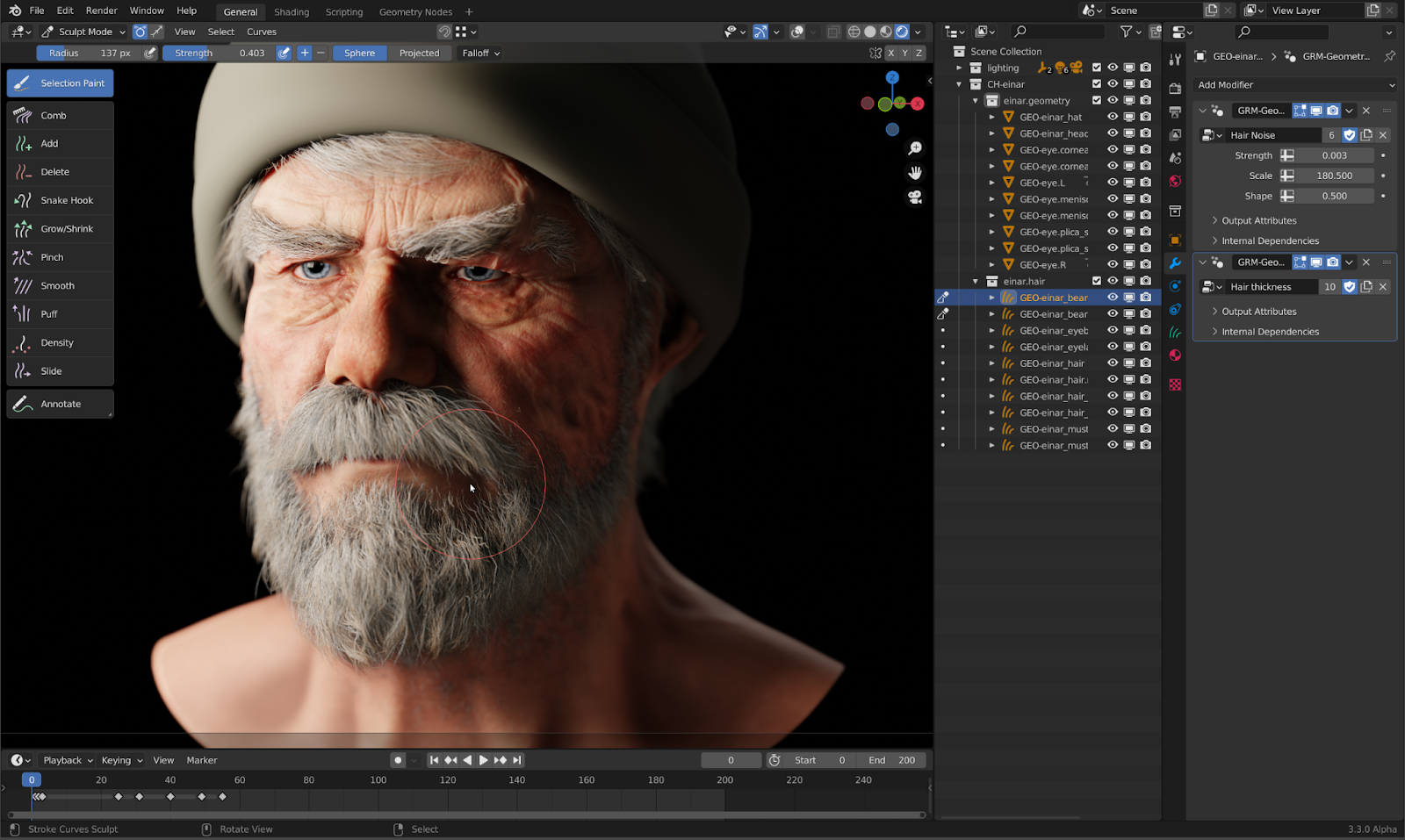
Mastering Blender keyboard shortcuts is the absolute foundation of a high-speed 3D workflow. Unlike traditional software, Blender is designed to be operated with one hand on the mouse and the other on the keyboard, minimizing menu diving. Whether you are sculpting high-poly characters, managing complex nodes, or optimizing assets for real-time engines, these default keybindings will transform your productivity.
This guide provides the essential Blender hotkeys for the 2026 version (v4.x+), categorized to help you navigate the viewport and master Edit Mode with professional precision.
1. Universal Navigation and Viewport
These shortcuts allow you to move through 3D space and manage objects without losing your spatial orientation.
| Action | Key Trigger |
| Rotate View | Middle Mouse Button (MMB) |
| Pan View | Shift + MMB |
| Zoom In / Out | Mouse Wheel |
| Search Menu (Command Palette) | F3 |
| Toolbar Toggle | T |
| Sidebar Toggle (Properties) | N |
| Pie Menu (Shading) | Z |
| Pie Menu (Snap) | Shift + S |
| Pie Menu (Pivot Point) | . (Period) |
2. Object and Transformation Basics
The “G-R-S” system is the core of Blender’s transformation logic.
| Action | Key Trigger |
| Grab / Move | G |
| Rotate | R |
| Scale | S |
| Constrain to Axis | X, Y, or Z (Press after G, R, or S) |
| Delete Object | X or Delete |
| Duplicate Object | Shift + D |
| Linked Duplicate (Instance) | Alt + D |
| Hide Selection | H |
| Unhide All | Alt + H |
| Local / Global View Toggle | / (Slash on Numpad) |
3. The Power of “Edit Mode”
Refining geometry happens here. Switch between selection modes and use modeling tools to shape your mesh.
| Action | Key Trigger |
| Toggle Object / Edit Mode | Tab |
| Select Mode: Vertex / Edge / Face | 1 / 2 / 3 (Top Row) |
| Extrude Region | E |
| Inset Faces | I |
| Bevel Edges / Vertices | Ctrl + B / Ctrl + Shift + B |
| Loop Cut and Slide | Ctrl + R |
| Knife Tool | K |
| Fill Face (from selection) | F |
| Separate to New Object | P |
| Join Objects (Object Mode) | Ctrl + J |
4. Selection Techniques
Efficiently selecting loops and rings is critical for clean topology.
| Action | Key Trigger |
| Select All / Deselect All | A / Alt + A |
| Box Select | B |
| Circle Select | C |
| Select Edge Loop | Alt + Left Click |
| Select Linked Geometry | L (Hovering over mesh) |
| Invert Selection | Ctrl + I |
5. Rendering and Output
Finalizing your scene for export or high-quality visualization.
| Action | Key Trigger |
| Render Image | F12 |
| Render Animation | Ctrl + F12 |
| Set Active Camera | Ctrl + Num 0 |
| Camera View Toggle | Num 0 |
| Viewport Render Toggle | Shift + Z |
💡 Professional Tip: The “Right Hand” Logic
Blender’s shortcut system relies heavily on the Numpad for orthographic views (Front: 1, Right: 3, Top: 7). If you are using a laptop without a Numpad, ensure you go to Edit > Preferences > Input and check “Emulate Numpad.” This maps the top row of numbers to these view controls, allowing you to maintain speed even on mobile setups.