
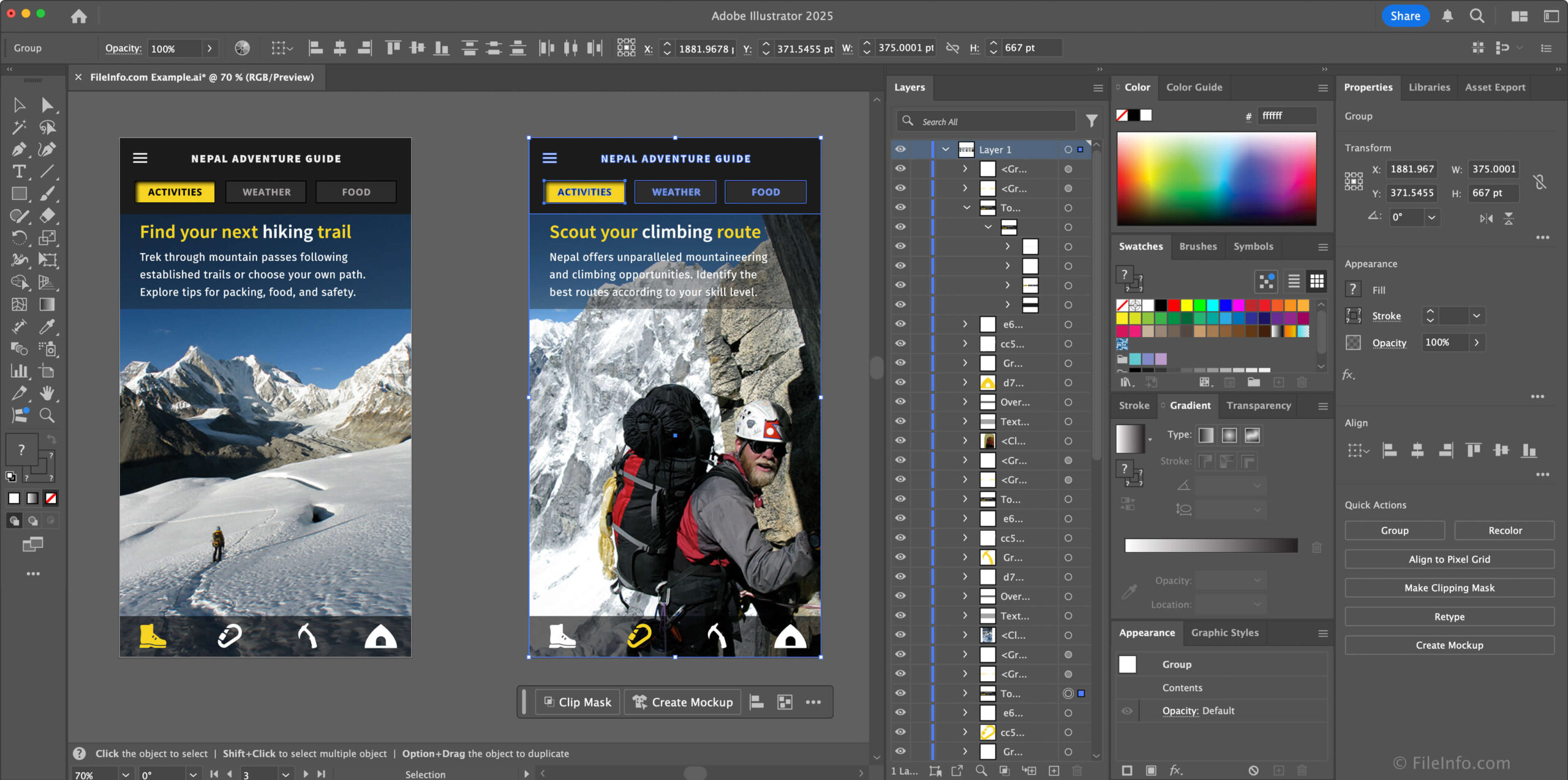
Mastering Adobe Illustrator keyboard shortcuts is the dividing line between a beginner and a professional vector artist. In the fast-paced world of digital marketing and graphic design, your ability to manipulate paths, anchor points, and typography without digging through menus is critical for maintaining your creative flow.
This comprehensive guide details the essential Illustrator hotkeys for the 2026 version. Whether you are building complex brand identities or optimizing SVG assets for technical SEO, these default keybindings will significantly reduce your design time and improve your workflow precision.
1. Selection and Drawing Tools
Switching between your primary tools instantly allows you to refine vector paths with surgical accuracy.
| Tool Name | Key Trigger |
| Selection Tool (Black Arrow) | V |
| Direct Selection Tool (White Arrow) | A |
| Pen Tool | P |
| Curvature Tool | Shift + ~ |
| Type Tool | T |
| Rectangle Tool | M |
| Ellipse Tool | L |
| Eyedropper Tool | I |
| Gradient Tool | G |
| Shape Builder Tool | Shift + M |
2. Object Manipulation and Layering
Managing the stack order and grouping of vector objects is a fundamental skill for organized design files.
| Action | Windows Shortcut | macOS Shortcut |
| Group Selected Objects | Ctrl + G | Cmd + G |
| Ungroup Objects | Ctrl + Shift + G | Cmd + Shift + G |
| Bring to Front | Ctrl + Shift + ] | Cmd + Shift + ] |
| Send to Back | Ctrl + Shift + [ | Cmd + Shift + [ |
| Lock Selection | Ctrl + 2 | Cmd + 2 |
| Unlock All | Ctrl + Alt + 2 | Cmd + Opt + 2 |
| Hide Selection | Ctrl + 3 | Cmd + 3 |
| Show All | Ctrl + Alt + 3 | Cmd + Opt + 3 |
3. Transformation and Path Editing
These commands allow you to duplicate, move, and refine your artwork with pixel-perfect control.
| Action | Key Combination |
| Duplicate Object | Alt + Drag (Windows) / Opt + Drag (Mac) |
| Transform Again | Ctrl + D (Windows) / Cmd + D (Mac) |
| Paste in Place | Ctrl + Shift + V / Cmd + Shift + V |
| Join Paths | Ctrl + J / Cmd + J |
| Outline Stroke | Ctrl + Shift + O / Cmd + Shift + O |
| Toggle Outline Mode | Ctrl + Y / Cmd + Y |
4. Typography and Text Formatting
Formatting headlines and body copy becomes much faster when you skip the Character panel.
| Action | Windows Shortcut | macOS Shortcut |
| Increase / Decrease Font Size | Ctrl + Shift + > / < | Cmd + Shift + > / < |
| Increase / Decrease Leading | Alt + Up / Down Arrow | Opt + Up / Down Arrow |
| Increase / Decrease Kerning | Alt + Left / Right Arrow | Opt + Left / Right Arrow |
| Align Left / Center / Right | Ctrl + Shift + L / C / R | Cmd + Shift + L / C / R |
| Create Outlines (Text) | Ctrl + Shift + O | Cmd + Shift + O |
5. View and Workspace Management
Keeping your canvas organized is vital for high-resolution asset production.
| Action | Key Combination |
| Fit Artboard in Window | Ctrl + 0 / Cmd + 0 |
| Actual Size (100%) | Ctrl + 1 / Cmd + 1 |
| Show / Hide Rulers | Ctrl + R / Cmd + R |
| Show / Hide Guides | Ctrl + ; / Cmd + ; |
| Toggle Screen Mode | F |
| Export for Screens | Ctrl + Alt + E / Cmd + Opt + E |
Professional Tip: The “Paste in Place” Workflow
One of the most common mistakes in vector design is using standard Paste (Cmd + V), which drops the object in the center of the screen. Always use Paste in Place (Cmd + Shift + V) to keep your elements perfectly aligned when moving them between artboards or layers. This is especially useful when creating multi-size banner ads or social media kits.