
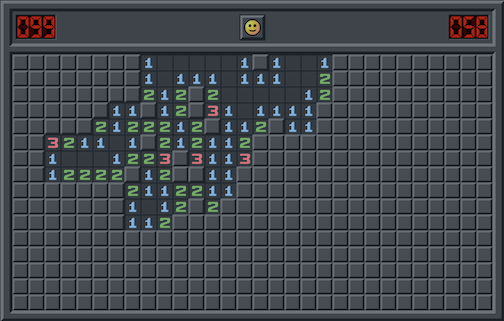
Minesweeper is the classic logic puzzle where efficiency and speed are the ultimate goals. While many players rely solely on the mouse, mastering Minesweeper keyboard shortcuts is essential for competitive play and achieving “Sub-10” times on expert maps. Whether you are playing the classic Windows versions, Google’s built-in version, or modern competitive clones, these default keybindings allow for rapid flag placement and grid clearing.
This guide details the essential Minesweeper shortcuts for the 2026 gaming landscape. Using these hotkeys reduces the physical travel distance for your hand and prevents the “misclick” errors that often end a perfect run.
Essential Gameplay Controls
In high-speed Minesweeper (often called “non-flagging” or “fast-flagging” styles), the keyboard and mouse work in tandem to process information quickly.
| Action | Keyboard / Mouse Key |
| Open Square | Left Click |
| Place/Remove Flag | Right Click (or Spacebar in some versions) |
| The “Chord” (Clear Neighbors) | Middle Click (or Left + Right Click simultaneously) |
| Quick Flag Toggle | F (In modern browser-based versions) |
| Restart Game | F2 (Classic Windows) / R (Modern) |
The Power of “Chording”
The most important “shortcut” in Minesweeper isn’t a single key, but a technique called Chording.
- How it works: Once you have placed the correct number of flags around a numbered square, you can Middle Click (or press Left + Right Click together) on that number.
- The Result: The game will automatically open all remaining unflagged adjacent squares.
- Why use it: This is significantly faster than clicking each individual safe square. If your flags are incorrect, however, chording will trigger a mine and end the game.
Navigation and Interface Shortcuts
For versions integrated into operating systems or gaming platforms, these shortcuts manage the game state.
| Action | Keyboard Key |
| New Game (Beginner) | F1 (Classic) |
| New Game (Intermediate) | F2 (Classic) |
| New Game (Expert) | F3 (Classic) |
| Pause Game | P (Modern versions) |
| Toggle Sound | S |
| Show/Hide Best Times | F4 |
Advanced Competitive Shortcuts (Clone Specific)
In competitive versions like Minesweeper Online or Minesweeper-Pro, additional shortcuts are available for analysis.
- Undo Move: Ctrl + Z (Only available in “Practice” or “Non-Ranked” modes).
- Toggle Numbers: N (Hides/shows numbers for screen-reading practice).
- Zoom In / Out: + / – keys to adjust grid visibility on high-resolution displays.
Professional Tip: The “Flagging” vs. “NF” (Non-Flagging) Style
Top-tier Minesweeper players often use the NF (Non-Flagging) style to save time. Instead of using the Right Click shortcut to place flags, they mentally track the mines and only use Left Click to open safe squares. This eliminates the extra keystrokes required for flagging, though it requires much higher mental processing speed.
If you are looking to break your personal record, try rebinding the “Chord” action to a single key like Spacebar or Shift. This reduces finger fatigue during long sessions on Expert-level grids.