
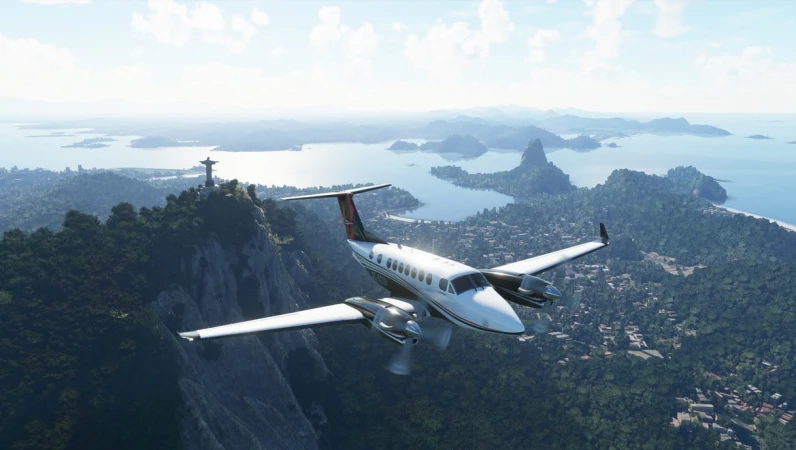
Microsoft Flight Simulator is a sophisticated simulation where managing cockpit systems, navigation, and flight surfaces requires split-second timing. Mastering MSFS keyboard shortcuts is essential for maintaining control during critical phases of flight like takeoff and landing. Whether you are flying a Cessna 172 or a Boeing 787 Dreamliner, these default keybindings allow you to act as both pilot and flight engineer without leaving the yoke.
This guide provides a comprehensive list of MSFS shortcuts updated for the 2024 and 2026 systems. From essential flight controls to advanced autopilot and camera toggles, these hotkeys will significantly improve your situational awareness and flight precision.
Essential Flight Controls
If you are flying with a keyboard, these keys serve as your primary yoke and rudder inputs.
| Action | Keyboard Key |
| Elevator Up (Pitch Up) | Num 2 |
| Elevator Down (Pitch Down) | Num 8 |
| Aileron Left / Right (Roll) | Num 4 / Num 6 |
| Rudder Left / Right (Yaw) | Num 0 / Num Enter |
| Center Aileron / Rudder | Num 5 |
| Throttle Increase / Decrease | F3 / F2 |
| Throttle Cut | F1 |
| Toggle Landing Gear | G |
| Toggle Parking Brake | Ctrl + Num . (Period) |
Camera and View Management
Switching between the cockpit and external views is vital for navigation and landing alignment.
| Action | Keyboard Key |
| Toggle Cockpit / External View | End |
| Reset Cockpit View | Spacebar (or F10) |
| Smart Camera Toggle | S |
| Look Left / Right | Shift + Left / Right Arrow |
| Zoom In / Out | = (Plus) / – (Minus) |
| Toggle Drone Camera | Insert |
| Slew Mode Toggle | Y |
Autopilot and Instrument Systems
Managing your flight path via automation allows for focus on long-distance navigation and ATC communications.
| Action | Keyboard Key |
| Toggle Autopilot Master | Z |
| Autopilot Altitude Hold | Ctrl + T |
| Autopilot Heading Hold | Ctrl + H |
| Autopilot Approach Hold | Ctrl + A |
| Set Altimeter (Baro) | B |
| Set Heading Indicator | D |
| Toggle Flight Director | Ctrl + F |
| Toggle Anti-Ice | H |
Lights and Miscellaneous Systems
Quickly toggling systems during different phases of flight or in low-visibility conditions.
| Action | Keyboard Key |
| Toggle All Lights | L |
| Toggle Landing Lights | Ctrl + L |
| Toggle Flashlight | Alt + L |
| Auto-Start Engine | Ctrl + E |
| Display Map | V |
| Display Navlog | N |
| Pause / Menu | Esc |
| Active Pause | Pause (or Ctrl + C) |
Professional Tip: The “B” and “D” Calibration
In flight simulation, atmospheric pressure and gyro drift are constant factors. Professional virtual pilots frequently tap the B key to synchronize their altimeter with the local pressure and the D key to align the heading indicator with the compass. Doing this every 15–30 minutes ensures your altitude and heading readings remain accurate throughout the flight.
If you are a serious sim-pilot, it is highly recommended to eventually map these MSFS default controls to a dedicated HOTAS (Hands On Throttle-And-Stick) system. However, keeping this keyboard reference handy is vital for those deep-menu commands that aren’t mapped to your joystick buttons.