
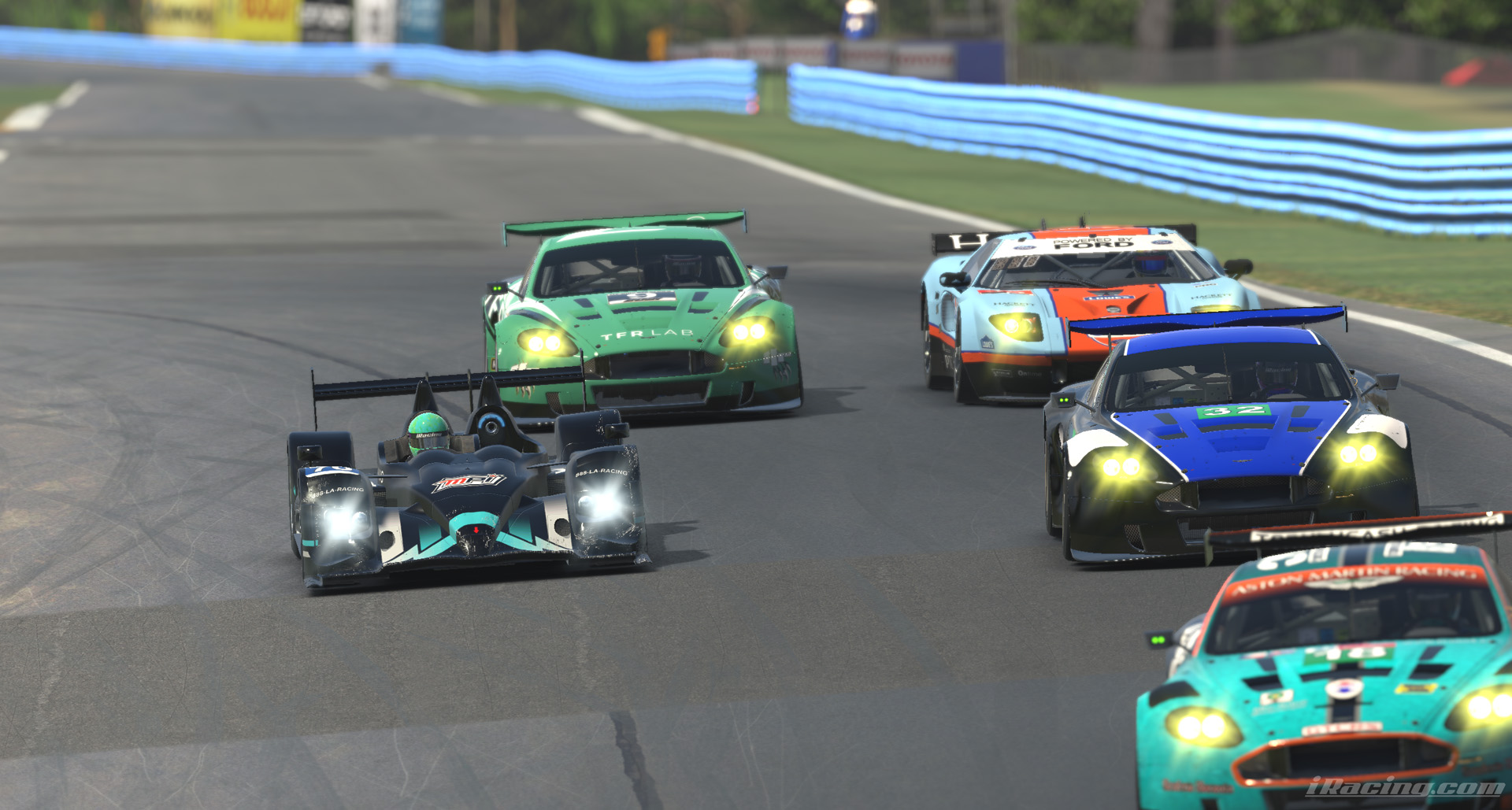
iRacing is a professional-grade racing simulation where rapid adjustments to pit strategy and vehicle settings determine race outcomes. Using iRacing keyboard shortcuts allows drivers to manage complex “Black Box” menus and pit commands without removing their hands from the steering wheel or losing focus on the track. This efficiency is critical during high-speed oval racing or endurance events where fuel and tire management are vital.
This guide provides a comprehensive technical list of iRacing shortcuts for the 2026 build. These default keybindings cover pit stop requests, camera manipulation, and replay controls. By utilizing these iRacing hotkeys, drivers can optimize their real-time decision-making and improve overall competitive performance.
Black Box and In-Car Management
The Black Box system provides real-time data and control over the vehicle’s state. Use the Function keys to toggle between specific data modules.
| Action | Keyboard Key |
| Lap Timing / Results | F1 |
| Standings (Relative) | F2 |
| Relative (Nearby Cars) | F3 |
| Fuel Management | F4 |
| Tire Pressure and Changes | F5 |
| Tire Info (Wear/Temp) | F6 |
| In-Car Adjustments (Brake Bias) | F7 |
| Pit Stop Options | F8 |
| Radio / Voice Chat Info | F9 |
| Telemetry / Connection Info | F10 |
| Next / Previous Black Box | ] / [ |
Pit Stop Commands (Chat Macros)
Drivers often use the text chat system to send instant commands to the pit crew. You can bind these to specific keys in the app.ini file or the in-game options.
| Command | Action |
| #fuel 10g | Add exactly 10 gallons of fuel |
| #fuel 50% | Fill tank to 50% capacity |
| #clear | Uncheck all pit service options |
| #tires | Replace all four tires |
| #rf | Replace Right Front tire only |
| #lf / #rr / #lr | Replace Left Front, Right Rear, or Left Rear |
| #ws | Clean the windshield |
| #fast | Use a “Fast Repair” (if available) |
Camera and View Controls
Adjusting your perspective is essential for both driving and reviewing incidents in the replay system.
| Action | Keyboard Key |
| Cycle Driving Cameras | C |
| Previous Driving Camera | Shift + C |
| Cycle Cockpit View | V |
| Look Left / Right | Left / Right Arrow (Default) |
| Driver Height (UP/Down) | Ctrl + [ / ] |
| Field of View (FOV) +/- | [ / ] |
| Enter/Exit Car | Esc (Hold) |
Replay and Spectator Shortcuts
Managing the replay timeline allows for detailed analysis of racing lines and contact points.
| Action | Keyboard Key |
| Play / Pause Replay | Spacebar |
| Go to Start of Replay | Home |
| Go to End (Live) | End |
| Fast Forward / Rewind | Num 3 / Num 1 |
| Slow Motion | Num 2 |
| Next / Previous Lap | Ctrl + Right / Left Arrow |
| Next / Previous Incident | Ctrl + Num 3 / Num 1 |
| Show / Hide UI (HUD) | Spacebar (In replay mode) |
Communication and System Controls
Coordination with team members and technical monitoring of the simulation state.
| Action | Keyboard Key |
| Text Chat | T |
| Reply to Last Message | R |
| Voice Chat (Push to Talk) | Defined in Options (Usually Alt) |
| Toggle Frame Rate / Latency (FPS) | F |
| Mute All Audio | Ctrl + M |
| Take Screenshot | Ctrl + Alt + S |
| Toggle Video Recording | Ctrl + Alt + Shift + V |
Technical Tip: The “Relative” Box (F3)
The F3 (Relative) box is considered the most important shortcut for safety. It shows the distance in seconds between you and the cars immediately in front and behind you. Expert drivers keep this box open at all times to avoid unsafe track re-entries after an off-track excursion or to anticipate overtakes.
Customizing Key Macros
Most iRacing default controls can be remapped to your wheelbase buttons or a button box. For advanced automation, drivers edit the auto_chat_macros section of the app.ini file located in the Documents\iRacing folder. This allows for complex pit strategies (e.g., “Add 2 tires and 5 gallons”) to be executed with a single keystroke.