
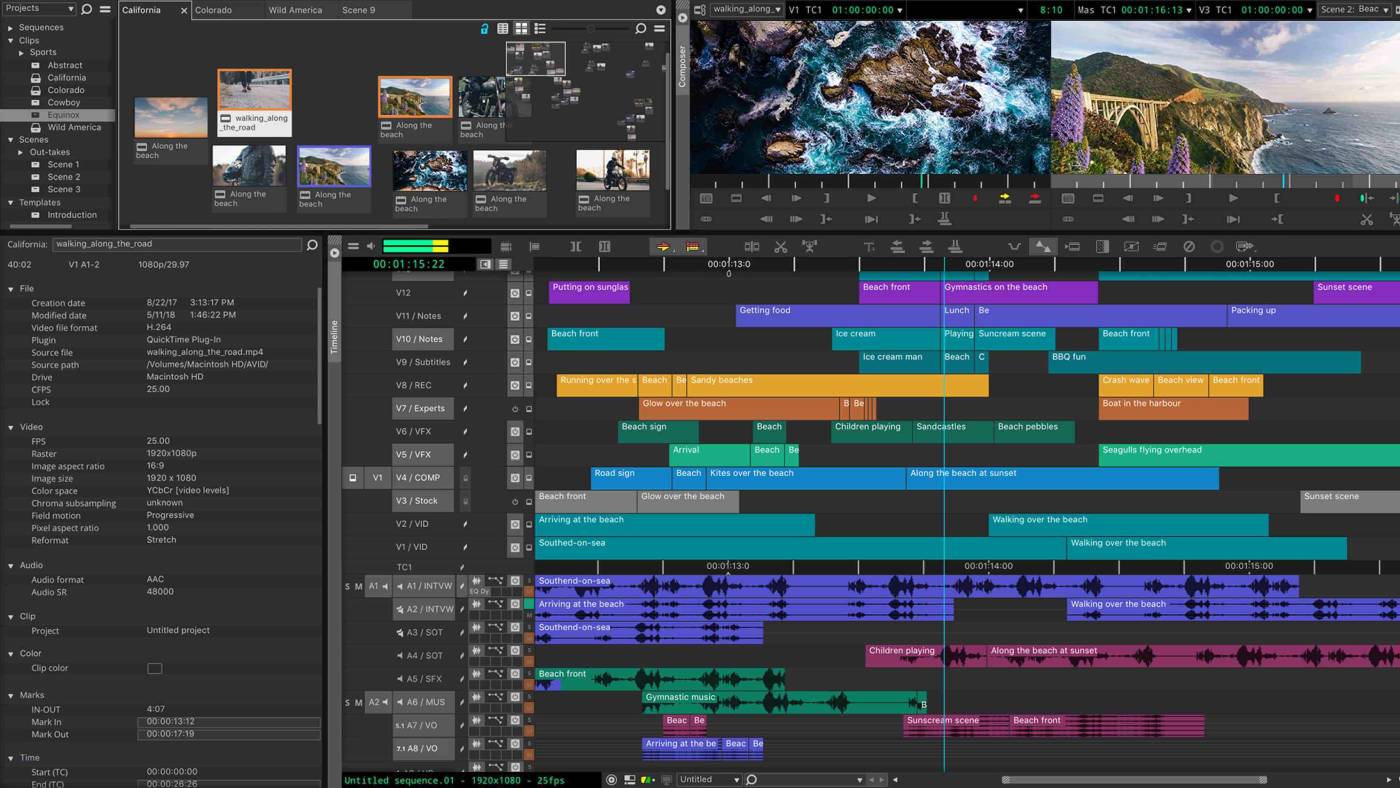
Final Cut Pro is designed for speed, and its “Magnetic Timeline” is best navigated through muscle memory rather than mouse clicks. In professional post-production, every second saved on a cut or a trim adds up to hours over the course of a project. Mastering these default keybindings is the most effective way to transition from a hobbyist to a high-velocity editor.
This guide provides a comprehensive breakdown of FCP shortcuts for the 2026 version. Organized into functional categories, these tables will help you maintain your creative flow while managing complex multi-cam edits and high-resolution timelines.
1. Essential Playback & Transport
Navigating your footage efficiently is the first step to a faster edit. Use the J-K-L system for standard industry-speed control.
| Action | Key Combination |
| Play / Pause | Spacebar |
| Play Reverse | J (Press multiple times to speed up) |
| Stop Playback | K |
| Play Forward | L (Press multiple times to speed up) |
| Set Start Point (In) | I |
| Set End Point (Out) | O |
| Go to Beginning of Timeline | Home (or Fn + Left Arrow) |
| Go to End of Timeline | End (or Fn + Right Arrow) |
| Previous / Next Edit Point | Up / Down Arrow |
2. Tool Selection
Instead of navigating the tool menu, use these single-key triggers to switch your cursor’s function instantly.
| Tool Name | Key Trigger |
| Select Tool (Default) | A |
| Blade Tool (Cut) | B |
| Trim Tool | T |
| Range Selection Tool | R |
| Position Tool | P |
| Hand Tool (Scroll) | H |
| Zoom Tool | Z |
3. Timeline Editing & Clipping
These shortcuts handle the “heavy lifting” of building your story, from basic cuts to ripple edits.
| Action | Key Combination |
| Blade (Cut at Playhead) | Command + B |
| Connect to Primary Storyline | Q |
| Insert at Playhead | W |
| Append to End of Storyline | E |
| Enable / Disable Clip | V |
| Trim Start to Playhead | Option + [ |
| Trim End to Playhead | Option + ] |
| Lift from Storyline | Command + Option + Up Arrow |
| Add Default Transition | Command + T |
4. Organization & Interface
Manage your workspace and background processes to keep your system running smoothly.
| Action | Key Combination |
| Import Media | Command + I |
| Show / Hide Inspector | Command + 4 |
| Show / Hide Browser | Command + 1 |
| Show / Hide Timeline | Command + 2 |
| Background Tasks Window | Command + 9 |
| Keyword Editor | Command + K |
| Render Selection | Control + R |
| Render All | Control + Shift + R |
5. Audio & Volume Control
Adjusting levels on the fly is critical for maintaining a balanced rough cut.
| Action | Key Combination |
| Adjust Volume Up / Down (1dB) | Control + (Plus) / (Minus) |
| Detach Audio | Command + Option + S |
| Solo Audio | Option + S |
| Mute Audio | Shift + S |
Professional Tip: The “Precision Editor”
If you find a specific transition or cut feels “off,” select the edit point and press Control + E. This opens the Precision Editor, a specialized view that allows you to see the handles of both clips simultaneously. It’s the fastest way to fine-tune the timing of a ripple or roll edit without losing the rhythm of your sequence.