
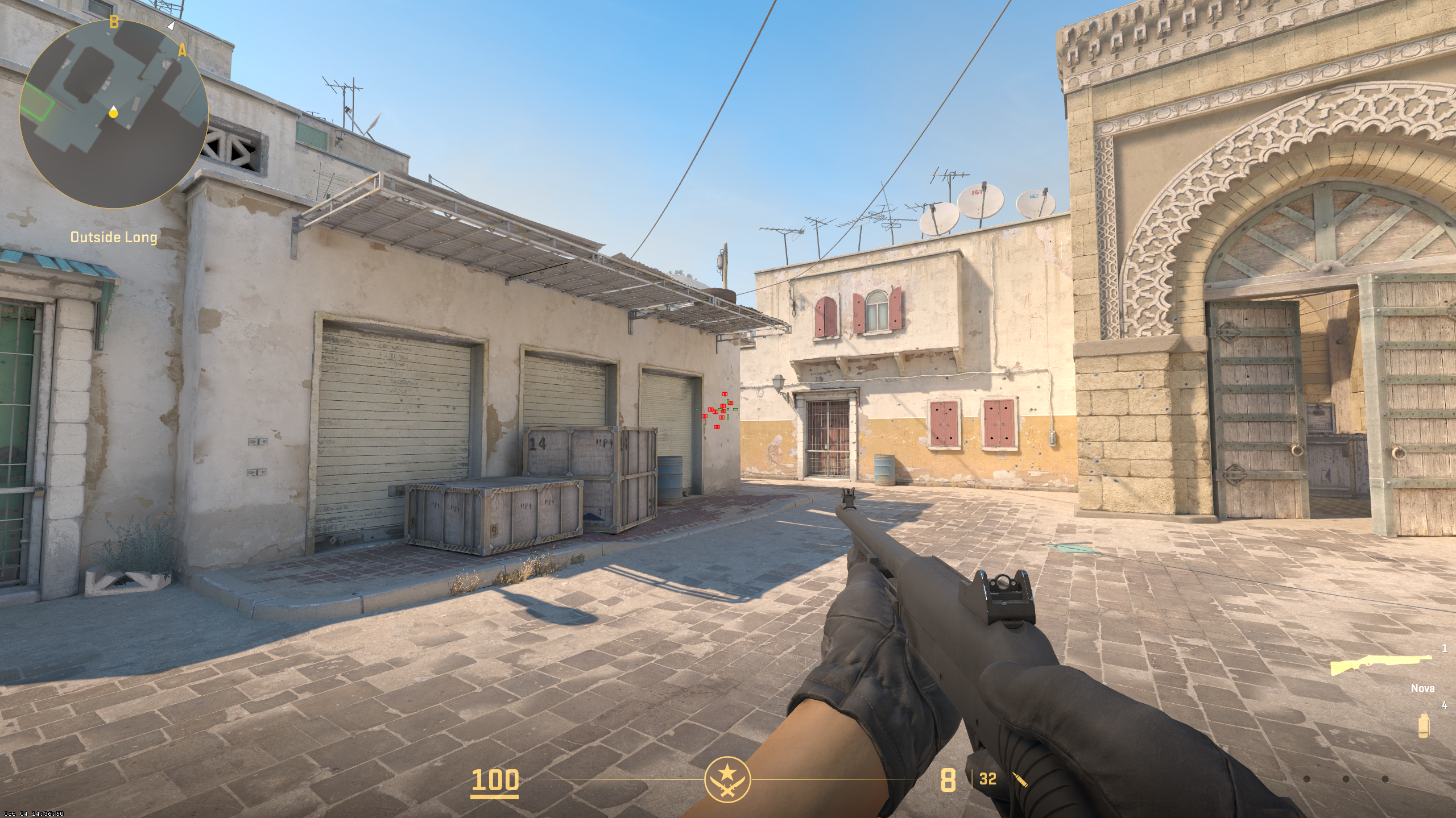
While Counter-Strike 2 introduced a “forgiveness window” that makes manual jumpthrows easier than they were in CS:GO, a dedicated jumpthrow bind is still the only way to achieve 100% consistency for pixel-perfect utility lineups.
Here is the complete, up-to-date guide to setting up both standard and forward (W) jumpthrow binds in CS2.
1. The Developer Console Method (Quick Setup)
If you want to test the bind immediately without creating files, you can paste the commands directly into the developer console. Note: You may need to re-enter this if your game resets its config or receives a major update.
Step 1: Enable the Developer Console in CS2 (Settings > Game > Enable Developer Console > Yes).
Step 2: Press the ~ (Tilde) key to open the console.
Step 3: Paste the following commands one by one (replace [KEY] with your preferred button, such as V or Alt):
| Action | Console Command |
| Create Action | alias “+jumpthrow” “+jump; -attack; -attack2” |
| Create Reset | alias “-jumpthrow” “-jump” |
| Assign Key | bind “[KEY]” “+jumpthrow” |
2. The Autoexec Method (Permanent & Recommended)
To ensure your jumpthrow bind loads every single time you launch CS2, you should place it inside an autoexec.cfg file.
Step 1: Locate your CS2 Config Folder
Navigate to your CS2 installation directory:
Steam\steamapps\common\Counter-Strike Global Offensive\game\csgo\cfg
Step 2: Create the Autoexec File
Right-click inside the cfg folder, select New > Text Document. Name it autoexec.cfg (ensure the file extension is strictly .cfg and not .cfg.txt).
Step 3: Add the Bind Code
Open the file with Notepad and paste the following code:
Plaintext
// Standard Jumpthrow Bind
alias “+jumpthrow” “+jump; -attack; -attack2”
alias “-jumpthrow” “-jump”
bind “v” “+jumpthrow” // Change ‘v’ to your preferred key
Step 4: Force the Game to Load It
Go to your Steam Library, right-click Counter-Strike 2, select Properties. In the Launch Options box at the bottom of the General tab, type:
+exec autoexec.cfg
3. Advanced Bind: The Forward (W) Jumpthrow
Some advanced smokes (like the Mirage Window smoke from T-Spawn) require you to walk forward while jumping. You can automate this complex movement with a separate “Run-Throw” bind.
Add this code to your autoexec.cfg below your standard jumpthrow bind:
| Action | Config Code |
| Run-Throw Action | alias “+runthrow” “+forward; +jump; -attack; -attack2” |
| Run-Throw Reset | alias “-runthrow” “-jump; -forward” |
| Assign Key | bind “n” “+runthrow” (Change ‘n’ to your preferred key) |
4. Competitive Movement Binds (Bunny Hopping)
If you are optimizing your movement and utility, binding “Jump” to the mouse scroll wheel is an essential competitive setup. This allows for rapid jump inputs, making bunny hopping (B-hopping) significantly more consistent.
Open the developer console (~) and paste this single line to bind jump to the scroll wheel while keeping the Spacebar active:
bind mwheeldown +jump; bind mwheelup +jump; bind space +jump
How to Execute the Bind Perfectly In-Game
- Pull the pin on your grenade by holding Left Click (or Right Click for a short drop).
- Look at your lineup spot.
- Press your assigned Jumpthrow Key. The game will automatically execute a frame-perfect jump and release the grenade at the exact apex of your trajectory.