
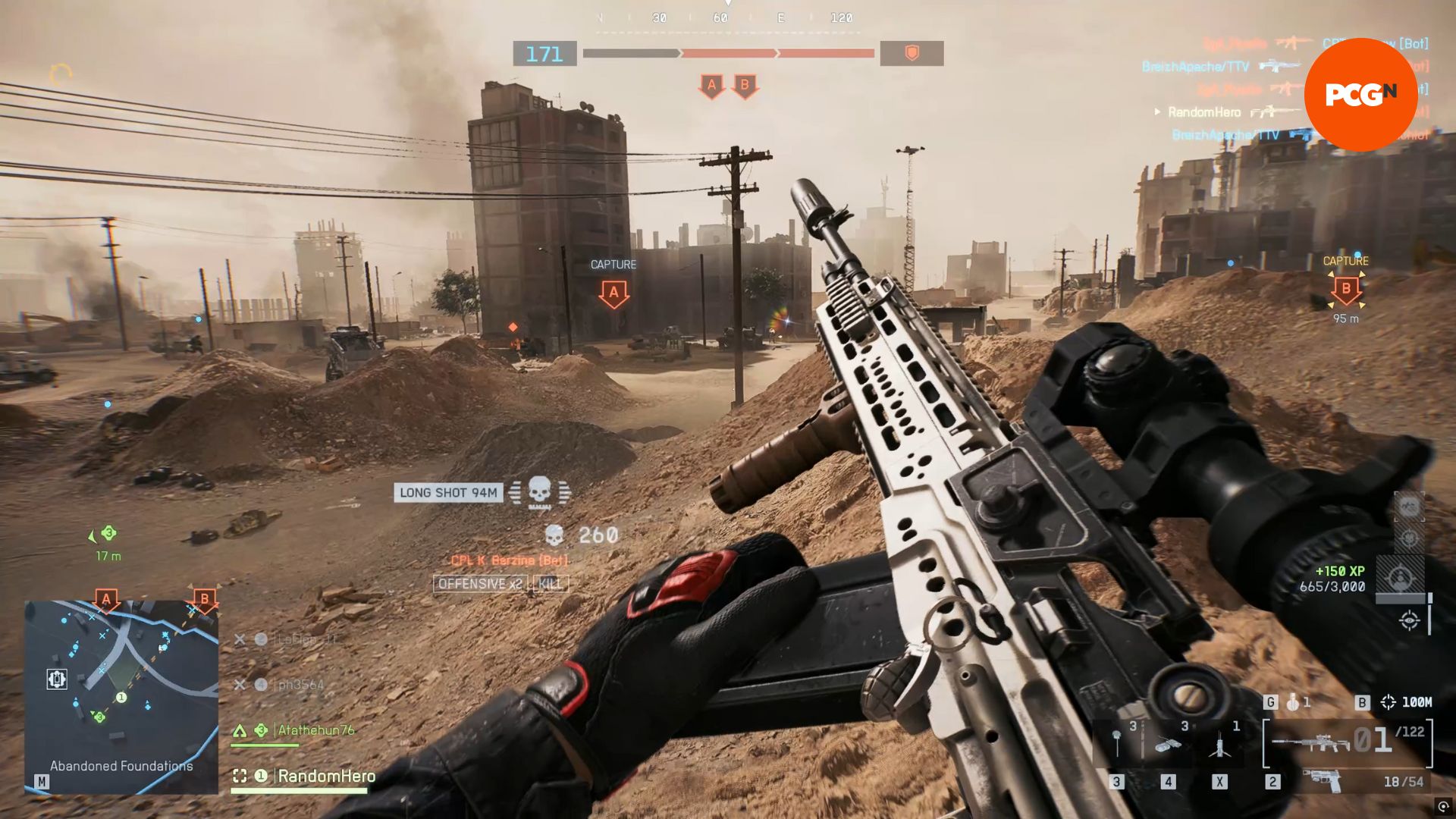
Primary Keyword: BF6 keyboard controls Secondary / Long-tail targets: Battlefield 6 default keybinds PC, BF6 infantry keyboard controls, Battlefield 6 vehicle controls keyboard, BF6 aircraft keyboard shortcuts, how to remap keys in Battlefield 6, Battlefield 6 controller vs keyboard bindings, BF6 REDSEC keybindings
Battlefield 6 ships with over 100 individually configurable keybinds across infantry, vehicle, aircraft, and UI categories. Knowing the BF6 keyboard controls before a match removes hesitation and keeps your focus on the fight, not on remembering which key fires the flare. This guide covers every default PC keybind, the matching controller layout for PlayStation and Xbox, and practical tips to remap your setup faster.
Quick stat: According to EA’s launch-period data, over 40% of PC players remap at least one keybind within their first hour of play. Getting ahead of that adjustment now saves time.
BF6 Infantry Keyboard Controls (PC Default)
Infantry controls form the core of every Battlefield 6 match. Assault, Engineer, Support, and Recon all share this base layout.
| Action | PC Keyboard / Mouse | Xbox Controller | PS5 Controller |
| Move Forward | W | Left Stick Up | Left Stick Up |
| Move Backward | S | Left Stick Down | Left Stick Down |
| Strafe Left | A | Left Stick Left | Left Stick Left |
| Strafe Right | D | Left Stick Right | Left Stick Right |
| Sprint | Left Shift | Press Left Stick | Press Left Stick |
| Jump / Vault / Parachute | Space | A | Cross |
| Crouch (Hold) | Left Ctrl | B (Hold) | Circle (Hold) |
| Crouch (Toggle) | C | B | Circle |
| Prone | Z | ||
| Slide | Double-tap Crouch after Sprint | Double-tap Crouch after Sprint | Double-tap Crouch after Sprint |
| Fire | Left Mouse / Right Ctrl | RT | R2 |
| Aim Down Sights (Zoom) | Right Mouse | LT | L2 |
| Reload | R | X | Square |
| Melee / Takedown | F | Press Right Stick | Press Right Stick |
| Primary Weapon | 1 | Y (tap) | Triangle (tap) |
| Secondary Weapon | 2 | ||
| Gadget 1 | 3 | D-pad Left | D-pad Left |
| Gadget 2 | 4 | D-pad Right | D-pad Right |
| Grenade | G | RB | R1 |
| Class Ability / Call-In Gadget | 6 | RB | R1 |
| Squad Progression / Class Gadget | X | D-pad Up | D-pad Up |
| Night Vision Goggles | 7 | D-pad Up (Hold) | D-pad Up (Hold) |
| Ping / CommoRose (Hold) | Q or Middle Mouse | LB | L1 |
| Toggle Laser / Flashlight | T | D-pad Down | D-pad Down |
| Toggle Scope | V | ||
| Fire Mode / Zeroing | B | D-pad Down (Hold, zoomed) | D-pad Down (Hold, zoomed) |
| Steady Scope | Left Shift | ||
| Deploy Bipod / Mount | F | Press Right Stick | Press Right Stick |
| Interact / Enter Vehicle | E | ||
| Quick Loadout Customization | Y | View | Share |
| Inventory / Scoreboard | Tab | View (Hold) | Share (Hold) |
| Big Map | M | View | Share |
| Weapon Inspect | I | D-pad Right (Hold) | D-pad Right (Hold) |
BF6 Ground Vehicle Keyboard Controls
Ground vehicles in Battlefield 6 include tanks, armored transports, and mobile artillery. The driver and gunner use separate input schemes.
| Action | PC Keyboard | Xbox Controller | PS5 Controller |
| Accelerate | W | Left Stick Up | Left Stick Up |
| Brake / Reverse | S | Left Stick Down | Left Stick Down |
| Turn Right | D | Left Stick Right | Left Stick Right |
| Turn Left | A | Left Stick Left | Left Stick Left |
| Boost | Left Shift | Press Left Stick | Press Left Stick |
| Handbrake | Z | B | Circle |
| Fire | Space or Left Mouse | RT | R2 |
| Switch Weapon | F or Middle Mouse Up | Y | Triangle |
| Primary Weapon | 1 | Y | Triangle |
| Secondary Weapon | 2 | ||
| Equipment Slot 1 | 3 | D-pad Left | D-pad Left |
| Equipment Slot 2 | 4 | D-pad Right | D-pad Right |
| Driver Zoom | Right Mouse | LT | L2 |
| Lock Turret | V | D-pad Down | D-pad Down |
| Chase Camera | C | Press Right Stick | Press Right Stick |
| Exit Vehicle | E | X (Hold) | Square (Hold) |
| Change Seat | F1 – F6 | A | Cross |
| Ping / CommoRose | Q or Middle Mouse | D-pad Up | D-pad Up |
| Big Map | M | View / Share | View / Share |
BF6 Aircraft Keyboard Controls (Jet & Helicopter)
Aircraft controls in BF6 split into fixed-wing jets and rotary helicopters. Both share the core layout below, with helicopter-specific inputs noted separately.
| Action | PC Keyboard | Xbox Controller | PS5 Controller |
| Throttle Up | W | Left Stick Up | Left Stick Up |
| Throttle Down | S | Left Stick Down | Left Stick Down |
| Yaw Right | D | Left Stick Right | Left Stick Right |
| Yaw Left | A | Left Stick Left | Left Stick Left |
| Pitch Up | Up Arrow / Mouse Up | Right Stick Down | Right Stick Down |
| Pitch Down | Down Arrow / Mouse Down | Right Stick Up | Right Stick Up |
| Roll Right | Right Arrow / Mouse Right | Right Stick Right | Right Stick Right |
| Roll Left | Left Arrow / Mouse Left | Right Stick Left | Right Stick Left |
| Afterburner (Jets) | Left Shift | Press Left Stick | Press Left Stick |
| Heli Assist Ascend | Space | RB | R1 |
| Heli Assist Descend | Left Ctrl | LB | L1 |
| Fire | Left Mouse / Right Ctrl | RT | R2 |
| Airplane Zoom | Right Mouse | LT | L2 |
| Switch Weapon | F or Middle Mouse Up | Y | Triangle |
| Equipment Slot 1 | 3 | D-pad Left | D-pad Left |
| Equipment Slot 2 | 4 | D-pad Right | D-pad Right |
| Freelook | V | D-pad Down | D-pad Down |
| Chase Camera | C | Press Right Stick | Press Right Stick |
| Exit Vehicle | E | X (Hold) | Square (Hold) |
| Ping / CommoRose | Q or Middle Mouse | D-pad Up | D-pad Up |
BF6 UI and Chat Keyboard Shortcuts
| Action | PC Keyboard | Controller |
| Scoreboard | Tab | View / Share |
| Big Map | M | View / Share |
| Open / Send Chat | Enter | View / Share |
| Team Chat Channel | K | |
| Squad Chat Channel | L | |
| Party Chat Channel | P | |
| Chat All | J | |
| Toggle Chat | H | |
| Push to Talk | Caps Lock | |
| Social Menu | Tab | RT / R2 |
| Ping / CommoRose | Q or Middle Mouse | LB / L1 |
| Inventory Request | G | Press Right Stick |
| Big Map Zoom In | RT / R2 | |
| Big Map Zoom Out | LT / L2 |
How to Remap BF6 Keyboard Controls
Every keybind in Battlefield 6 supports full remapping, both for keyboard and mouse and for controllers. To change a binding, open Settings, go to the Mouse and Keyboard tab, and select Infantry Keybinds for on-foot actions. Vehicle and aircraft bindings sit in the sections directly below. Select any action, press the new key, and confirm.
Pro Tip: Move your grenade throw from G to a side mouse button if your mouse has one. Grenade timing in tight corridors improves significantly when your throwing hand never leaves WASD position.
Expert Keybind Recommendations for BF6
Players who spend time with Battlefield games know that the default layout is a solid starting point, not a final answer. These changes make the biggest practical difference:
Crouch and Prone placement matters most. The default split between C (crouch toggle) and Z (prone) forces your left pinky to stretch awkwardly during fast combat transitions. Many experienced players move prone to a thumb key or remap crouch to Left Ctrl only and drop the toggle entirely.
Ping / CommoRose on Q is well-placed. Shacknews and Dexerto coverage of BF6 both note this binding feels natural because Q sits naturally under the left ring finger without breaking WASD grip. Keeping it here is a sound choice.
For vehicle pilots, consider splitting throttle and weapon fire. On helicopter, the default layout puts throttle and shoot on the same hand in some configurations. Separating them in settings reduces accidental inputs during evasive maneuvers.
FAQ: Battlefield 6 Keyboard Controls
What are the default BF6 keyboard controls for movement? Battlefield 6 uses the standard FPS layout: W / A / S / D for directional movement, Left Shift for sprint, Space for jump and vault, Left Ctrl to hold crouch, C to toggle crouch, and Z for prone.
Can I use keyboard and mouse on PS5 or Xbox for BF6? Yes. On PS5, plug a USB keyboard and mouse into the console’s USB ports, open Settings, go to Devices, and adjust your input. On Xbox, navigate to Profiles and System, then Settings, then Devices and Connections to configure keyboard and mouse input before launching BF6.
How many keybinds does Battlefield 6 have in total? BF6 ships with over 220 configurable control slots across infantry, ground vehicles, aircraft, helicopters, gunner positions, and UI. Many slots sit empty by default, available for players to assign custom inputs.
Does BF6 use the same keyboard layout as Battlefield 2042? The layouts are similar but not identical. Battlefield 6 introduces new systems like attachment modifiers and REDSEC-specific inputs that require additional bindings absent in BF2042.
What key opens the CommoRose in Battlefield 6? Holding Q or the Middle Mouse Button opens the CommoRose on PC. On Xbox, the Left Bumper triggers it; on PS5, it is L1.
How do I deploy a bipod in BF6 on keyboard? Press F while prone or near a surface that allows mounting. The bipod only deploys if your stance and position meet the conditions, so flat ground or a window ledge works; open-field standing does not.
Can I bind the same key to two different actions in BF6? No. BF6 flags conflicting bindings in the settings menu and requires you to resolve the conflict before saving. Each action needs a unique input within its control category.