
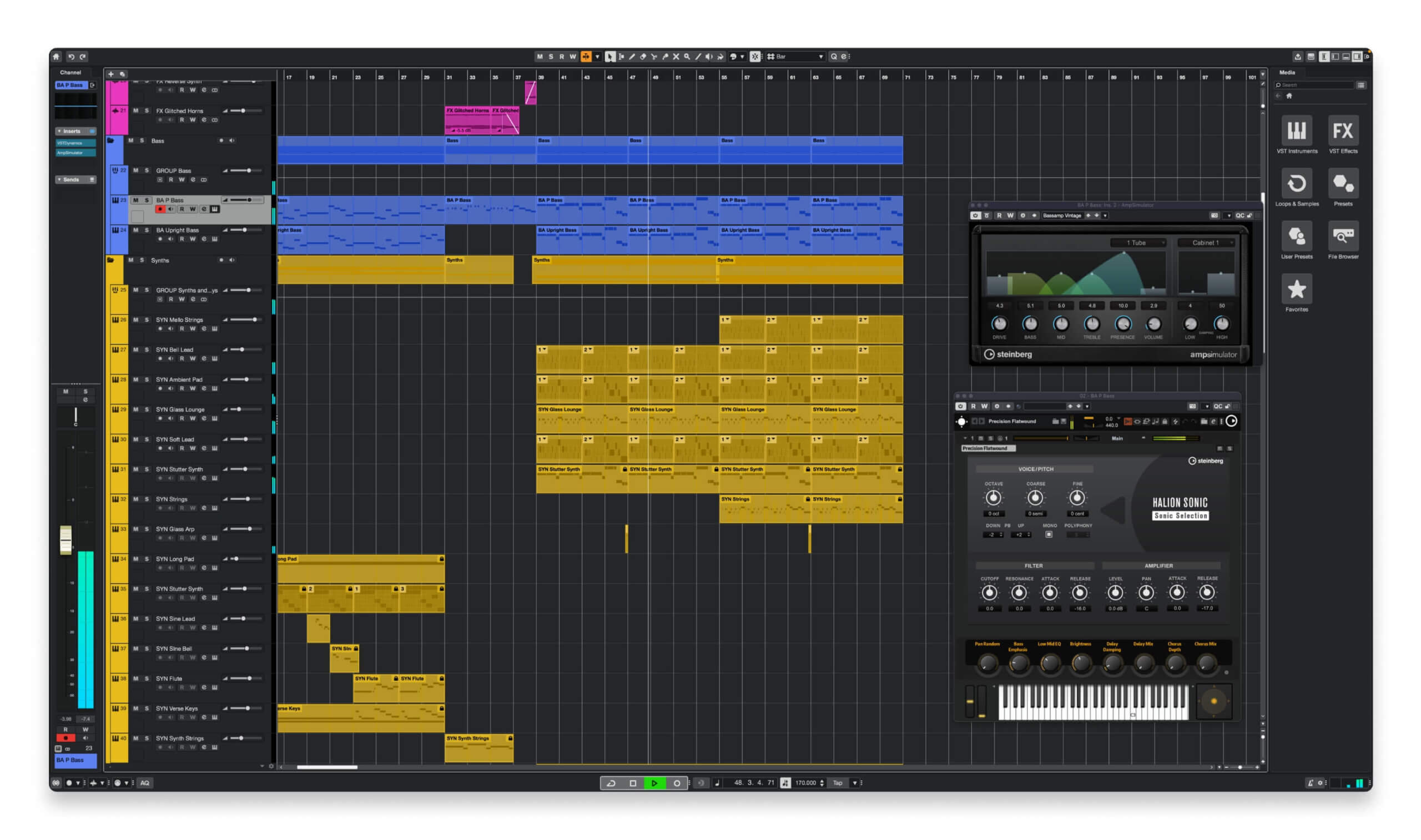
Cubase is a powerhouse of music production, known for its deep feature set and granular control. To stay in the creative “zone,” mastering Cubase keyboard shortcuts (officially called Key Commands) is a non-negotiable skill. Whether you are tracking a full band, scoring for film, or mixing a complex electronic track, these default keybindings allow you to navigate the project window and execute edits with professional precision.
This guide provides a comprehensive breakdown of the most critical Cubase shortcuts for the 2026 version. From essential transport controls to advanced tool switching and window management, these hotkeys will significantly accelerate your workflow. By integrating these Cubase keybindings into your daily sessions, you can focus on the music rather than the menus.
File and Project Management
Manage your sessions and core project settings without breaking your flow.
| Action | Windows | macOS |
| New Project | Ctrl + N | Cmd + N |
| Open Project | Ctrl + O | Cmd + O |
| Save Project | Ctrl + S | Cmd + S |
| Save New Version | Ctrl + Alt + S | Cmd + Opt + S |
| Project Setup | Shift + S | Shift + S |
| Audio Connections | F4 | F4 |
| Close Project | Ctrl + W | Cmd + W |
Transport and Navigation
Controlling the playhead and markers is the foundation of a fast editing workflow.
| Action | Keyboard Key |
| Start / Stop Playback | Space |
| Record | Num * (Asterisk) or R |
| Cycle (Loop) On / Off | Num / or C |
| Metronome (Click) On / Off | C |
| Go to Left / Right Locator | Num 1 / Num 2 |
| Set Locators to Selection | P |
| Return to Zero (Start) | Num . (Period) |
| Nudge Cursor Left / Right | Num – / Num + |
| Retrospective Record | Shift + Num * |
Tool Selection (The Number Keys)
Instead of clicking the toolbar, use the top row of your keyboard to switch tools instantly.
| Tool Name | Key |
| Object Selection (Arrow) | 1 |
| Range Selection | 2 |
| Split Tool (Scissors) | 3 |
| Glue Tool | 4 |
| Erase Tool | 5 |
| Zoom Tool | 6 |
| Mute Tool | 7 |
| Draw Tool (Pencil) | 8 |
| Play Tool (Speaker) | 9 |
Zoom and View Toggles
Managing your screen real estate is critical for large projects.
| Action | Keyboard Key |
| Zoom In / Out | H / G |
| Zoom Full (Entire Project) | Shift + F |
| Zoom to Selection | Alt + S |
| Zoom to Event | Shift + E |
| Zoom Selected Track | Z |
| Show/Hide MixConsole | F3 |
| Show/Hide MediaBay | F5 |
| Show/Hide Left / Right Zone | Ctrl + Alt + L / R |
| Show/Hide Lower Zone | Ctrl + Alt + E |
Editing and Workflow Shortcuts
These commands handle the “heavy lifting” of audio and MIDI manipulation.
| Action | Keyboard Key |
| Duplicate Event / Part | Ctrl + D |
| Repeat Selection | Ctrl + K |
| Quantize | Q |
| Group / Ungroup | Ctrl + G / Ctrl + U |
| Split at Cursor | Alt + X |
| Mute / Unmute Selection | M |
| Solo Track | S |
| Render in Place | Ctrl + R |
| Open Score Editor | Ctrl + R (Mac: Cmd + R) |
Professional Tip: Create Your Own Macros
The true “secret weapon” for pro Cubase users is the Macros feature found in the Edit > Key Commands menu. You can string together a sequence of existing commands and assign them to a single keyboard shortcut. For example, you can create a macro that “Deletes empty space, Quantizes, and Crossfades” with one keypress.
If you find that your hands naturally rest in a certain spot, don’t be afraid to rebind the default controls to fit your physical comfort. Just remember that if you move to another studio, you can export your custom Cubase keybindings as a preset to take with you.