
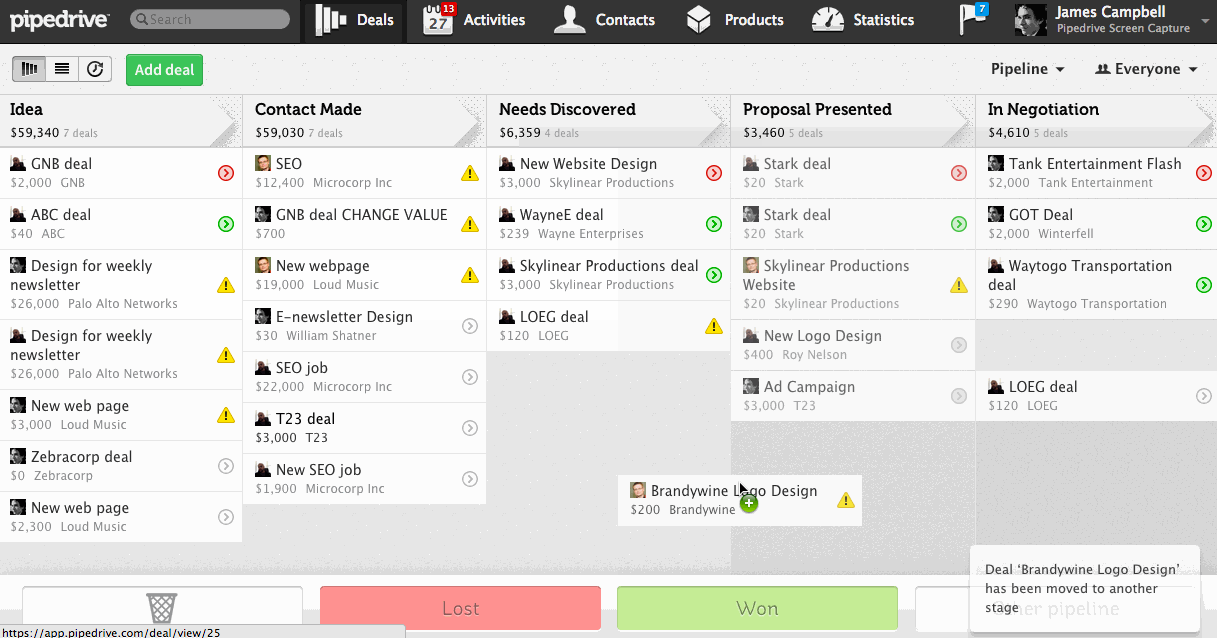
Pipedrive is an activity-based CRM designed to help sales teams move deals forward with minimal friction. To maintain a high-velocity sales pipeline, mastering Pipedrive keyboard shortcuts is essential for rapid data entry and navigation. Instead of clicking through menus to log a call or move a deal, these default keybindings allow you to manage your entire sales cycle directly from your keyboard, ensuring you spend more time selling and less time managing software.
This guide provides a comprehensive list of Pipedrive shortcuts for the 2026 version of the CRM. From global navigation “Go-To” commands to quick-add shortcuts for deals and activities, these hotkeys are designed to streamline the workflow of account executives and sales development reps. By integrating these Pipedrive keybindings into your daily routine, you can significantly reduce administrative overhead and improve CRM data hygiene.
Global Navigation Shortcuts
Pipedrive uses a “G + Key” sequence for global navigation. Press G first, release it, and then press the second key to jump to a specific section.
| Action | Keyboard Shortcut |
| Go to Pipeline View | G + P |
| Go to Deals List | G + D |
| Go to Activities | G + A |
| Go to Contacts / People | G + C |
| Go to Organizations | G + O |
| Go to Insights (Reporting) | G + I |
| Go to Mail | G + M |
Quick Add Shortcuts
The “Plus” or “Period” keys open the quick-add menu, but you can use specific letters to trigger individual item creation.
| Action | Keyboard Key |
| Open Quick Add Menu | . (Period) or + |
| Add New Deal | D |
| Add New Activity | A |
| Add New Person | P |
| Add New Organization | O |
| Add New Note | N |
| Add New Product | R |
Item Management and Editing
Use these shortcuts when you are inside a specific deal, contact, or activity view to manage records.
| Action | Keyboard Key |
| Edit Selected Item | E |
| Save Changes | Ctrl + S (Win) / Cmd + S (Mac) |
| Cancel / Close Window | Esc |
| Search Pipedrive | / (Forward Slash) |
| Refresh Data | R |
| Toggle Secondary Nav | [ or ] |
List and Contextual View Navigation
When working through a list of leads or activities, these keys help you move through records without returning to the main menu.
| Action | Keyboard Key |
| Move Up the List | K |
| Move Down the List | J |
| Select Next Primary Item | 1 through 8 |
| Show/Hide Shortcuts Help | H |
Professional Tip: The “G” Sequence Logic
The most important thing to remember for Pipedrive shortcuts is the distinction between “Global” (G) sequences and “Quick Add” (Single Key) triggers. For global commands like G + P, do not hold the keys together; press them sequentially. If the shortcuts aren’t working, check your Interface Preferences in settings to ensure “Keyboard Shortcuts” are enabled for your user profile.
Using these Pipedrive default controls consistently can save a sales professional up to 30 minutes of administrative time per day. For power users, combining these with browser-specific shortcuts (like Ctrl + L to highlight the URL bar) creates a truly mouse-free CRM experience.