
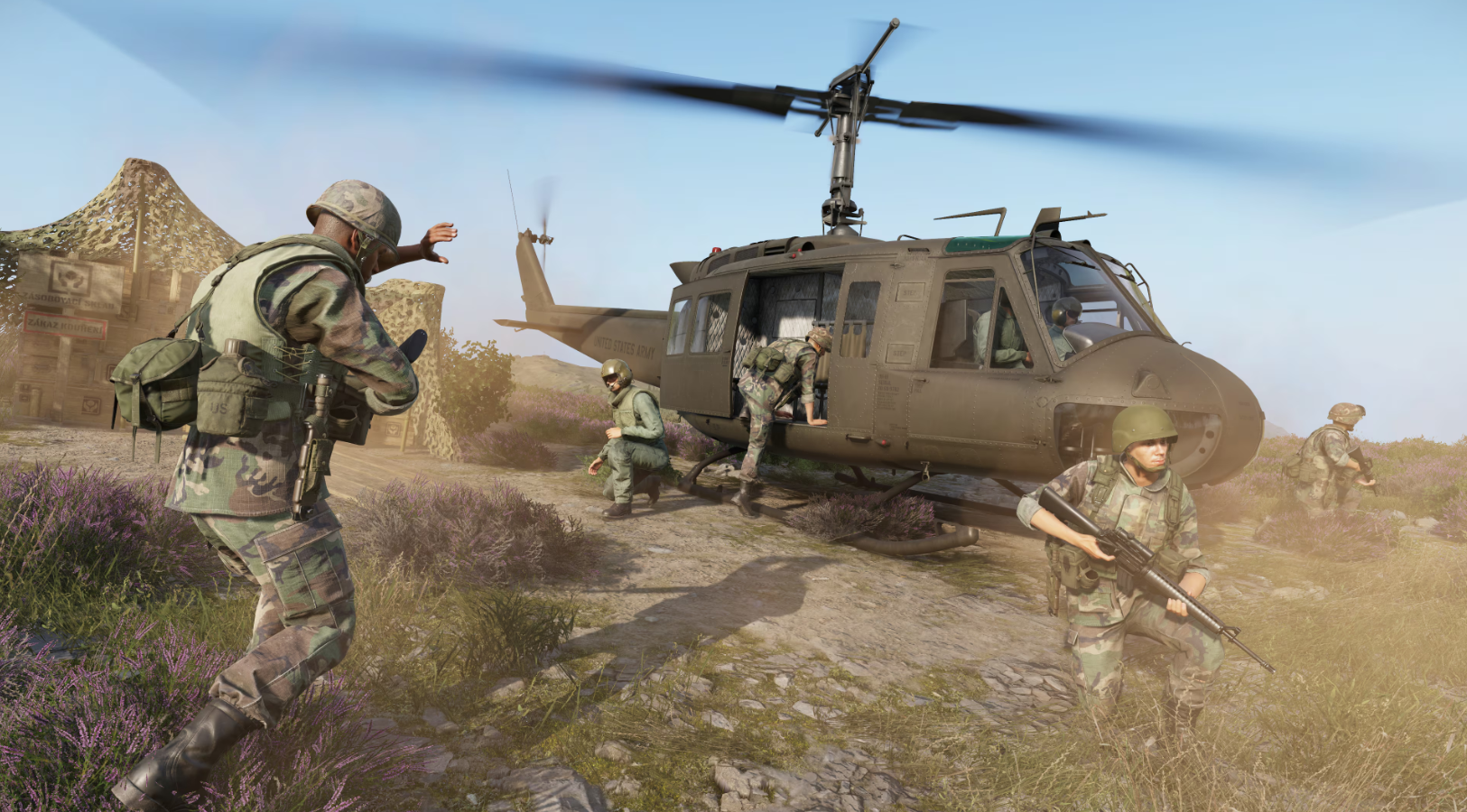
Arma Reforger serves as a high-fidelity bridge to the next generation of tactical military simulation. Success on the battlefield depends on a player’s ability to master the extensive Arma Reforger PC keyboard controls, which govern everything from infantry movement and stance adjustment to complex radio communications. Unlike arcade shooters, this simulation requires precise environmental interaction and deliberate weapon handling. Having a complete list of Arma Reforger keybindings at your disposal is essential for maintaining tactical superiority in both Conflict and Game Master modes.
Utilizing the correct Arma Reforger shortcuts allows for fluid transitions between combat stances and vehicle operation. Whether you are adjusting your sight range for long-distance engagements or managing multiple radio frequencies to coordinate with your squad, knowing the default keyboard shortcuts is critical. This guide provides a detailed breakdown of all primary controls to ensure you are fully prepared for the rigorous demands of military simulation on PC.
Character and Movement Controls
Navigating the terrain of Everon or Arland requires more than just simple movement keys; stance and speed management are vital for survival.
| Action | Keyboard Key |
| Move Forward | W |
| Move Backward | S |
| Strafe Left | A |
| Strafe Right | D |
| Sprint | Left Shift |
| Toggle Sprint | Double Tap Left Shift |
| Jump | Space |
| Crouch / Stand | X |
| Prone | Z |
| Adjust Stance | Left Ctrl + Mouse Scroll |
| Adjust Movement Speed | Mouse Scroll |
| Lean Left / Right | Q / E |
| Freelook | Left Alt (Hold) |
| Toggle Freelook | Double Tap Left Alt |
Weapon and Combat Interactions
Weapon manipulation in Arma Reforger includes safety toggles and manual zeroing of sights.
| Action | Keyboard Key |
| Fire Weapon | Left Mouse Button |
| Toggle Sights (ADS) | Right Mouse Button |
| Focus (Zoom) | Right Mouse Button (Hold) |
| Reload | R |
| Cycle Fire Mode | V |
| Toggle Weapon Safety | Delete |
| Lower Weapon | Double Tap Left Ctrl |
| Melee Attack | Middle Mouse Button |
| Throw Throwable | G (Hold to aim, release to throw) |
| Sight Range Up / Down | Page Up / Page Down |
Equipment and Inventory
Managing your kit and navigating the world using traditional tools.
| Action | Keyboard Key |
| Open Inventory | Tab |
| Quick Slot Menu | Hold Tab |
| Map | M |
| Compass | K |
| Wristwatch | O |
| Flashlight | L |
| Binoculars | B |
| Perform Action | Y |
Vehicle Controls
Operating ground vehicles requires manual engine management and gear shifting.
| Action | Keyboard Key |
| Accelerate / Brake | W / S |
| Steer Left / Right | A / D |
| Start / Stop Engine | Hold R / Press R |
| Gear Shift Up / Down | E / Q |
| Handbrake | Space |
| Lights | L |
| Sound Horn | Middle Mouse Button |
| Exit Vehicle | X |
Communication and Radio
Effective communication is the backbone of any Arma operation.
| Action | Keyboard Key |
| Talk (Direct Voice) | T (Hold) |
| Talk Over Radio | Caps Lock (Hold) |
| Toggle Voice/Radio | Double Tap T or Caps Lock |
| Select Active Radio | G |
| Open Chat | Enter |
| Show Player List | P |
Tactical Pro Tip
In Arma Reforger, stance adjustment is not limited to just standing or crouching. By using Left Ctrl + Mouse Scroll, you can transition through several height increments. This allows you to peek over specific cover heights or under gaps in structures without exposing your entire profile to the enemy.