Onimusha Way of the Sword PC Controls: Overview
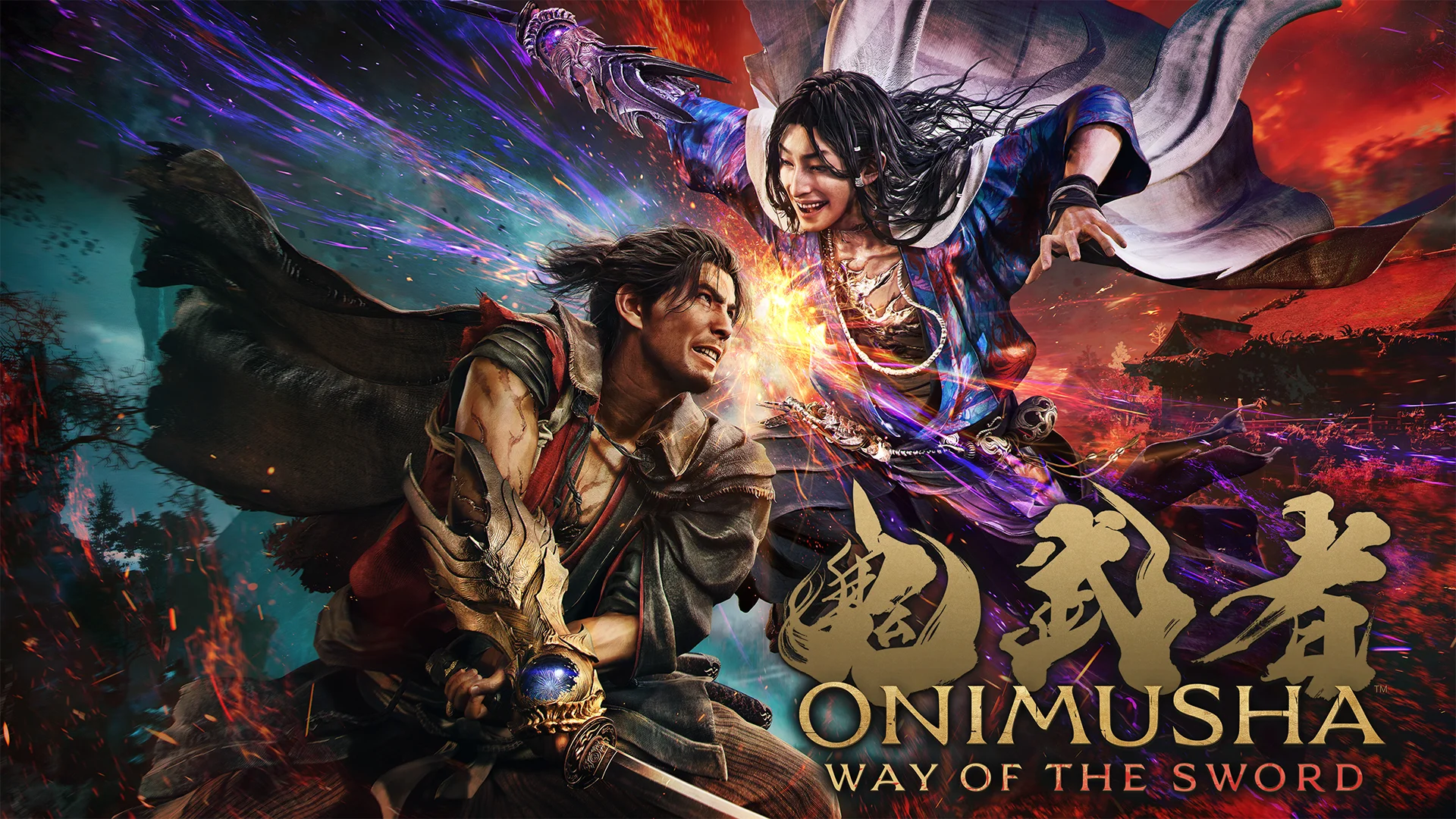
Onimusha Way of the Sword PC controls cover movement, four-tier parry, light and heavy attacks, Issen counters, stance switching, Oni Vision, Oni Mode, soul absorption, and menu navigation across a fully rebindable keyboard input system. Developed and published by Capcom using the RE Engine, Onimusha Way of the Sword launched on September 4, 2026 for PC (Steam), PS5, Xbox Series X/S, and Nintendo Switch 2. It is the first mainline Onimusha entry since Onimusha: Dawn of Dreams in 2006, placing protagonist Musashi in fog-covered Edo-period Kyoto against demonic Genma enemies.
Onimusha Way of the Sword keyboard controls are fully remappable on PC. Capcom explicitly recommends a controller for this title because the parry and Issen timing system uses shoulder button inputs that map more naturally to tactile hardware than to the keyboard. Both inputs are fully supported, but the combat rhythm the game builds around favors analog stick movement and trigger-based attacks.
Stat: Onimusha Way of the Sword launched to a “Mostly Positive” rating on Steam as of its release window. The game sits on the RE Engine, the same foundation as Resident Evil 4 Remake, Devil May Cry 5, and Dragon’s Dogma 2, making it the highest-fidelity entry in the Onimusha series by a significant margin.
Onimusha Way of the Sword Keyboard Controls: Full Default Layout
Movement Keybinds
| Action | Default Key |
| Move Forward | W |
| Move Backward | S |
| Strafe / Move Left | A |
| Strafe / Move Right | D |
| Dodge / Evade | Left Shift + WASD |
| Move Camera | Mouse |
| Lock On Target | Middle Mouse Button |
Onimusha Way of the Sword Combat Hotkeys
The Onimusha Way of the Sword combat keybinds place all attack inputs on mouse buttons and all defensive inputs on the keyboard. This split keeps your right hand on attack and your left hand on defense, matching the logic of the controller scheme where right shoulder buttons attack and left shoulder buttons parry.
| Action | Default Key |
| Light Attack | Left Mouse Button |
| Heavy Attack | Right Mouse Button |
| Parry / Block (tap for timed, hold to block) | Space |
| Deflect with Direction (Tier 3 Parry) | Space + WASD |
| Issen Counter (Tier 4 Parry) | Left Mouse Button at exact frame of enemy impact |
| Break Issen / Execute | F (when enemy stamina depleted) |
| Stance Switch (one-handed / two-handed) | Tab |
| Oni Vision | Q (hold) |
| Soul Absorb | Hold E (near defeated enemies) |
| Oni Mode Activate / Deactivate | Q + E (simultaneous) |
Onimusha Way of the Sword Interaction and Healing Hotkeys
| Action | Default Key |
| Interact / Examine | E |
| Use Healing Consumable | R |
| Open Menu / Pause | Esc |
| Open Map | M |
The Four-Tier Parry System: What Each Keybind Actually Does
The Onimusha Way of the Sword parry keybind is Space on keyboard, but pressing it the same way every time produces four different results depending on timing and directional input. Understanding the distinction is the most important thing any keyboard player learns before fighting their first serious encounter.
| Tier | Name | Input | Effect |
| Tier 1 | Block | Hold Space | Absorbs attacks from all directions; drains posture |
| Tier 2 | Timed Parry | Tap Space at moment of impact | Deflects blow; drains enemy stamina faster than Block |
| Tier 3 | Deflect | Tap Space + WASD direction | Redirects enemy into hazards, off ledges, or returns projectiles |
| Tier 4 | Issen | Press Left Mouse Button at the exact frame of enemy impact | One-hit kill on standard enemies |
Tier 1 and Tier 2 use the same key pressed differently. Tier 3 adds a direction. Tier 4 bypasses the parry button entirely and instead demands a perfectly timed attack at the moment an enemy strike lands. The game calls this the Issen counter, and it is the highest expression of the control system.
Pro Tip: Start every practice session drilling Tier 2 (timed parry) in isolation before attempting Tier 3 deflects or Tier 4 Issen. All higher tiers build on Tier 2 muscle memory. Once tapping Space at the moment of impact feels automatic, Tier 3 and Tier 4 become additive skills rather than new habits.
Stance Switching Keybind: The Most Important Habit on PC
The Onimusha Way of the Sword stance switch keybind is Tab on keyboard. Pressing Tab mid-combat toggles between one-handed and two-handed modes. One-handed stance provides faster light attack chains and quicker recovery. Two-handed stance delivers heavier damage per hit and different combo enders.
The intended playstyle alternates stances dynamically within a single combat sequence. Apply pressure in one-handed, create an opening through a successful parry or stagger, switch to two-handed with Tab, deal heavy damage, then switch back. Mastering when to press Tab is the difference between average and high-damage Onimusha Way of the Sword gameplay.
| Stance | Best Combo Chain | When to Use |
| One-Handed | Left Click, Left Click, Left Click (three fast hits) | Opening pressure, spacing, evasion recovery |
| Two-Handed | Left Click, Left Click, Right Click (two fast into heavy finisher) | After a parry, after a stagger, boss phase windows |
| Mid-Combo Switch | Tab between any hit in a chain | Extending combos and adapting to enemy stamina state |
Onimusha Way of the Sword Oni Mode Controls
Oni Mode activates when Musashi’s Oni Gauge fills through successful attacks, parries, and soul absorption. On keyboard, Oni Mode requires pressing Q and E simultaneously, which means the same keys used for Oni Vision (Q) and Interact (E) individually become the Oni Mode trigger when pressed together.
| Action | PC Default | Notes |
| Activate Oni Mode | Q + E (simultaneous) | Requires full Oni Gauge |
| Oni Mode Light Attack | Left Mouse Button | Enhanced damage and properties |
| Oni Mode Heavy Attack | Right Mouse Button | Modified move set |
| Oni Special Move | F | Executes a unique Oni-powered ability |
| Manual Deactivate | Q + E (simultaneous again) | Conserves remaining gauge |
| Auto Deactivate | Automatic | Triggers when Oni Gauge empties |
Pro Tip: Manual deactivation of Oni Mode with Q + E exists for a reason. If you finish a group of standard enemies with gauge remaining, deactivate manually to carry the surplus into the next encounter or a boss transition. Letting the gauge drain on weak enemies wastes the resource.
Onimusha Way of the Sword PS5 Controller Keybinds
| Action | PS5 Input |
| Move | Left Stick |
| Camera | Right Stick |
| Light Attack | R1 |
| Heavy Attack | R2 |
| Parry / Block | L1 (tap for timed, hold to block) |
| Deflect + Direction | L1 + Left Stick direction |
| Dodge / Evade | Circle + Left Stick direction |
| Stance Switch | L3 (Left Stick Click) |
| Oni Vision | L2 (hold) |
| Soul Absorb | Hold Circle (near defeated enemies) |
| Issen Counter | R1 at exact frame of enemy impact |
| Break Issen / Execute | Triangle (when enemy stamina depleted) |
| Oni Mode Activate | L3 + R3 (simultaneous) |
| Interact / Examine | Triangle |
| Lock On | R3 (Right Stick Click) |
| Heal Consumable | D-Pad Down |
| Open Menu / Pause | Options Button |
| Map | Touchpad |
Onimusha Way of the Sword Xbox Series X/S Controller Keybinds
| Action | Xbox Input |
| Move | Left Stick |
| Camera | Right Stick |
| Light Attack | RB |
| Heavy Attack | RT |
| Parry / Block | LB (tap for timed, hold to block) |
| Deflect + Direction | LB + Left Stick direction |
| Dodge / Evade | B + Left Stick direction |
| Stance Switch | L3 (Left Stick Click) |
| Oni Vision | LT (hold) |
| Soul Absorb | Hold B (near defeated enemies) |
| Issen Counter | RB at exact frame of enemy impact |
| Break Issen / Execute | Y (when enemy stamina depleted) |
| Oni Mode Activate | L3 + R3 (simultaneous) |
| Interact / Examine | Y |
| Lock On | R3 (Right Stick Click) |
| Heal Consumable | D-Pad Down |
| Open Menu / Pause | Menu Button |
| Map | View Button |
Platform Controls Summary
| Platform | Input Support | Rebind Options |
| PC (Steam) | Keyboard and Mouse | Full per-key remapping in Settings > Controls |
| PC (Steam) | DualSense / Xbox Controller | Full per-button remapping |
| PS5 | DualSense | Full remapping; DualSense haptics and adaptive triggers active |
| Xbox Series X/S | Xbox Controller | Full remapping; Impulse Trigger feedback active |
| Nintendo Switch 2 | Joy-Con 2 / Pro Controller 2 | Full remapping |
Keyboard vs Controller: Which to Use
| Factor | Keyboard and Mouse | Controller |
| Parry timing precision | Good (Space is responsive) | Excellent (L1/LB shoulder feel) |
| Camera control | Excellent (mouse precision) | Good (right stick) |
| Stance switching | Adequate (Tab key) | Easy (L3 click is natural) |
| Movement precision | Good (WASD is 8-directional) | Excellent (analog stick) |
| Multi-button combos | Challenging (hand spread) | Easy (all under fingers) |
| Oni Mode activation | Requires two-key press (Q + E) | Requires two-stick click (L3 + R3) |
Both inputs work. The controller advantage in Onimusha Way of the Sword comes specifically from the shoulder button layout: L1/LB for parry and R1/RB for light attack sit under natural resting positions, letting you transition between offense and defense without repositioning your hand. On keyboard, Space for parry and Left Mouse for attack produce the same functional result but require more deliberate input discipline.
How to Rebind Onimusha Way of the Sword Controls
Onimusha Way of the Sword keybind remapping on PC opens through the main menu settings panel. Every combat and navigation action supports a custom keyboard assignment. The game also supports Hold/Toggle switching for accessibility, meaning actions like Oni Vision (default: hold Q) can be switched to toggle mode for players who prefer not to hold keys during long scanning sequences.
Capcom’s RE Engine handles keyboard and mouse glyph display uniquely in this title: button prompts switch between keyboard and controller glyphs based on which input you last physically pressed rather than which device is connected. This means plugging in a controller does not immediately switch all prompts to controller icons unless you actually press a controller button.
FAQ
What are the default Onimusha Way of the Sword PC controls?
The default Onimusha Way of the Sword keyboard controls use WASD for movement, Left Mouse Button for light attacks, Right Mouse Button for heavy attacks, Space for parry and block, Left Shift + WASD for dodging, Tab to switch stances, Q to hold for Oni Vision, E to interact or absorb souls, F for Break Issen execution, R to heal, and M to open the map.
What is the Onimusha Way of the Sword parry keybind on PC?
The parry keybind in Onimusha Way of the Sword is Space on keyboard. Tapping Space at the moment of enemy impact performs a Timed Parry (Tier 2). Holding Space performs a standard Block (Tier 1). Tapping Space while pressing a WASD direction performs a Deflect (Tier 3). Pressing Left Mouse Button at the exact frame of enemy impact performs an Issen counter (Tier 4) without using Space at all.
How do you activate Oni Mode in Onimusha Way of the Sword on keyboard?
Press Q and E simultaneously to activate Oni Mode. The same two-key combination deactivates it manually. Oni Mode requires a full Oni Gauge, which fills through successful attacks, parries, and soul absorption from defeated enemies.
What is the Issen keybind in Onimusha Way of the Sword?
Issen does not use a dedicated key. On keyboard, Issen triggers by pressing Left Mouse Button at the exact frame an enemy attack connects with Musashi. On PS5 it is R1 at that same frame, and on Xbox it is RB. The input is the same as a light attack; the timing transforms it into a one-hit kill counter on standard enemies.
Can you play Onimusha Way of the Sword on keyboard and mouse?
Yes. Onimusha Way of the Sword fully supports keyboard and mouse on PC with complete key remapping. Capcom and the community recommend a controller specifically because the parry system maps more naturally to shoulder buttons than to the Space key, but keyboard and mouse players who practice the timing consistently achieve the same results.
How do you switch stances in Onimusha Way of the Sword on PC?
Press Tab to switch between one-handed and two-handed stances on keyboard. On PS5 and Xbox, L3 (left stick click) handles the same input. Stance switching works mid-combo, meaning you can press Tab between individual hits in a chain to change the combo path without resetting your attack sequence.
Does Onimusha Way of the Sword support Nintendo Switch 2?
Yes. Onimusha Way of the Sword launched on Nintendo Switch 2 alongside PC, PS5, and Xbox Series X/S on September 4, 2026, making it one of the Switch 2 launch window titles from a major Japanese publisher. Full control remapping is available on the Switch 2 version.