Bongo Cat Keyboard Controls: How the Game Works
Bongo Cat keyboard controls are different from a traditional game. Developed by Irox Games (Marcel Zurawka and Julius Krüger), Bongo Cat launched on Steam on March 5, 2025 as a free-to-play desktop companion. Every key you press on your keyboard and every mouse click makes the cat punch your taskbar and adds one point to your beat counter. The keyboard is not just a control input in Bongo Cat: it is the entire gameplay loop.
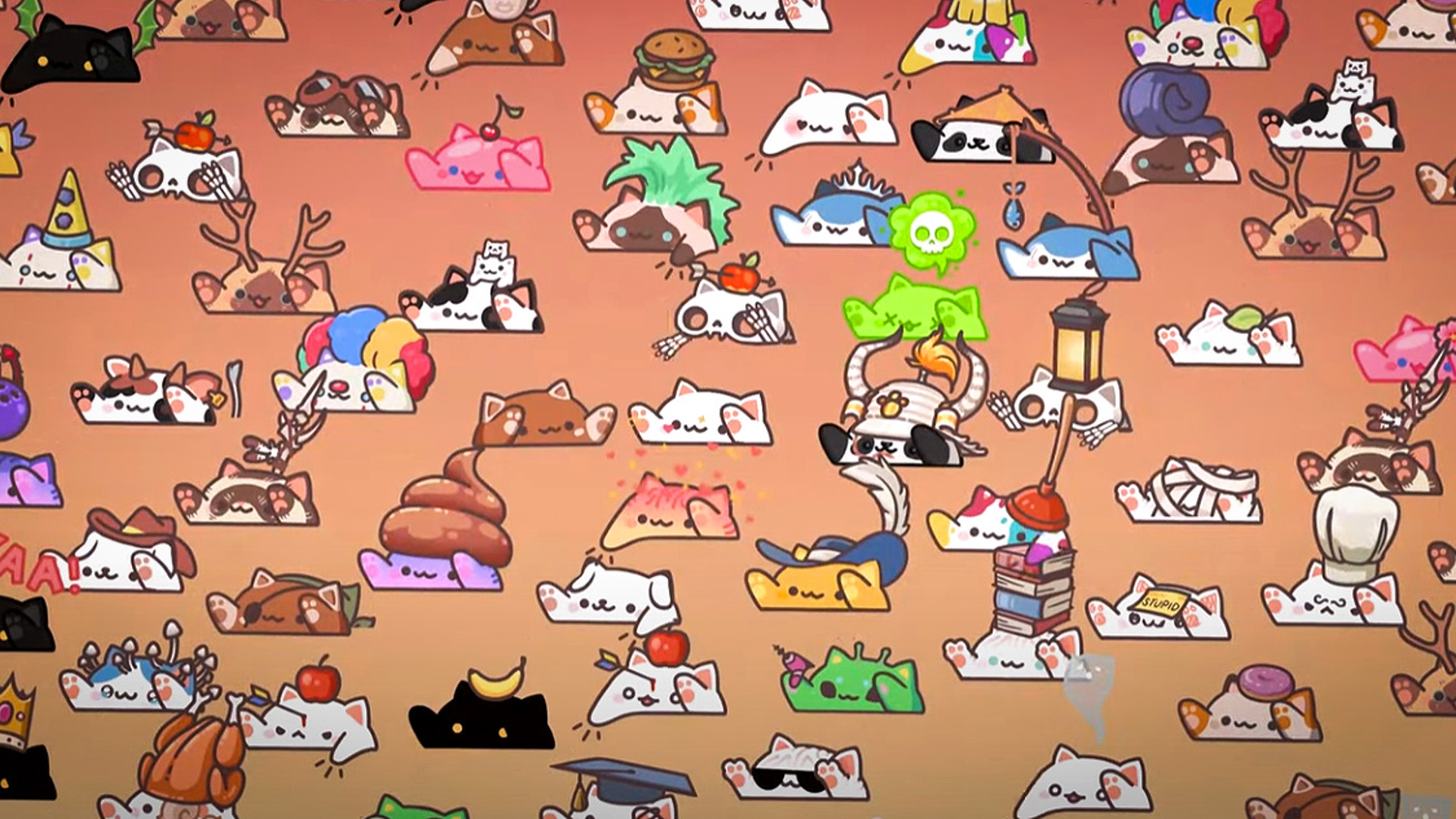
Every 1,000 beats, a treasure chest appears in the lower-right corner of your screen. Opening the chest rewards cosmetic items, including hats, skins, and emotes of varying rarity. Points stack up across keyboard typing, gaming, browsing, and any other computer activity, making Bongo Cat an idle companion rather than an active session game.
Stat: As of March 2026, Bongo Cat holds an Overwhelmingly Positive rating on Steam with over 29,500 reviews and a 96% approval rate. The game added a new achievement for reaching 25 million total beats in March 2026, signaling just how engaged its player base has become with accumulating inputs.
Bongo Cat Default Keyboard Hotkeys and Shortcuts
Bongo Cat uses a set of built-in function key shortcuts to control the overlay itself. These hotkeys work when Bongo Cat is the active (focused) window.
| Action | Shortcut |
| Reset position / show UI (menu moved off-screen) | F1 |
| Resize cat (smaller) | F2 |
| Resize cat (larger) | F3 |
| Exit Gaming Mode (when active) | F4 |
| Switch preset emote 1 | Ctrl + 1 |
| Switch preset emote 2 | Ctrl + 2 |
| Switch preset emote 3 (triggers thunder sound) | Ctrl + 3 |
| Switch preset emote 4 | Ctrl + 4 |
Important: F1, F2, and F3 only respond when Bongo Cat is the focused window. If these shortcuts fail to fire, the most common cause is that another application has captured focus or your keyboard’s function keys require pressing Fn first on a laptop. Switch to Bongo Cat using Alt + Tab before pressing F1, F2, or F3.
Bongo Cat Gaming Mode: What It Does and How to Control It
Gaming Mode in Bongo Cat locks the overlay in place so you cannot accidentally click or move the cat while playing another game. Once Gaming Mode activates, all interactions with the Bongo Cat window disable except for treasure chest collection, which still works normally.
| Action | Method |
| Enable Gaming Mode | Click the menu button (hamburger icon) > Settings > check Gaming Mode |
| Exit Gaming Mode | Alt + Tab to focus Bongo Cat, then press F4 |
Pro Tip: Position Bongo Cat exactly where you want it on your screen before enabling Gaming Mode. Once the overlay locks, you cannot reposition the cat until you exit Gaming Mode through Alt + Tab and F4.
Bongo Cat Input: What Counts as a Beat
Every keyboard key press and every mouse click registers as a beat in Bongo Cat. The game tracks all input globally, meaning it counts keystrokes from any application running on your desktop, not just inputs directed at the Bongo Cat window itself. This is the core design: use your computer normally and the cat keeps score automatically.
| Input Type | Counts as a Beat |
| Any keyboard key press | Yes |
| Left mouse button click | Yes |
| Right mouse button click | Yes |
| Mouse scroll wheel | Yes (in most builds) |
| Controller button press | Yes (when controller is active) |
| Gaming Mode (locked) | Yes, beats still count |
Stat: Bongo Cat intentionally blocks most auto-clicker tools from registering mouse click inputs. However, keyboard-based AutoHotKey scripts that send repeated keystrokes continue to register beats correctly, as documented in the Steam community guides. The game’s anti-automation logic targets click simulation specifically rather than keyboard input simulation.
Bongo Cat Menu and Settings Navigation (Keyboard and Mouse)
Bongo Cat uses mouse-driven menu navigation for most settings. The hamburger menu (three-line icon) next to the cat opens the main settings panel where you control appearance, Gaming Mode, auto-start, and cat direction.
| Setting / Action | How to Access |
| Open main menu | Click the hamburger (three-line) icon |
| Open inventory | Menu > Inventory (routes to Steam overlay) |
| Enable Gaming Mode | Menu > Settings > Gaming Mode checkbox |
| Flip cat direction | Menu > Settings > Flip direction |
| Enable auto-start with Windows | Menu > Settings > Auto-start |
| Resize without F keys | Menu > Settings > resize slider (added after F-key reports) |
| Reset off-screen menu button | Click cat once, then press F1 |
Bongo Cat Multiplayer Lobby Controls
Bongo Cat includes a Multiplayer tab where players join shared lobbies and combine beats with other users on screen simultaneously. The Spawn Settings button inside the Multiplayer tab provides eight auto-alignment patterns to position multiple cats cleanly.
| Action | Method |
| Open Multiplayer tab | Menu > Multiplayer |
| Open Spawn Settings | Menu > Multiplayer > Spawn Settings button |
| Align cats automatically | Select 1 of 8 alignment patterns in Spawn Settings |
Bongo Cat Keyboard Controls: Quick Reference
| Action | Key / Input |
| Add a beat | Any key press or mouse click |
| Reset / show UI | F1 (Bongo Cat focused) |
| Resize smaller | F2 (Bongo Cat focused) |
| Resize larger | F3 (Bongo Cat focused) |
| Exit Gaming Mode | F4 (Bongo Cat focused after Alt + Tab) |
| Emote slot 1 | Ctrl + 1 |
| Emote slot 2 | Ctrl + 2 |
| Emote slot 3 | Ctrl + 3 |
| Emote slot 4 | Ctrl + 4 |
| Open main menu | Left mouse click on hamburger icon |
| Open treasure chest | Left mouse click when chest prompt appears |
Pro Tips for Bongo Cat Keyboard Usage
Run as Administrator if hotkeys stop responding. Some users report that F1, F2, and F3 fail to register when Bongo Cat runs without administrator permissions on Windows. Right-click BongoCat.exe, go to Properties > Compatibility, and check “Run as Administrator.” Note that enabling Run as Administrator can conflict with the auto-start feature on some systems.
Use Gaming Mode during full-screen games. Without Gaming Mode active, clicking on your desktop can accidentally bring Bongo Cat into focus and disrupt gameplay. Enable Gaming Mode before launching any full-screen title. Beats still count while Gaming Mode is on, so you do not lose progress.
Ctrl + 3 triggers a thunder sound effect. The emote shortcuts do more than swap animations. Ctrl + 3 specifically plays an audio effect alongside the emote, which makes it useful as a quick sound trigger during streams or calls.
FAQ
What are the Bongo Cat keyboard controls?
Bongo Cat registers every key press and mouse click as a beat. The main in-app keyboard shortcuts are F1 (reset position), F2 (resize smaller), F3 (resize larger), F4 (exit Gaming Mode), and Ctrl + 1 through Ctrl + 4 (switch emote slots). All function key shortcuts require Bongo Cat to be the active focused window to work.
How do I exit Gaming Mode in Bongo Cat?
Press Alt + Tab to bring Bongo Cat into focus, then press F4. Gaming Mode locks the overlay so it cannot be moved or interacted with during games, and F4 is the only keyboard shortcut that disables it once active.
Do all keyboard keys count as beats in Bongo Cat?
Yes. Every key press on your keyboard registers as one beat regardless of which application you are using at the time. Bongo Cat tracks keyboard and mouse input globally across your desktop.
Why are my F1, F2, and F3 keys not working in Bongo Cat?
The most common cause is that Bongo Cat is not the active window. Alt + Tab to Bongo Cat first, then press the function key. On laptops, you may also need to press the Fn key together with F1, F2, or F3 depending on your keyboard’s function lock setting. If the issue persists, try running Bongo Cat as Administrator.
What does Ctrl + 3 do in Bongo Cat?
Ctrl + 3 switches your cat to emote preset 3 and triggers a thunder sound effect. The Ctrl + 1 through Ctrl + 4 shortcuts all switch between the four preset emote slots, but Ctrl + 3 is the only one that plays an audio cue alongside the animation.
Can I use a controller with Bongo Cat?
Yes. Controller button presses register as beats in Bongo Cat when a controller is active on your system. The game also recognizes controller input in the overlay display. Some community builds and overlay tools support dedicated controller visualization layouts alongside keyboard and mouse.
Does Bongo Cat work while I play other games?
Yes. Bongo Cat runs as a desktop overlay and continues counting keyboard and mouse input while any other game or application runs. Enable Gaming Mode before launching full-screen titles to prevent accidental clicks from interrupting gameplay while the cat tracks your beats in the background.