
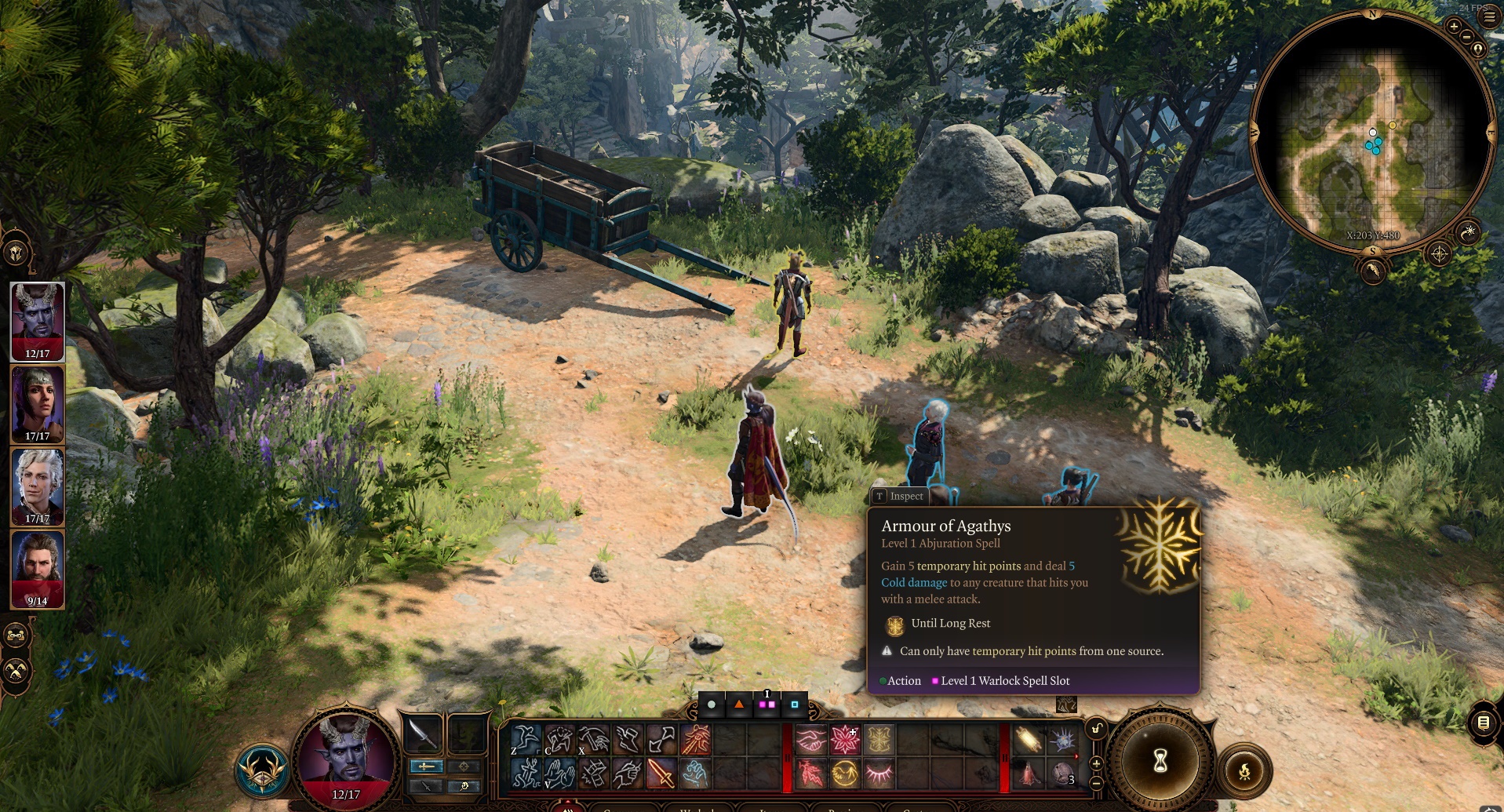
In Baldur’s Gate 3, managing a four-person party, filtering through dense environments for hidden loot, and managing turn-based combat requires significant micro-management. Relying purely on mouse clicks slows down exploration and can lead to accidental misclicks during critical tactical combat.
This comprehensive reference organizes the default PC keybindings for the definitive version of the game, helping you streamline inventory management, party movement, and combat execution.
1. Camera & View Navigation
Maintaining spatial awareness is critical when positioning ranged characters or searching for hidden traps and vertical paths.
| Action | Key Binding |
| Move Camera Forward / Left / Back / Right | W / A / S / D |
| Rotate Camera Left / Right | Q / E (or Hold Middle Mouse Button) |
| Center Camera on Active Character | Home |
| Toggle Tactical Camera (Top-Down View) | O |
| Show / Hide UI (Screenshot Mode) | F10 |
2. Party Management & Selection
Chaining and unchaining your companions quickly prevents your entire squad from blindly walking into localized traps or surface hazards.
| Action | Key Binding |
| Select Party Member (Slots 1–4) | F1 / F2 / F3 / F4 |
| Toggle Group Mode (Group / Ungroup All) | G |
| Select Next / Previous Character | ] / [ |
3. Exploration & Interactivity
Faerûn is packed with dense environmental detail. Use these shortcuts to reveal hidden items and manage stealth sequences cleanly.
| Action | Key Binding |
| Highlight Interactive Objects / Item Labels | Left Alt (Hold) |
| Highlight Characters & Threat Levels (Outlines) | ` (Tilde / Grave accent key) |
| Show Sneak Cones (Enemy Line of Sight) | Left Shift (Hold) |
| Toggle Sneak (Active Character) | C |
| Toggle Party Sneak (All Members) | Shift + C |
| Jump | Z |
| Shove | V |
| Throw | X |
| Take All Items from Container (Looting) | Spacebar |
4. Combat & Action Bar Controls
Turn-based scenarios require tight action economy. Use these bindings to quickly issue commands and cycle options.
| Action | Key Binding |
| Enter / Leave Turn-Based Mode | Shift + Spacebar |
| End Turn (During Combat) | Spacebar |
| Force Attack Target | Left Ctrl + Left Click |
| Select Custom Hotbar Slots 1–12 | 1, 2, 3, 4, 5, 6, 7, 8, 9, 0, -, = |
| Cancel Action / Spell Casting Selection | Escape |
| Toggle Weapon Set (Melee / Ranged) | F |
| Toggle Dual-Wielding Mode | R |
| Pin Tooltip Info | T (Locks details window open for evaluation) |
5. Menus, Panels & Save States
Skip the main menu entirely to check quest tracking, swap spells on the fly, or quickly rectify a bad dice roll.
| Action | Key Binding |
| Open Party View (All Inventories Side-by-Side) | Tab |
| Open Inventory & Equipment (Active Character) | I |
| Open Character Sheet | N |
| Open Spellbook | K |
| Open Journal / Quest Log | J |
| Open World Map | M |
| Open Reactions Panel | L |
| Open Alchemy Panel | H |
| Quicksave Game | F5 |
| Quickload Last Quicksave | F8 |
💡 Professional Tip: The Inventory & Stack Efficiency Tricks
Managing items across four inventories can be a massive chore. Two hidden shortcuts drastically cut down on inventory management time:
- The Mass-Management View: Instead of hitting I to check characters individually, press Tab to bring up the full Party View. From here, you can directly drag items across character portraits to balance weight or distribute potions mid-exploration without opening separate panels.
- Splitting Stacks Instantly: When moving ingredients or scrolls, hold down Left Shift while dragging the item to a new slot or character portrait. This bypasses the click menu and instantly opens the item count slider box, letting you choose exactly how many items to split from the stack.