
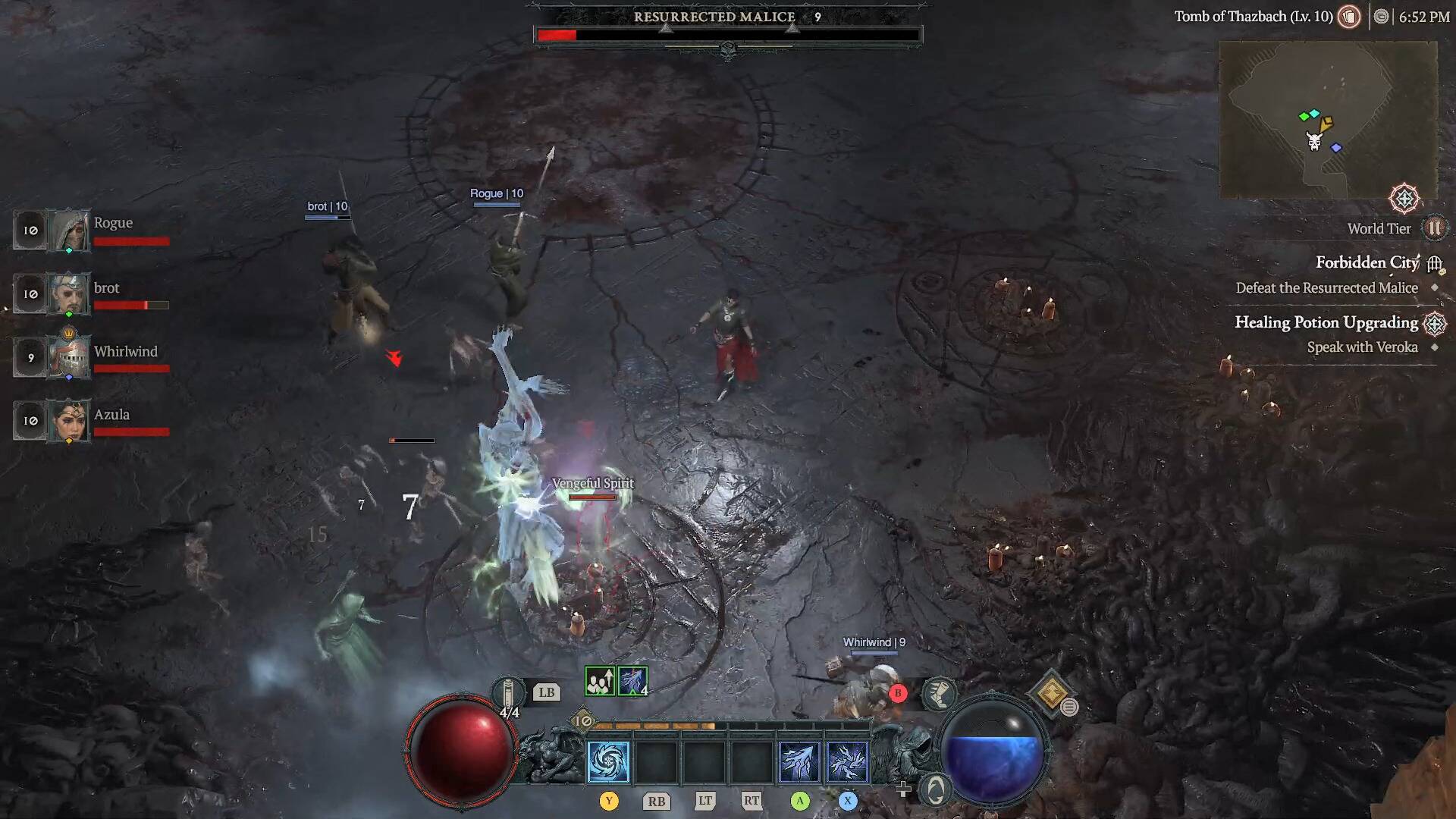
In Diablo IV, end-game content like high-tier Nightmare Dungeons, The Pit, and Tormented Bosses requires frame-perfect positioning. The default layout binds Movement, Interaction, and your Basic Skill all to the Left Mouse Button (LMB). This often causes players to accidentally attack an enemy when they are desperately trying to dodge a ground AoE mechanic.
This guide outlines the default configurations and provides the optimal community-proven “Pro” keybind setup to isolate your movement from your combat inputs, maximizing survivability and reducing hand strain.
1. Default Keyboard & Mouse Controls
These are the standard out-of-the-box hotkeys provided by Blizzard.
| Action | Default Keybind |
| Move / Interact / Basic Skill | Left Mouse Button (LMB) |
| Core Skill | Right Mouse Button (RMB) |
| Skill Slot 1 / 2 / 3 / 4 | 1 / 2 / 3 / 4 |
| Evade (Dash) | Spacebar |
| Use Potion | Q |
| Town Portal | T |
| Map Screen | Tab or M |
| Character Panel / Inventory | C or I |
| Hold Position (Stand Still) | Shift |
| Mount / Dismount | Z / RMB |
2. The Competitive “Ergonomic” Setup (Recommended)
To prevent repetitive strain injury (RSI) and eliminate accidental inputs, the community favors transitioning away from the top number row toward a standard home-row (ASDF) or MOBA-style (QWER) positioning.
Gameplay & Skill Optimization
| Action | Recommended Key | Tactical Advantage |
| Skill Slot 1 / 2 / 3 / 4 | A / S / D / F (or Q / W / E / R) | Lowers your hand to the natural typing resting position, reducing finger stretching and fatigue. |
| Evade (Dash) | Spacebar | Kept on Spacebar for immediate thumb-reaction tracking. |
| Use Potion | Side Mouse Button 1 (or 1) | Moves the panic heal off your skill fingers, preventing missed cooldowns during heavy damage phases. |
| Force Move | Mouse Wheel Up / Down | Allows you to path through dense packs of monsters without targeting them. |
| Hold Position (Stand Still) | Left Shift or Spacebar | Vital for ranged builds (Sorc/Rogue) to cast spells without stepping forward. |
3. Critical Gameplay Settings to Toggle
Changing your keys in the menu is only half the battle. You must uncouple the default targeting cluster within the game options to make the binds functional.
- Uncheck “Combine Move / Interact / Basic Skill”:
Locate this under Options > Controls. Disabling this setting splits the single button into three distinct mapping options: Force Move, Force Interact, and Basic Skill. - Bind Basic Skill to LMB, Interact to F:
This separates looting and talking to NPCs from your primary attack sequence, ensuring you do not lock onto a chest or item mid-combat. - Turn Off “Zoom on Mousewheel”:
If you choose to map Force Move to the scroll wheel, you must unbind the camera zoom feature to stop the screen from shaking violently during movement.
The “Force Move” Scroll Wheel Trick
Mapping Force Move to Mouse Wheel Up and Mouse Wheel Down is an industry-standard practice for high-level ARPG players.
When fighting through packed rooms, holding down Left-Click often locks your character onto a random minion, stalling your forward momentum. By unlocking Force Move and binding it to your scroll wheel, you can continuously spin the wheel to fluidly path directly through gaps in monster hitboxes without initiating combat. This single optimization will drastically drop your mortality rate in high-tier content.
Are you looking to optimize a specific character build’s rotation around these binds, or do you need a breakdown of the user-interface shortcuts for managing Paragon boards and Masterworking?