
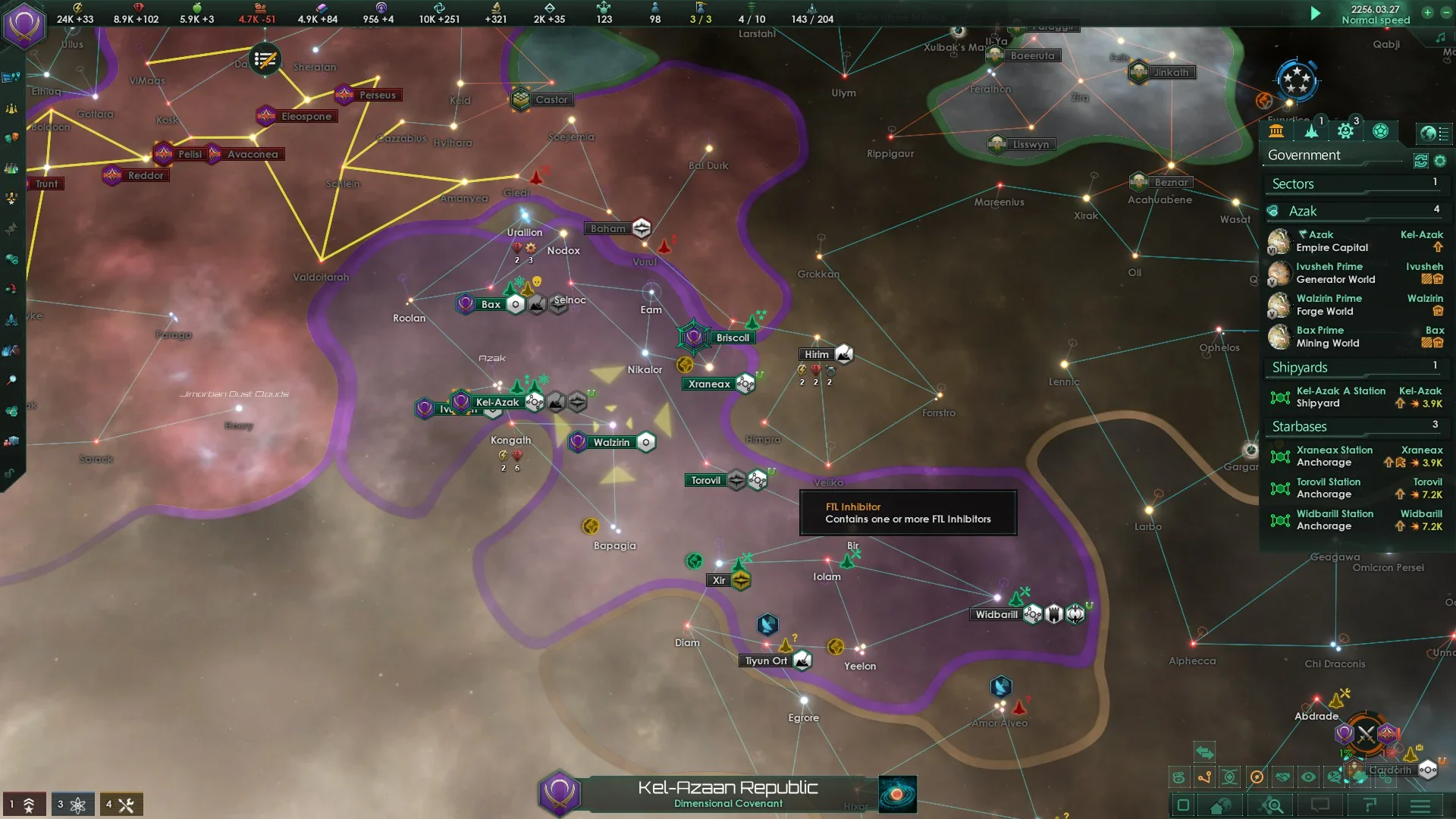
Managing a galactic empire in Stellaris requires high APM if you want to outpace rival factions and survive endgame crises. Paradox Interactive built this 4X grand strategy game with massive amounts of micro-management. Clicking through every sub-menu for planetary decisions, fleet merging, or trade deals takes too much time. Using the correct keybinds accelerates your expansion and keeps your economy running efficiently.
Core Map and Camera Controls
Controlling your view is the first step to mastering the game interface. You need to switch between the galactic view and individual systems instantly to monitor border expansions and enemy fleet movements.
| Action | Shortcut Key |
| Pause / Unpause Game | Spacebar |
| Increase Game Speed | + (Numpad) |
| Decrease Game Speed | – (Numpad) |
| Toggle Galaxy / System Map | E or M |
| Pan Camera | W, A, S, D |
| Camera Focus (Go to selected) | Q |
| System Search | F |
| Hide User Interface | Ctrl + F9 |
| Show Details Mapmode | Alt (Hold) |
| Cycle Through Star Systems | Tab |
| Cycle Backwards Through Systems | Shift + Tab |
Using the Alt key reveals extra resources and anomalies hidden behind planetary bodies on the map without opening the system view. Pressing Ctrl + F9 hides all menus, which is highly useful for taking clean screenshots of space battles or megastructures.
Fleet Commands and Military Shortcuts
Warfare in Stellaris involves coordinating multiple armadas across different hyperlanes. Selecting and moving units manually often leads to misclicks during chaotic engagements. Assigning control groups and using fleet-specific commands keeps your ships organized.
| Action | Shortcut Key |
| Merge Selected Fleets | G |
| Split Fleet in Half | V |
| Stop Current Action | H |
| Return to Base / Go MIA | B |
| Initiate Jump Drive | J |
| Attack Target / Force Attack | X |
| Fleet Stance Toggle | T |
| Assign Control Group | Ctrl + 1, 2, 3… |
| Select Control Group | 1, 2, 3… |
| Upgrade Fleet | U |
Queueing actions is a highly advanced mechanic that separates average players from veterans. If you select a science vessel or a construction ship, hold Shift and right-click to queue multiple survey or build orders. If you need a ship to perform an emergency task without wiping its current queue, hold Ctrl + Shift and right-click. This adds the new order to the absolute front of the queue, resuming the rest of the tasks once the immediate priority is complete.
Planetary Management and Interface Navigation
The Outliner on the right side of the screen and the main menu tabs on the left contain your entire economy. You can bypass the mouse almost entirely by memorizing the F-keys and the sub-menu letters.
| Action | Shortcut Key |
| Contacts Menu | F2 |
| Situation Log | F3 |
| Market | F4 |
| Planets and Sectors | F5 |
| Expansion Planner | F6 |
| Policies | F7 |
| Edicts | F8 |
| Traditions | F9 |
| Ship Designer | F10 |
| Outliner Tabs | Ctrl + Q, W, E, R |
When you open a specific planet window, the game assigns letters to the bottom tabs. Pressing Z opens the Planet Summary. X opens the Population tab. C opens the Armies tab, and V opens the Corporate tab. If you need to make rapid planetary decisions, press N. This allows you to rapidly cycle through your colonies using Tab, press N, enact a decision, and move to the next colony in seconds.
Advanced Trade and Market Execution
Trading resources on the galactic market or directly with other empires can be tedious if you click the plus and minus arrows repeatedly. The interface defaults to increments of one or ten depending on the screen.
You can modify these increments using modifier keys. When buying or selling minerals, alloys, or consumer goods, hold Shift while clicking to change the amount by 100 per click. Hold Ctrl to change the amount by 10 per click. To move massive amounts of resources late in the game, hold Ctrl and Shift simultaneously while clicking to change the transaction amount by 1000 per click. This prevents excessive clicking and lets you balance your economy instantly before a deficit ruins your research output.
Frequently Asked Questions About Stellaris Controls
How do you group fleets in Stellaris?
Select the ships you want to group together, then press Ctrl and any number key from 0 to 9. This binds the armada to that specific number. You can then press that number key at any time to instantly select the group, or double-tap the number to jump your camera directly to their location.
How do I queue multiple orders for a science ship?
Select the science vessel, hold down the Shift key, and right-click on the systems you want to survey. You can also use this method to queue anomaly research and special projects.
What is the shortcut to merge fleets?
Select multiple fleets by holding Shift and clicking them or dragging a selection box over them, then press the G key. They will attempt to group up and merge into a single entity, provided you have not exceeded your fleet command limit.
How do I switch between the system and galaxy view?
Press the E key or the M key to toggle between the close-up view of a solar system and the wide-scale view of the entire galaxy.
How do you force attack neutral entities?
Select your military units, press the X key, and click on the neutral target. This is highly useful for clearing out space amoebas, mining drones, or crystal entities that are blocking your expansion paths.
Is there a shortcut to upgrade all defense platforms?
Yes, open your starbase menu and navigate to the defenses tab. Pressing the U key will automatically issue the upgrade command for all defense platforms stationed there, provided you have enough alloys in your storage.
How do I use the console commands?
Press the tilde key located below the Escape key on most keyboards to open the developer console. This is only available in single-player non-ironman modes and allows you to spawn resources, trigger events, or fix bugged anomalies.