
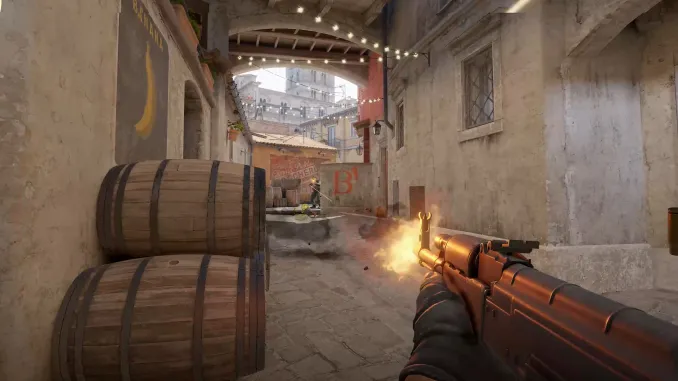
Counter-Strike 2 shifted the meta heavily when it replaced the previous iteration of the game. While the graphics engine and subtick servers took the spotlight, the underlying config system also received massive updates. If you still manually click through the buy menu during freeze time, you waste precious seconds that should be spent discussing tactics or getting in position for an execute. This guide provides the exact autoexec scripts and keyboard shortcuts used by professional players to optimize economy management and gameplay mechanics.
How the CS2 Loadout System Changes Buy Binds
Unlike the old radial menu, CS2 uses a grid based loadout system. You select five pistols, five mid tier weapons, and five rifles before you queue for a match. Fortunately, the developer console still accepts traditional weapon names. You can bind specific keys to purchase an AK-47 on the Terrorist side or an M4A4 on the Counter-Terrorist side using a single command. The game engine automatically recognizes which side you are on and buys the appropriate equivalent if available.
Optimal Numpad Buy Binds Layout
The numeric keypad is the standard location for economy scripts. It sits completely separate from your movement keys, preventing accidental purchases during a live round. Here is an optimal layout for standard competitive play that covers all your utility, armor, and primary weapon needs.
| Weapon or Item | Console Command | Recommended Key |
| AK-47 / M4A4 / M4A1-S | bind “kp_1” “buy ak47; buy m4a1;” | Numpad 1 |
| AWP | bind “kp_2” “buy awp;” | Numpad 2 |
| FAMAS / Galil AR | bind “kp_3” “buy galilar; buy famas;” | Numpad 3 |
| Desert Eagle | bind “kp_4” “buy deagle;” | Numpad 4 |
| MAC-10 / MP9 | bind “kp_5” “buy mac10; buy mp9;” | Numpad 5 |
| Kevlar Vest | bind “kp_7” “buy vest;” | Numpad 7 |
| Kevlar and Helmet | bind “kp_8” “buy vesthelm;” | Numpad 8 |
| Defuse Kit | bind “kp_9” “buy defuser;” | Numpad 9 |
| Flashbang | bind “uparrow” “buy flashbang;” | Up Arrow |
| Smoke Grenade | bind “downarrow” “buy smokegrenade;” | Down Arrow |
| High Explosive Grenade | bind “leftarrow” “buy hegrenade;” | Left Arrow |
| Incendiary / Molotov | bind “rightarrow” “buy incgrenade; buy molotov;” | Right Arrow |
Utility Crosshair and Radar Config Commands
Buying weapons quickly is only half the battle. Your configuration file should also include commands that increase your situational awareness and remove unnecessary distractions. Note that legacy commands like clear decals do not exist in the Source 2 engine, as blood fades naturally over time.
| Action | Console Command | Recommended Key |
| Toggle Large Crosshair for Lineups | bind “c” “toggle cl_crosshairsize 2 1000” | C |
| Drop C4 Explosive Quickly | bind “t” “use weapon_c4; drop” | T |
| Mute Voice Chat (Clutch Key) | bind “k” “voice_modenable_toggle” | K |
| Show Network Telemetry (FPS/Ping) | cl_hud_telemetry_frametime_show 2 | Autoexec entry |
| Adjust Radar Scale | cl_radar_scale 0.4; cl_radar_always_centered 0 | Autoexec entry |
The Truth About Jump Throw Binds and Snap Tap in CS2
If you search for configuration guides, many outdated sources tell you to create an alias script for jump throwing smoke grenades. Valve recently updated the game to strictly block hardware macros, null movement scripts (Snap Tap), and multi action aliases like jump throws. You no longer need an alias script. The subtick engine guarantees that if you press jump and release your left click within the same tick window, your grenade will land exactly in the same spot every single time. Simply bind jump to your spacebar or scroll wheel and practice the timing naturally.
How to Set Up an Autoexec File for CS2
Typing commands into the console every time you launch the game is frustrating. An autoexec file automatically loads your custom settings upon startup, keeping your keybinds consistent even if you change accounts.
- Open your Steam library, right click Counter-Strike 2, select Manage, and click Browse Local Files.
- Open the game folder, then the csgo folder, and finally the cfg folder.
- Right click in the empty space, create a new text document, and name it autoexec.txt.
- Open the file, paste all your desired binds and console variables, and save it.
- Rename the file extension from .txt to .cfg so it reads as autoexec.cfg.
- Open your Steam launch options for the game and type +exec autoexec to force the engine to read the file on startup.
Frequently Asked Questions about CS2 Configs
Why are my CS:GO buy binds not working in CS2?
The transition to the Source 2 engine changed some syntax rules and completely altered the directory structure for your configuration files. You must place your autoexec in the game/csgo/cfg folder rather than the old CS:GO directory.
How do I bind grenades to specific keys in CS2?
You should never cycle through grenades using the mouse wheel. Bind them directly by opening the console and typing commands like bind “z” “slot7” for a flashbang or bind “x” “slot8” for a smoke grenade. This guarantees you equip the exact utility you need instantly.
Can you get banned for using an autoexec in CS2?
No, using an autoexec file is completely safe and fully supported by Valve. It only utilizes developer console commands approved by the game. However, using external keyboard software to create movement macros or automate keystrokes will result in a kick or a ban.
What happened to the net graph command in CS2?
The classic net_graph command from previous titles no longer exists. Valve replaced it with a modern telemetry overlay. Go to the Game Settings menu and look for the Telemetry section to display your frame rate, ping, and packet loss without typing any console commands.
How do I unbind a key in Counter-Strike 2?
If you accidentally assign an action to the wrong button, open the developer console by pressing the tilde key. Type unbind followed by the key name, such as unbind “v”, and press enter. You can then reassign that button safely in the settings menu.
What is the command to drop the bomb quickly?
Instead of manually selecting the C4 and tossing it, you can execute a dual action command. Open your console and type bind “t” “use weapon_c4; drop” to instantly toss the explosive to a teammate without interrupting your weapon spray or switching away from your rifle.