
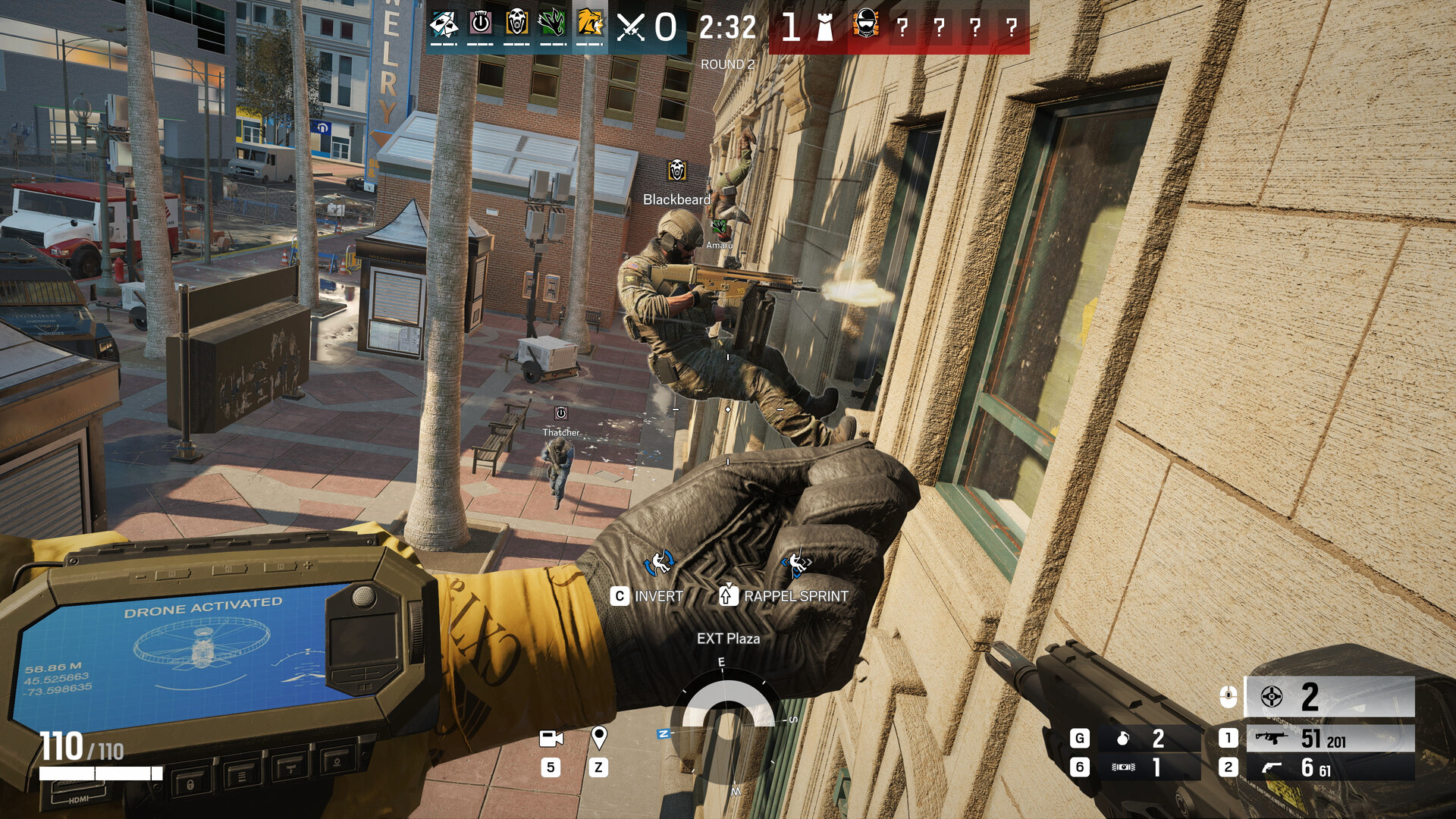
Rainbow Six Siege requires precise mechanical skill and rapid decision making. Winning a gunfight in this Ubisoft tactical shooter often comes down to who can quick-peek an angle faster or deploy a gadget without fumbling their keys. This guide details the default keybinds, optimal setups, and advanced configuration file edits used by high rank players to optimize their reaction times.
Core Movement and Tactical Stance Controls
Positioning dictates who wins engagements in Rainbow Six Siege. You must control your operator smoothly to hold tight angles and maneuver through destructible environments silently.
| Action | Default Key |
| Move Forward | W |
| Move Backward | S |
| Move Left | A |
| Move Right | D |
| Lean Left | Q |
| Lean Right | E |
| Sprint | Shift |
| Navigate (Vault / Rappel) | Space |
| Crouch | C |
| Prone | Left Ctrl |
| Walk (Slow Movement) | Left Alt |
Mastering the Q and E lean mechanics is non-negotiable for high tier play. Many players switch their lean settings from toggle to hold for faster quick-peeking, allowing them to expose their hitbox for only a fraction of a second while gathering visual information on enemy positions.
Combat, Weapons, and Gadget Keybinds
Managing your ammunition and utility while under fire is highly stressful. Having your combat controls mapped to easily reachable keys prevents accidental weapon swaps during critical moments.
| Action | Default Key |
| Shoot | Left Mouse Button |
| Aim Down Sights | Right Mouse Button |
| Reload | R |
| Melee Attack | V |
| Primary Gadget | Middle Mouse Button |
| Secondary Gadget | G |
| Switch Weapon | Mouse Wheel / 1, 2 |
| Ping (Yellow Ping / Contextual) | Z |
| Drop Defuser | X |
The Z key activates the contextual ping system, which allows you to mark enemy gadgets, breached walls, and exact opponent locations without needing voice communication. Rebinding your primary gadget or melee attack to extra mouse buttons frees up your left hand to focus entirely on movement and strafing.
Drone, Observation Tool, and Communication Shortcuts
Information wins rounds. Efficiently switching between cameras and operating your drones keeps your team aware of defender setups and attacker pushes.
| Action | Default Key |
| Deploy Drone | 6 |
| Enter Observation Tools (Cams) | 5 |
| Scan Enemies | Hold X |
| Next Drone / Camera | E |
| Previous Drone / Camera | Q |
| Push to Talk (Voice Chat) | U |
| Team Text Chat | Y |
| All Text Chat | T |
By default, deploying a drone forces your operator to look at their phone immediately. High level players change the Drone Deployment setting in the gameplay menu to Advanced. This allows you to throw the drone as bait or position it without losing your line of sight on a doorway.
Advanced Configuration and Information Gain Settings
The in-game menu only offers basic sensitivity sliders. To achieve precise aiming adjustments, players modify the GameSettings.ini file located on their local drive. This provides absolute control over your MouseYawSensitivity and MousePitchSensitivity multipliers.
- Open your File Explorer and navigate to your Documents folder.
- Locate the folder named My Games and open the Rainbow Six Siege directory.
- Open the folder with the long alphanumeric string which represents your Ubisoft account ID.
- Right click the GameSettings.ini file and open it with a text editor like Notepad.
- Locate the XFactorAiming value under the INPUT section to adjust your specific scope sensitivities mathematically.
Modifying this file allows you to sync your hip-fire sensitivity perfectly with your 1x optics, a technique widely used in professional leagues to build muscle memory.
Frequently Asked Questions about Rainbow Six Siege Controls
How do I change drone deployment to toggle in Rainbow Six Siege?
Open the Options menu and navigate to the Controls tab. Scroll down to Drone Deployment and change it from Standard to Advanced. This prevents the automatic camera transition when throwing a drone.
What are the best keybinds for leaning?
Most players retain the default Q and E keys for leaning. However, some players bind lean left and lean right to their side mouse buttons to separate their aiming mechanics completely from their WASD movement fingers.
How can I fix input lag on my keyboard and mouse?
To reduce input lag, go to your Options menu, open the Controls tab, and enable the Raw Input option. This setting bypasses Windows operating system mouse acceleration and reads inputs directly from your hardware.
Where is the Rainbow Six Siege config file located?
The configuration file is located in your Documents folder. Navigate to Documents, My Games, Rainbow Six Siege, and then open the folder corresponding to your account ID to find the GameSettings.ini file.
What is the default ping key in Siege?
The default key to place a yellow contextual ping or scan an enemy gadget is Z. You can use this key while moving your operator or while looking through observation tools and drones.
How do I walk silently?
Hold the Left Alt key while moving to reduce your footstep audio. Walking silently is necessary for flanking defenders or repositioning during a clutch situation without giving away your location.