
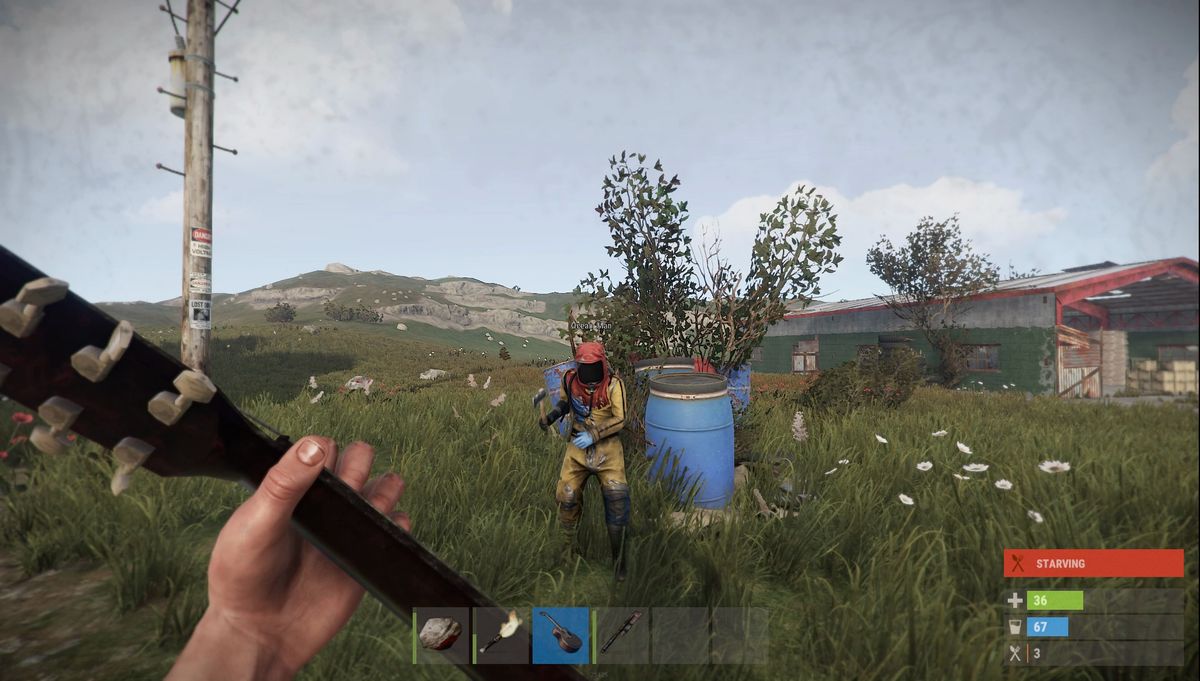
Survival in Rust depends on speed and reaction time. Whether you are defending your base from a raid or farming resources in the radiated zones of a Facepunch Studios server, knowing your keybinds is the difference between keeping your loot and starting over on the beach. This guide covers the default settings and advanced console commands used by professional players on Steam to gain a competitive advantage.
Basic Movement and Environment Controls
Movement in this survival game requires more than just walking. Using the right keys to look around without changing your path or staying quiet while approaching an enemy base is vital.
| Action | Default Key |
| Move Forward | W |
| Move Backward | S |
| Move Left | A |
| Move Right | D |
| Jump | Space |
| Crouch | Left Ctrl |
| Sprint | Left Shift |
| Alt Look (Free Look) | Left Alt |
| Walk (Silent Movement) | Mouse 4 (Optional) |
| Interact / Pick Up | E |
| Flashlight / Laser Toggle | F |
Using the Alt Look feature allows you to scan your surroundings for other players while maintaining your movement direction. This is a critical habit for avoiding ambushes while running through open fields.
Combat and Weapon Management
PvP encounters in Rust are fast and punishing. You must manage your hotbar and reload your weapons while tracking target movement and recoil patterns.
| Action | Default Key |
| Fire Weapon | Left Mouse Button |
| Aim Down Sights | Right Mouse Button |
| Reload | R |
| Next Belt Item | Mouse Wheel Down |
| Previous Belt Item | Mouse Wheel Up |
| Inventory Slot 1 to 6 | Keys 1 to 6 |
| Holster / Unholster | G |
| Map | G (or M depending on version) |
| Voice Chat (Push to Talk) | V |
For effective combat, players often use the numeric keys (1-6) rather than the mouse wheel to select weapons. This prevents accidental scrolling to a building plan or a bandage during a firefight.
Inventory Management and Looting Efficiency
Looting quickly is essential when clearing a monument or looting a fallen player. The Hover Loot feature is one of the most important mechanics for efficiency.
| Action | Default Key |
| Open Inventory | Tab |
| Quick Crafting Menu | Q |
| Hover Loot | H (Hold) |
| Split Stack | Middle Mouse Button (Drag) |
| Transfer Single Item | Right Click |
| Transfer Full Stack | Left Click (with Hover Loot) |
To use Hover Loot, hold the H key and move your mouse over the items you want to take. This transfers items into your inventory instantly without clicking each one. This method saves seconds during high pressure situations like raiding or looting a dynamic event.
Building and Base Maintenance
Constructing a secure base requires quick access to the building plan and the hammer tool. Understanding how to rotate objects and access radial menus is key for base defense.
| Action | Default Key |
| Open Building Menu | Right Click (with Building Plan) |
| Rotate Object | R (while placing) |
| Upgrade / Repair Menu | Right Click (with Hammer) |
| Demolish / Rotate Wall | Right Click (via Hammer Menu) |
| Place Item | Left Click |
Properly placing a Tool Cupboard and ensuring your airlocks are oriented correctly prevents raiders from easily accessing your core. Always check your wall rotation using the R key before finalizing a placement.
Advanced Rust Console Commands for Information Gain
To truly optimize your performance, you can use the F1 console to create custom binds. These commands provide utility that standard menu settings do not offer.
| Function | Console Command (F1) |
| Toggle Field of View (FOV) | bind [key] fov 70 90 |
| Auto Run | bind [key] forward;sprint |
| Check Combat Log | bind [key] combatlog |
| Clear Game Assets (Lag Fix) | gc.collect |
| Kill Character (Suicide) | kill |
| Performance Stats | perf 1 (or 2) |
By binding combatlog to a specific key, you can instantly see if your hits registered on an enemy and how much damage was dealt. This information helps in deciding whether to push an opponent or retreat to heal.
How to Optimize Your Keybinds for Faster Gameplay
Standard settings are a starting point, but customization leads to better results. Many players bind their map to a different key if they prefer using G for holstering. Another common optimization is the auto-run bind. Typing bind q forward;sprint in the console allows you to move across the map without holding down keys, which reduces hand fatigue during long sessions.
Setting a FOV toggle is also useful. Use a lower FOV (70) for long range shooting with a bolt action rifle to make targets appear larger. Switch to a higher FOV (90) for close quarters combat to increase your peripheral vision.
Frequently Asked Questions about Rust Controls
How do I open the console in Rust?
You can open the console by pressing the F1 key while in game or at the main menu. This allows you to enter server addresses, change graphical settings, and set custom keybinds.
What is the key for Hover Loot in Rust?
The default key for Hover Loot is H. Holding this key while moving your cursor over items in a container or on a body will automatically move them to your inventory.
How do I change my fire mode?
Rust does not have a universal fire mode toggle for all weapons. Most weapons are either strictly automatic or semi-automatic. You can check the weapon description in your inventory to see its firing characteristics.
How do I see my FPS in Rust?
Press F1 and type perf 1 to see your frames per second in the corner of your screen. Using perf 2 will show both FPS and latency (ping).
Can I bind a key to auto-attack?
Yes, you can bind a key to keep attacking. This is helpful for soft-siding walls or harvesting resources. Use the command bind [key] attack in the F1 console to automate the action.
How do I crouch toggle in Rust?
To enable crouch toggle, go to the Options menu under the Controls tab. Look for the Duck option and change it from Hold to Toggle. This is useful for staying hidden without holding the Ctrl key constantly.
By mastering these shortcuts and implementing custom console binds, you increase your efficiency in every aspect of the game. Faster looting, better movement, and quick access to combat data provide a clear path to surviving the harsh world created by Facepunch.