
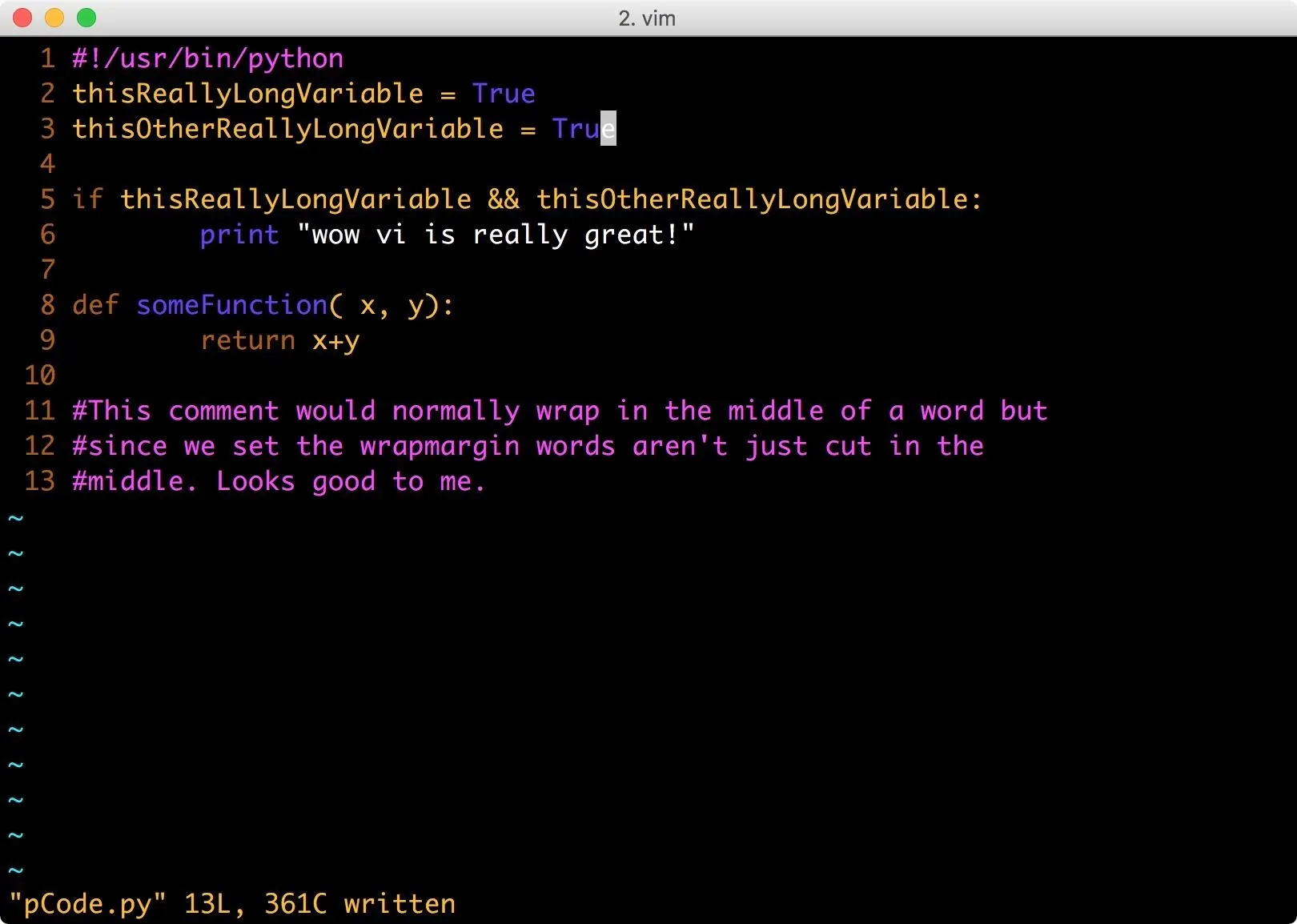
Vim keyboard shortcuts allow users to perform complex text editing tasks in the Vi IMproved editor entirely through a keyboard interface. This page covers 58 verified shortcuts for Windows 10, Windows 11, macOS Sonoma, and Linux systems. Use these Vim hotkeys to switch modes, navigate files, and manipulate text efficiently in terminal environments.
Vim Navigation Shortcuts and Modes
Vim operates using specific modes that change how the software interprets keyboard input. Normal mode allows for navigation and command execution, while Insert mode enables text entry. Understanding these Vim keybinds is the first step toward mastering the editor.
| Shortcut / Key Combination | Action / Function | Notes |
| i | Enter Insert mode | Places the cursor before the current position |
| a | Enter Insert mode (Append) | Places the cursor after the current position |
| Esc | Return to Normal mode | Cancels current command or exits Insert mode |
| v | Enter Visual mode | Allows for character-based text selection |
| V (Shift+V) | Enter Visual Line mode | Selects entire lines of text |
| h | Move cursor left | Move one character to the left |
| j | Move cursor down | Move one line down |
| k | Move cursor up | Move one line up |
| l | Move cursor right | Move one character to the right |
| 0 (Zero) | Jump to start of line | Moves cursor to the very first character |
| $ | Jump to end of line | Moves cursor to the final character of a line |
| w | Jump forward one word | Moves to the start of the next word |
| b | Jump backward one word | Moves to the start of the previous word |
| G (Shift+G) | Jump to end of file | Moves cursor to the last line of the document |
| gg | Jump to start of file | Moves cursor to the first line of the document |
Users often pair these with Linux terminal shortcuts to manage configuration files.
Vim Shortcuts for Editing and Text Manipulation
Editing in Vim involves combinations of keys to delete, copy, and paste text. Unlike standard editors, Vim uses a buffer system for these actions. Use the following Vim shortcut keys list to modify text without using a mouse.
| Shortcut / Key Combination | Action / Function | Notes |
| x | Delete current character | Removes the character under the cursor |
| dd | Delete current line | Removes the line and saves it to the buffer |
| dw | Delete word | Deletes from the cursor to the end of the word |
| d$ | Delete to end of line | Deletes everything from cursor to line end |
| yy | Yank (Copy) current line | Copies the line into the temporary buffer |
| yw | Yank (Copy) word | Copies the current word into the buffer |
| p | Paste after cursor | Places buffer content after the cursor |
| P (Shift+P) | Paste before cursor | Places buffer content before the cursor |
| u | Undo last action | Reverts the most recent change |
| Ctrl+r | Redo last action | Reapplies a change that was undone |
| cc | Change current line | Deletes the line and enters Insert mode |
| cw | Change word | Deletes the word and enters Insert mode |
| r | Replace single character | Swaps the current character with the next key pressed |
| J (Shift+J) | Join lines | Merges the current line with the line below it |
How to Save and Exit in Vim
Learning how to exit Vim is a common challenge for new users because the software requires specific command-line inputs. These commands are executed from Normal mode by typing a colon followed by the specific instruction.
| Shortcut / Key Combination | Action / Function | Notes |
| :w | Save the current file | Writes changes to the disk |
| :q | Exit Vim | Closes the editor if no unsaved changes exist |
| :wq | Save and exit | Writes changes and closes the editor |
| 😡 | Save and exit | Similar to :wq but only writes if changes exist |
| :q! | Exit without saving | Forces the editor to close and discards changes |
| :wa | Save all files | Writes changes for all open buffers |
| :qa | Close all files | Exits the editor for all open documents |
For users working in multi-editor environments, comparing these to Visual Studio Code shortcuts helps clarify different workflow philosophies.
Vim Search and Replace Commands
The Vim keyboard commands for searching allow for rapid movement through large codebases. These commands support regular expressions and global modifiers for document-wide changes.
| Shortcut / Key Combination | Action / Function | Notes |
| /pattern | Search forward | Replace pattern with your search term |
| ?pattern | Search backward | Searches upward from the current cursor position |
| n | Find next occurrence | Repeats the search in the same direction |
| N (Shift+N) | Find previous occurrence | Repeats the search in the opposite direction |
| :%s/old/new/g | Global replace | Replaces all instances of old with new in the file |
| :%s/old/new/gc | Global replace with confirm | Prompts for confirmation before each replacement |
| :noh | Clear search highlighting | Removes the visual highlight from search results |
| * | Search for word under cursor | Finds the next instance of the current word |
Advanced Vim Keyboard Commands for Windows and Linux
Advanced users utilize split windows and tabs to manage multiple files simultaneously. These shortcuts facilitate a more complex development landscape without leaving the terminal.
| Shortcut / Key Combination | Action / Function | Notes |
| :split filename | Open file in horizontal split | Creates a horizontal window for the new file |
| :vsplit filename | Open file in vertical split | Creates a vertical window for the new file |
| Ctrl+w+h | Move to left window | Switches focus to the window on the left |
| Ctrl+w+j | Move to window below | Switches focus to the window below |
| Ctrl+w+k | Move to window above | Switches focus to the window above |
| Ctrl+w+l | Move to right window | Switches focus to the window on the right |
| :tabnew | Open a new tab | Creates a fresh tab for a new file |
| gt | Move to next tab | Cycles forward through open tabs |
| gT | Move to previous tab | Cycles backward through open tabs |
| % | Jump to matching bracket | Moves between matching (), [], or {} |
| . (Dot) | Repeat last command | Executes the previous editing command again |
Refining these skills is similar to learning Sublime Text keybinds for high-speed coding.
Frequently Asked Questions
How do I exit Vim?
Type :q and press Enter to exit if you have no unsaved changes. Use :q! to exit without saving or :wq to save your progress and exit.
What is the undo shortcut in Vim?
Press the u key while in Normal mode to undo your last action. To redo an action that you previously undid, press Ctrl+r.
How do I search for text in Vim?
Press the / key in Normal mode followed by the text you want to find. Press Enter to jump to the first result and use n to cycle through subsequent matches.
How do I copy and paste in Vim?
Press yy to copy a full line or y in Visual mode to copy selected text. Press p to paste the copied content after the cursor.
How do I delete a line in Vim?
Press dd while in Normal mode to delete the entire line where the cursor is currently located. This action also copies the deleted line to the buffer for pasting.
To improve your speed, combine a number with a command, such as typing 3dd to delete three lines at once.
One relevant follow-up question to guide the conversation forward: Are you looking for specific Vim configuration tips, such as how to remap the Caps Lock key to Escape for faster mode switching?