
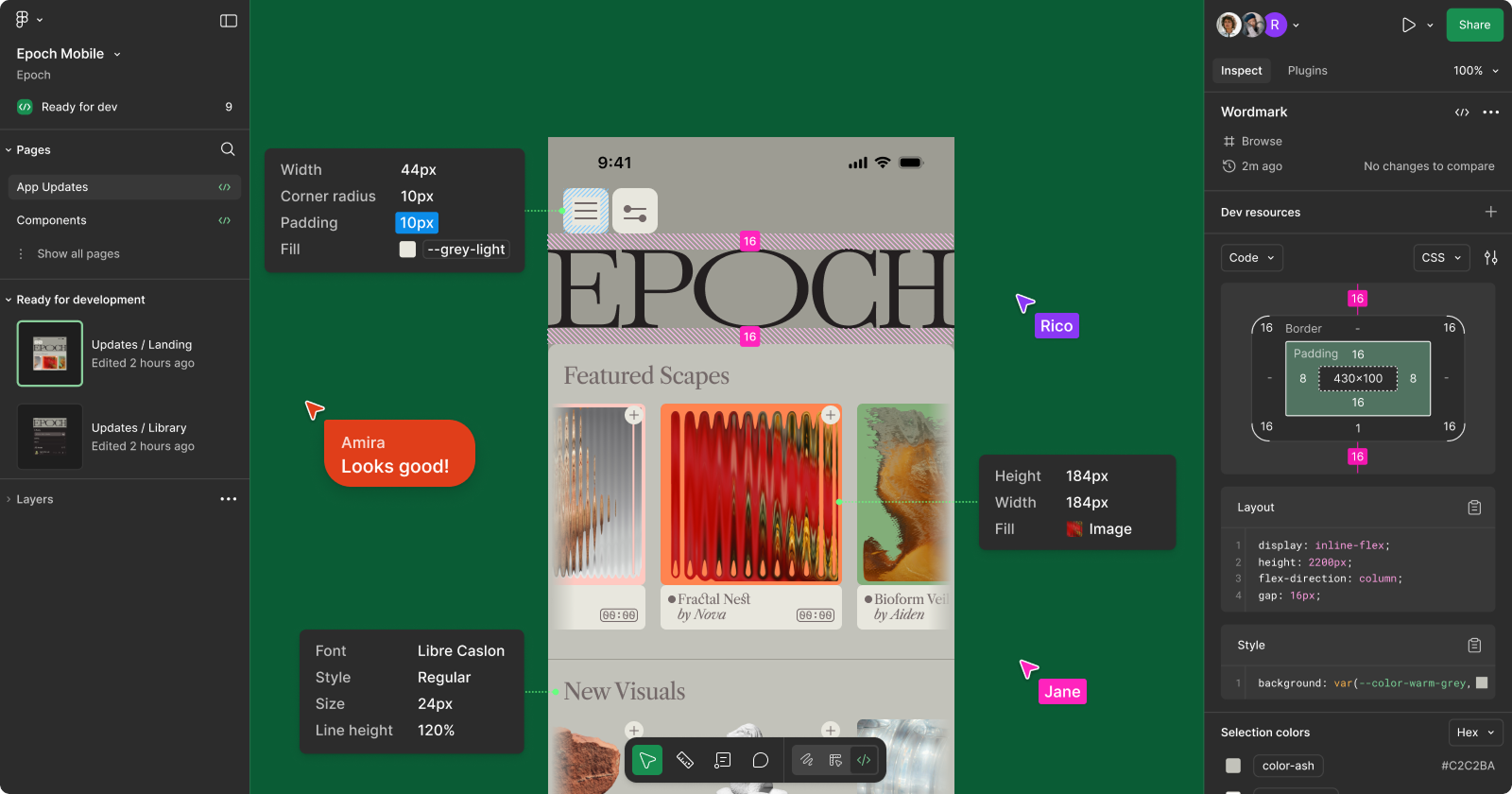
Figma keyboard shortcuts allow designers to navigate the interface and manipulate canvas elements quickly within the Figma web and desktop applications. This page covers 72 verified shortcuts for Windows 10, Windows 11, and macOS Sonoma. Use these categorized tables to find specific commands for layout, layers, and prototyping.
Essential Figma Shortcuts for Windows and Mac
The first step to mastering the interface involves switching between tools without clicking the sidebar. These Figma hotkeys provide immediate access to the most frequent design actions. Users transitioning from other design platforms may also find Adobe Illustrator shortcuts helpful for vector work.
Windows and Linux Essential Shortcuts
| Shortcut / Key Combination | Action / Function | Notes |
| V | Select Move tool | Default cursor mode |
| A / F | Select Frame tool | Creates new artboards |
| R | Select Rectangle tool | Draws four sided shapes |
| L | Select Line tool | Creates straight vectors |
| O | Select Ellipse tool | Draws circles and ovals |
| T | Select Text tool | Opens a new text box |
| P | Select Pen tool | Starts vector path drawing |
| I | Select Eyedropper tool | Samples colors from canvas |
| C | Add Comment | Places a comment marker |
| S | Select Slice tool | Defines export areas |
| Ctrl+/ | Open Quick Actions | Search all commands |
| Ctrl+Shift+? | Open Shortcuts panel | Displays in-app guide |
Mac Essential Shortcuts
| Shortcut / Key Combination | Action / Function | Notes |
| V | Select Move tool | Default cursor mode |
| A / F | Select Frame tool | Creates new artboards |
| R | Select Rectangle tool | Draws four sided shapes |
| L | Select Line tool | Creates straight vectors |
| O | Select Ellipse tool | Draws circles and ovals |
| T | Select Text tool | Opens a new text box |
| P | Select Pen tool | Starts vector path drawing |
| I | Select Eyedropper tool | Samples colors from canvas |
| C | Add Comment | Places a comment marker |
| S | Select Slice tool | Defines export areas |
| Cmd+/ | Open Quick Actions | Search all commands |
| Cmd+Shift+? | Open Shortcuts panel | Displays in-app guide |
Figma Shortcuts for Design and Layout
Managing complex layouts requires precise control over grouping and alignment. These Figma keybinds handle object organization and the creation of responsive structures. Developers inspecting these files often use VS Code keyboard shortcuts to translate these layouts into functional code.
Windows Layout Shortcuts
| Shortcut / Key Combination | Action / Function | Notes |
| Ctrl+G | Group selection | Combines objects |
| Ctrl+Shift+G | Ungroup selection | Breaks group apart |
| Ctrl+Alt+G | Frame selection | Places items in a frame |
| Shift+A | Add Auto Layout | Creates dynamic container |
| Alt+Shift+A | Remove Auto Layout | Reverts to standard frame |
| Ctrl+D | Duplicate | Clones selected item |
| Alt+Drag | Duplicate while moving | Creates copy at new spot |
| Ctrl+Alt+C | Copy properties | Grabs fill and stroke |
| Ctrl+Alt+V | Paste properties | Applies copied styles |
| Alt+L | Collapse all layers | Cleans up the layers panel |
| Ctrl+Shift+K | Place image | Opens file explorer |
Mac Layout Shortcuts
| Shortcut / Key Combination | Action / Function | Notes |
| Cmd+G | Group selection | Combines objects |
| Cmd+Shift+G | Ungroup selection | Breaks group apart |
| Cmd+Opt+G | Frame selection | Places items in a frame |
| Shift+A | Add Auto Layout | Creates dynamic container |
| Opt+Shift+A | Remove Auto Layout | Reverts to standard frame |
| Cmd+D | Duplicate | Clones selected item |
| Opt+Drag | Duplicate while moving | Creates copy at new spot |
| Cmd+Opt+C | Copy properties | Grabs fill and stroke |
| Cmd+Opt+V | Paste properties | Applies copied styles |
| Opt+L | Collapse all layers | Cleans up the layers panel |
| Cmd+Shift+K | Place image | Opens file explorer |
Text Formatting and Viewing Commands
The following Figma keyboard commands control the visibility of the user interface and the styling of text elements. Toggle these settings to focus on specific design details or to prepare for a presentation.
Windows Text and View Shortcuts
| Shortcut / Key Combination | Action / Function | Notes |
| Ctrl+B | Toggle Bold | Applies to selected text |
| Ctrl+I | Toggle Italic | Applies to selected text |
| Ctrl+U | Toggle Underline | Applies to selected text |
| Ctrl+K | Create link | Adds URL to text |
| Ctrl+\ | Show or Hide UI | Toggles all sidebars |
| Ctrl+Shift+4 | Toggle Layout Grids | Shows or hides grid lines |
| Ctrl+Shift+3 | Toggle Outline mode | Displays vector wireframes |
| Ctrl+Alt+Y | Toggle Pixel Preview | Shows rasterized view |
| Shift+H | Flip Horizontal | Mirrors selection |
| Shift+V | Flip Vertical | Flips selection upside down |
| Z+Drag | Zoom to area | Focuses on specific spot |
Mac Text and View Shortcuts
| Shortcut / Key Combination | Action / Function | Notes |
| Cmd+B | Toggle Bold | Applies to selected text |
| Cmd+I | Toggle Italic | Applies to selected text |
| Cmd+U | Toggle Underline | Applies to selected text |
| Cmd+K | Create link | Adds URL to text |
| Cmd+\ | Show or Hide UI | Toggles all sidebars |
| Cmd+Shift+4 | Toggle Layout Grids | Shows or hides grid lines |
| Cmd+Shift+3 | Toggle Outline mode | Displays vector wireframes |
| Cmd+Opt+Y | Toggle Pixel Preview | Shows rasterized view |
| Shift+H | Flip Horizontal | Mirrors selection |
| Shift+V | Flip Vertical | Flips selection upside down |
| Z+Drag | Zoom to area | Focuses on specific spot |
This Figma shortcut keys list ensures that users can maintain high speeds during production. For specialized actions like the how to undo in Figma command, use the standard undo hotkey found in the FAQ below.
Frequently Asked Questions
What is the undo shortcut in Figma?
Press Ctrl+Z on Windows or Cmd+Z on Mac to undo the last action. You can press this combination multiple times to revert through your edit history.
How do I zoom in and out in Figma?
Press + to zoom in and – to zoom out on your keyboard. Alternatively, hold Ctrl or Cmd while using the mouse scroll wheel to adjust the zoom level smoothly.
What is the shortcut for Auto Layout in Figma?
Select the objects you wish to organize and press Shift+A to apply Auto Layout. This action creates a frame with automatic padding and spacing properties.
How do I hide the UI in Figma?
Press Ctrl+\ on Windows or Cmd+\ on Mac to hide the sidebars and toolbar. This shortcut allows you to view your design on a clean canvas without interface distractions.
How do I rename a layer in Figma?
Select the layer in the sidebar or on the canvas and press Ctrl+R on Windows or Cmd+R on Mac. This opens the rename field where you can enter a new name or use bulk renaming features.
To view the most recently updated features and shortcuts, press Ctrl+Shift+? within the application to open the interactive help menu.