
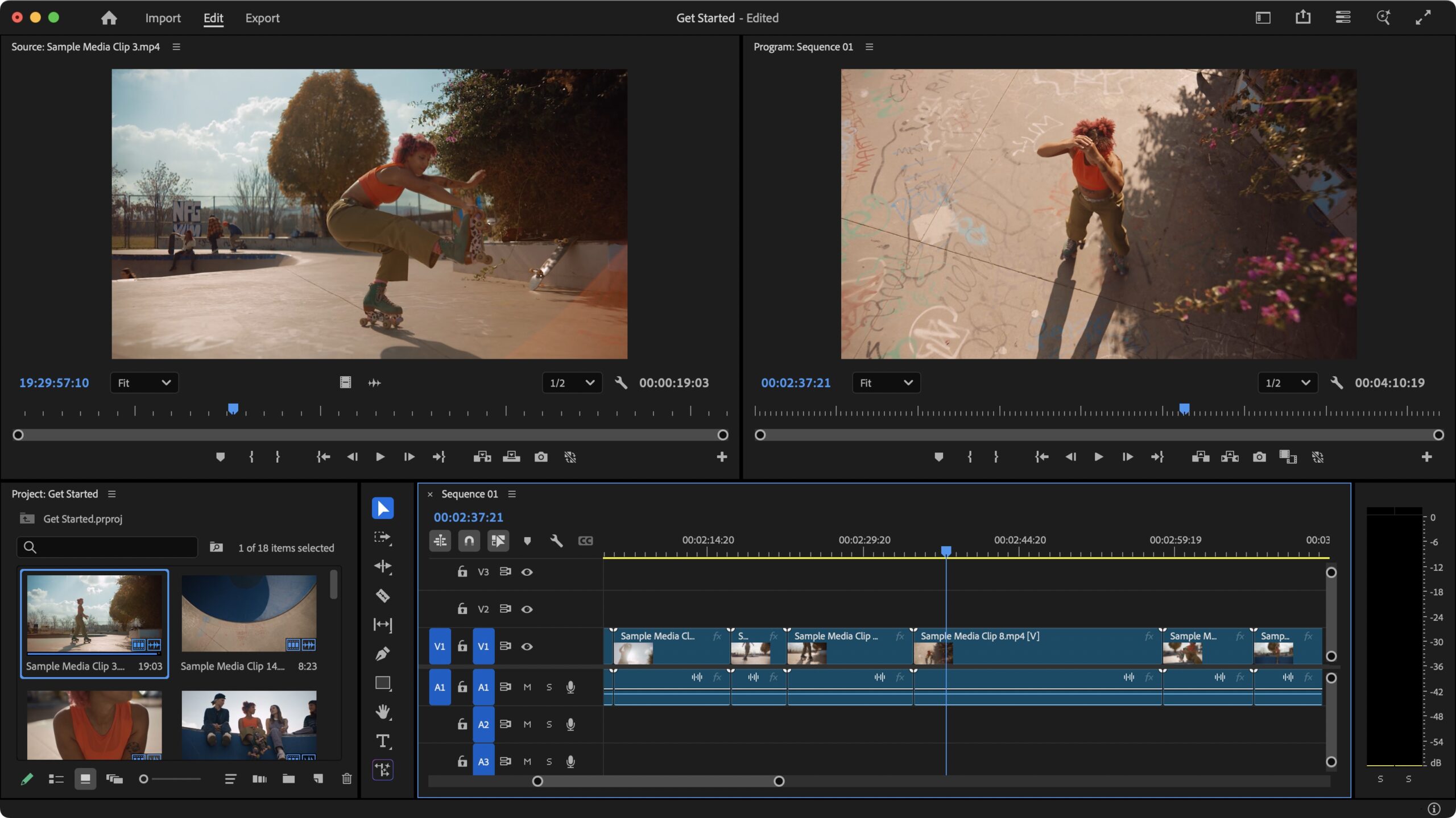
Premiere Pro cut shortcuts allow video editors to split clips and perform ripple edits with precision. This page covers 42 verified shortcuts for Windows 10, Windows 11, and macOS Sonoma. These commands replace mouse movements with keyboard hotkeys to accelerate the trimming process within the Adobe Premiere Pro 2024 timeline.
Primary Premiere Pro Cut Shortcuts
Basic cutting actions form the foundation of video editing workflows. Using the Add Edit command allows for precise slicing without switching tools manually. The Razor Tool provides a visual method for manual cuts across multiple tracks. Editors use these Premiere Pro hotkeys to maintain flow during the rough cut phase.
Windows Shortcuts for Basic Cutting
| Shortcut / Key Combination | Action / Function | Notes |
| Ctrl+K | Add Edit | Applies a cut at the playhead position |
| Ctrl+Shift+K | Add Edit to All Tracks | Slices every unlocked track at the playhead |
| C | Select Razor Tool | Changes the cursor to the razor icon |
| Shift+C | Razor All Tracks | Cuts through all clips at the clicked point |
| V | Selection Tool | Returns the cursor to the standard pointer |
| Shift+Delete | Ripple Delete | Removes clip and closes the resulting gap |
| Backspace | Clear | Removes the clip but leaves a blank space |
| Ctrl+Alt+K | Open Keyboard Shortcuts | Accesses the full keymapping menu |
Mac Shortcuts for Basic Cutting
| Shortcut / Key Combination | Action / Function | Notes |
| Cmd+K | Add Edit | Places a cut on the selected track |
| Cmd+Shift+K | Add Edit to All Tracks | Cuts every clip under the playhead |
| C | Select Razor Tool | Activates the manual slicing tool |
| V | Selection Tool | Deactivates the razor tool |
| Shift+Forward Delete | Ripple Delete | Removes selection and shifts following clips |
| Delete | Clear | Deletes the clip while preserving the gap |
Premiere Pro Trimming Commands and Ripple Edits
Trimming involves adjusting the start and end points of clips to improve timing. The Q and W keys represent the most efficient Premiere Pro trimming commands for removing unwanted footage. These keys perform a ripple trim, which automatically closes gaps created by the cut. Mastering these Premiere Pro keybinds reduces the time spent dragging clip edges with a mouse.
| Shortcut / Key Combination | Action / Function | Notes |
| Q | Ripple Trim Previous Edit | Trims from the start of the clip to playhead |
| W | Ripple Trim Next Edit | Trims from the playhead to the end of the clip |
| Shift+Q | Trim Previous Edit | Trims start to playhead without moving other clips |
| Shift+W | Trim Next Edit | Trims end to playhead without moving other clips |
| Ctrl+Alt+Left | Trim Backward Many | Moves the edit point five frames left (Windows) |
| Ctrl+Alt+Right | Trim Forward Many | Moves the edit point five frames right (Windows) |
| Cmd+Opt+Left | Trim Backward Many | Moves the edit point five frames left (Mac) |
| Cmd+Opt+Right | Trim Forward Many | Moves the edit point five frames right (Mac) |
| Alt+Left | Nudge Clip Left | Moves the selected clip one frame left |
| Alt+Right | Nudge Clip Right | Moves the selected clip one frame right |
Advanced Editing and Selection Shortcuts
Advanced editors utilize Premiere Pro shortcut keys list entries to perform complex maneuvers like slipping or sliding. Slip edits change the internal content of a clip without moving its position on the timeline. Slide edits move the clip on the timeline while automatically adjusting the surrounding clips. These actions are vital for fine tuning transitions and synchronization. You can find more timing tools in our guide for Premiere Pro timeline navigation.
| Shortcut / Key Combination | Action / Function | Notes |
| Y | Slip Tool | Adjusts in and out points simultaneously |
| U | Slide Tool | Shifts a clip between two adjacent clips |
| N | Rolling Edit Tool | Moves the edit point between two clips |
| B | Ripple Edit Tool | Adjusts one edit point and shifts the timeline |
| T | Trim Edit | Opens the Trim Monitor for precise adjustments |
| Ctrl+D | Apply Default Transition | Adds a cross dissolve to the cut (Windows) |
| Cmd+D | Apply Default Transition | Adds a cross dissolve to the cut (Mac) |
| Shift+D | Apply Audio Transition | Adds the default audio fade to the cut |
Mouse and Keyboard Combinations for Cutting
Combining mouse clicks with modifier keys unlocks hidden functionality in the Premiere Pro timeline. These keyboard commands allow for non destructive editing and track specific targeting. Using these combinations prevents accidental edits on locked or background tracks. If you are finishing a project, refer to the Adobe Premiere Pro export shortcuts to speed up your output.
| Shortcut / Key Combination | Action / Function | Notes |
| Alt+Click | Select Single Track | Selects only video or audio in a linked clip |
| Ctrl+Click Edit Point | Cycle Trim Types | Toggles between Ripple, Rolling, and Regular trim |
| Alt+Drag | Duplicate Clip | Creates a copy of the clip while moving it |
| Shift+Drag | Snap to Playhead | Forces the clip edge to align with the playhead |
| Cmd+Click Edit Point | Select Edit Point | Selects the cut for keyboard trimming (Mac) |
| Ctrl+Shift+Drag | Insert Edit | Drops a clip and pushes others to the right |
Frequently Asked Questions
What is the shortcut to cut a clip in Premiere Pro?
Press Ctrl+K on Windows or Cmd+K on Mac to add an edit at the playhead position. This command splits the clip on the selected track or tracks instantly.
How do I ripple delete in Premiere Pro?
Select the clip or the gap and press Shift+Delete on Windows or Shift+Forward Delete on Mac. This action removes the selection and automatically shifts all subsequent clips to fill the empty space.
What do Q and W do in Premiere Pro?
The Q key performs a Ripple Trim Previous Edit to Playhead, while the W key performs a Ripple Trim Next Edit to Playhead. These keys remove footage and close the gap in a single keystroke.
How to split a clip in Premiere Pro Mac?
Use the Cmd+K combination to split a clip at the current playhead location. Activate the Razor Tool by pressing C to split clips manually by clicking with the mouse.
How do I nudge a clip by one frame?
Hold the Alt key and press the Left Arrow or Right Arrow keys on Windows. On Mac, hold the Option key and use the Arrow Keys to move a selected clip one frame at a time.
For more efficient workflows, ensure the Selection Tool is active by pressing V before performing major clip movements. Accurate Premiere Pro cut shortcuts usage requires the correct tracks to be targeted in the timeline header.