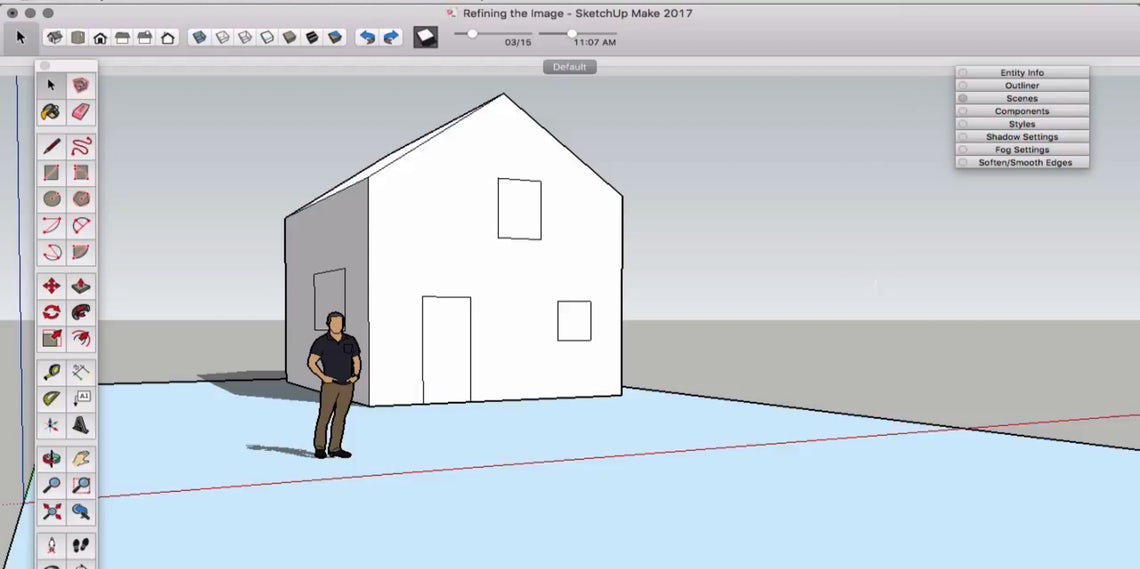
In SketchUp, the “Inference Engine” is your best friend, but your keyboard is your primary steering wheel. Moving your cursor back and forth to the toolbar for every line or push-pull operation is the biggest bottleneck in 3D design. By mastering these default keybindings, you can keep your focus entirely on the geometry and the “Snaps.”
This guide covers the essential SketchUp shortcuts for the 2026 Pro and Web versions. These are categorized to help you transition from basic shapes to complex architectural components with professional speed.
1. Essential Drawing & Modification Tools
These are the high-frequency tools you will use 90% of the time. In SketchUp, almost every primary tool is mapped to a single letter.
| Action | Key Trigger | Description |
| Select Tool | Spacebar | The most important key; use it to drop any active tool. |
| Line Tool | L | Draws edges from point to point. |
| Eraser Tool | E | Deletes edges (Hold Shift to Hide, Ctrl to Soften). |
| Push / Pull | P | Extrudes faces into 3D volumes. |
| Move Tool | M | Moves, stretches, or copies (Tap Ctrl/Alt to Copy). |
| Rotate Tool | Q | Rotates, stretches, or copies selected geometry. |
| Scale Tool | S | Scales or stretches selected geometry. |
| Offset Tool | F | Creates concentric copies of lines/faces. |
| Tape Measure | T | Measures distances or creates guide lines. |
| Paint Bucket | B | Applies materials and colors to faces. |
2. Viewport & Navigation
Effective 3D modeling requires constant perspective shifts. Using a 3-button mouse is highly recommended, but these keys offer additional control.
| Action | Key Combination |
| Orbit | Middle Mouse Button (Scroll Wheel) |
| Pan | Shift + Middle Mouse Button |
| Zoom Extents | Ctrl + Shift + E (Fits everything on screen) |
| Previous View | Backspace |
| Toggle Perspective / Parallel | No Default (Recommend binding to V) |
| Standard Views | Top (Alt+1), Front (Alt+2), Right (Alt+3) |
3. Grouping & Component Management
Working without groups is the fastest way to ruin a SketchUp model. These shortcuts ensure your geometry remains “clean” and non-sticky.
| Action | Windows Shortcut | macOS Shortcut |
| Make Group | G (Custom) / Right Click | G (Custom) / Right Click |
| Make Component | G (Standard default) | G (Standard default) |
| Hide Selection | Ctrl + H (Custom) | Cmd + H (Custom) |
| Unhide All | Alt + H (Custom) | Opt + H (Custom) |
| Hide Rest of Model | No Default (Recommend Shift + H) | No Default (Recommend Opt + H) |
4. View Styles (X-Ray & Wireframe)
Toggling transparency allows you to snap to hidden endpoints or internal geometry without rotating the camera.
| Action | Key Trigger |
| X-Ray Mode | X (Custom) / Shift + X |
| Wireframe Mode | Alt + 5 |
| Back Edges (K-Line) | K |
| Toggle Hidden Geometry | No Default (Recommend Alt + H) |
5. Construction & Precision Commands
Precision is what separates a sketch from a technical model. Use the “Measurements” box (VBC) in conjunction with these modifiers.
| Action | Key Combination |
| Lock Axis (Blue) | Up Arrow (Vertical) |
| Lock Axis (Green) | Left Arrow |
| Lock Axis (Red) | Right Arrow |
| Lock to Current Inference | Shift (Hold while moving/drawing) |
| Toggle Copy Mode | Ctrl (While using Move or Rotate) |
| Array Copy | Move + [Distance] + Enter + [x5] (Creates 5 copies) |
💡 Professional Tip: The “Group” Habit
SketchUp uses “sticky geometry,” meaning if two shapes touch, they merge. To prevent this, always select your object and Make Group (or Component) immediately. A pro-level workflow involves assigning a specific hotkey to “Make Group” (such as Shift+G) because the default G is usually reserved for Components, which require a naming dialog.