
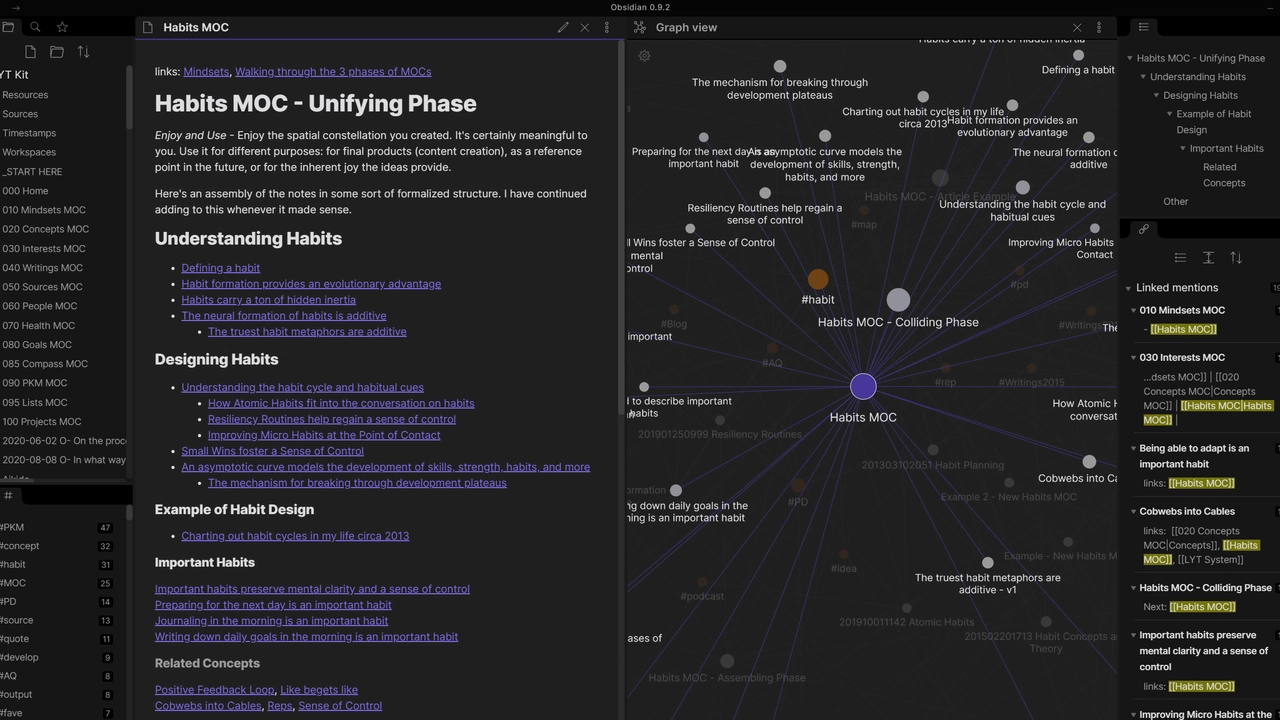
Obsidian is a powerful, locally-hosted knowledge management tool built entirely on Markdown. To truly enter a “flow state” while building your personal knowledge base or Zettelkasten, you need to rely on the keyboard. Navigating between linked notes, opening the graph view, and structuring your thoughts should happen instantly.
This cheat sheet provides the most critical Obsidian hotkeys, categorized to help you manage your workspace, format text, and connect your ideas without lifting your hands from the keyboard.
1. Core Navigation & Interface
These are the foundational shortcuts for moving around your vault and accessing Obsidian’s most powerful tool: the Command Palette.
| Action | Windows / Linux | macOS |
| Open Command Palette | Ctrl + P | Cmd + P |
| Quick Switcher (Open File) | Ctrl + O | Cmd + O |
| Global Search | Ctrl + Shift + F | Cmd + Shift + F |
| Open Graph View | Ctrl + G | Cmd + G |
| Toggle Left Sidebar | *Ctrl + * (Customizable) | *Cmd + * (Customizable) |
| Toggle Right Sidebar | No Default | No Default |
| Navigate Back / Forward | Ctrl + Alt + Left / Right | Cmd + Opt + Left / Right |
2. Note Management & Tabs
Obsidian’s tabbed interface allows you to manage multiple documents simultaneously. Use these shortcuts to split your workspace for parallel reading and writing.
| Action | Windows / Linux | macOS |
| Create New Note | Ctrl + N | Cmd + N |
| Open in New Tab | Ctrl + Click | Cmd + Click |
| Close Current Tab | Ctrl + W | Cmd + W |
| Restore Closed Tab | Ctrl + Shift + T | Cmd + Shift + T |
| Go to Next / Previous Tab | Ctrl + Tab / Ctrl + Shift + Tab | Control + Tab / Control + Shift + Tab |
| Split View Vertically | No Default (Recommend binding to Ctrl+V) | No Default (Recommend binding to Cmd+V) |
| Split View Horizontally | No Default (Recommend binding to Ctrl+H) | No Default (Recommend binding to Cmd+H) |
3. Markdown & Formatting
Obsidian renders Markdown in real-time. These shortcuts allow you to format text and, most importantly, create the bidirectional links that make Obsidian unique.
| Action | Shortcut / Trigger | Description |
| Internal Link (Wikilink) | [[ | Opens autocomplete for linking to other notes. |
| Embed File / Image | ![[ | Embeds the content of a note or image directly. |
| Tag | # | Creates a clickable tag (e.g., #research). |
| Bold Text | Ctrl + B / Cmd + B | Wraps text in ** |
| Italic Text | Ctrl + I / Cmd + I | Wraps text in * |
| Toggle Highlight | No Default | Wraps text in == |
| Insert Checkbox (Task) | Ctrl + L / Cmd + L | Creates a – [ ] task list item. |
4. Editing & Structure
Manipulate text blocks quickly to reorganize your notes and outlines.
| Action | Windows / Linux | macOS |
| Move Line Up / Down | Alt + Up / Down | Opt + Up / Down |
| Delete Current Line | Ctrl + D | Cmd + D |
| Toggle Reading / Source View | Ctrl + E | Cmd + E |
| Fold / Unfold Heading or List | Ctrl + Up / Down Arrow | Cmd + Up / Down Arrow |
| Fold All | Ctrl + Shift + Up Arrow | Cmd + Shift + Up Arrow |
| Unfold All | Ctrl + Shift + Down Arrow | Cmd + Shift + Down Arrow |
💡 Professional Tip: The “Settings > Hotkeys” Power Move
Obsidian leaves several highly useful commands without default hotkeys to avoid conflicting with your OS. The first thing any power user should do is press Ctrl + , (or Cmd + ,) to open Settings, navigate to Hotkeys, and manually assign keys for:
- Split Right / Split Down: Essential for viewing a source note while writing in another.
- Toggle Pinned: Prevents a tab from being accidentally closed or overwritten by a new link.
- Move file to another folder: Greatly speeds up inbox sorting and Zettelkasten organization.