
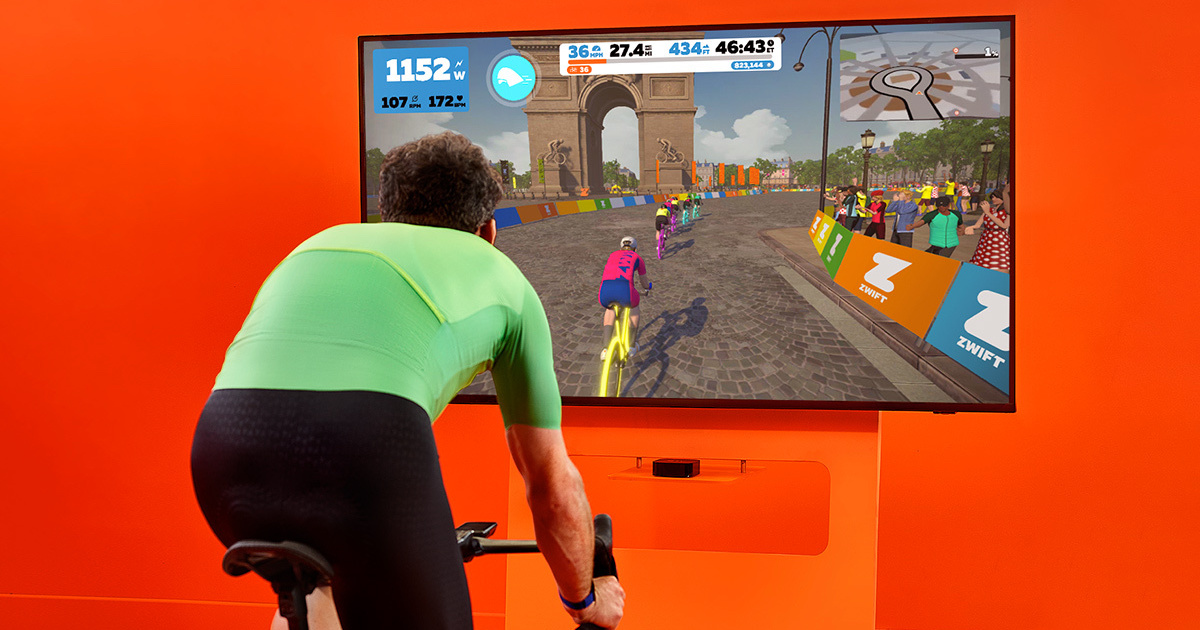
Zwift is the premier virtual training platform where performance and immersion are driven by real-time interactions. Mastering Zwift keyboard shortcuts is the most effective way to navigate the virtual world of Watopia without breaking your cadence or fumbling with a touchscreen. Whether you are racing in the Premier Division or joining a social group ride, these default keybindings allow you to trigger power-ups, change camera angles, and communicate with other riders instantly.
This guide provides a comprehensive breakdown of the Zwift shortcuts for 2026. From essential movement controls to advanced spectator views, these hotkeys are designed for PC and Mac users who want to maximize their training efficiency. By integrating these Zwift keybindings into your setup, you can focus entirely on your wattage and drafting strategy.
Essential Movement and Navigation
These shortcuts handle your direction, power-ups, and primary interface menus while riding.
| Action | Keyboard Key |
| Use Power-Up | Spacebar |
| Turn Left / Right | Left / Right Arrow |
| Perform U-Turn | Down Arrow |
| Show Actions/Options Menu | Up Arrow |
| Skip Workout Block | Tab |
| Adjust Intensity (FTP Bias) | Page Up / Page Down |
| Device Pairing Screen | A |
| Garage (Change Bike/Kit) | T |
| Workout Selection Menu | E |
| End Ride / Menu | Esc |
Camera Angles and Perspectives
Switching views allows you to check for gaps in the peloton or enjoy the scenery from unique angles.
| View Type | Number Key |
| Default (6 o’clock) | 1 |
| Third-Person View | 2 |
| First-Person POV | 3 |
| Side View (Front-Left) | 4 |
| Rear View (Low) | 5 |
| Head-On View | 6 |
| Spectator View | 7 |
| Helicopter View | 8 |
| Bird’s Eye View | 9 |
| Drone View (Free Camera) | 0 (Use Arrows/Home/End to move) |
Social and Rider Actions
Communication is key for group coordination. Use the function keys to send quick signals to nearby riders.
| Action | Keyboard Key |
| Elbow Flick (Draft Me) | F1 |
| Wave Hand | F2 |
| “Ride On!” | F3 |
| “Hammer Time!” | F4 |
| “Nice!” | F5 |
| “Bring It!” | F6 |
| “I’m Toast” | F7 |
| Bike Bell | F8 |
| Capture Photo (Screenshot) | F10 |
| Group Message Window | M |
HUD and Data Display Toggles
Clean up your interface to focus on the road or track your performance metrics in detail.
| Action | Keyboard Key |
| Hide HUD (Minimalist View) | H |
| Toggle Watt/HR Graph | G |
| Cycle Mini-Map Zoom | M (In some views) |
| Enter Promo Code | P |
| Toggle Chat Window | Shift + C |
Professional Tip: The “Drone View” Strategy
In the 2026 version of Zwift, using the 0 (Zero) key for Drone View offers the most tactical advantage during races. Once in Drone View, use the +/- keys to zoom and the arrow keys to pan. This allows you to look back at the chasing group or scout the upcoming terrain without changing your rider’s direction.
For the best experience, many pro Zwifters recommend using a wireless keyboard with a built-in trackpad (like the Logitech K400) mounted on a dedicated cycling desk. This keeps all Zwift default controls within arm’s reach, ensuring you never drop out of the draft while trying to send a “Ride On!”